
Overview
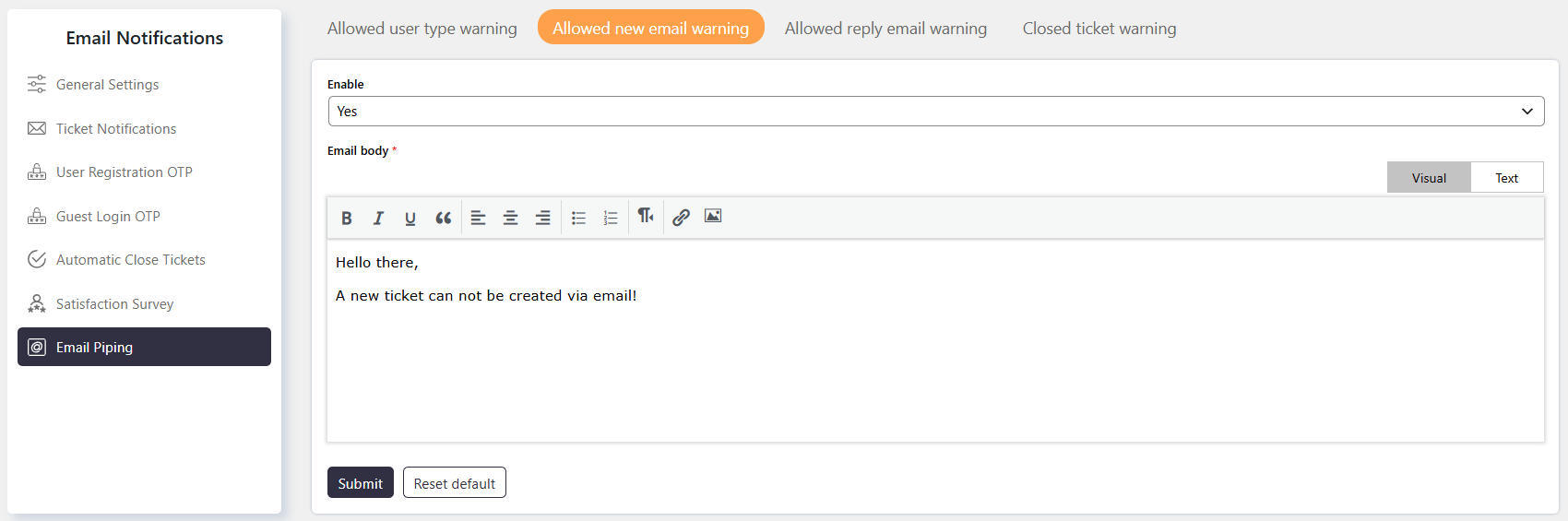
The Allowed New Email Warning notification is used when email piping is configured to accept reply emails only.
If a user sends an email that attempts to create a new ticket, the system can send this notification to inform the user that new tickets cannot be created through email piping.
Where to Find
Go to Support → Email Notifications → Email Piping → Allowed New Email Warning.
How It Works
When Allowed Emails is set to Reply Only Emails, email piping processes emails only when they are replies to existing tickets.
If an incoming email does not contain a valid ticket ID in the subject and therefore attempts to create a new ticket, the email is blocked and the sender receives the Allowed New Email Warning notification.
Step-by-Step Guide
- Go to Support → Settings → Email Piping → General.
- Locate the Allowed Emails setting.
- Select Reply Only Emails.
- Go to Support → Email Notifications → Email Piping → Allowed New Email Warning.
- Configure the warning notification as required.
- Save the notification settings.
Options / Settings
Allowed Emails
This setting determines which types of emails can be imported through email piping. You can find this setting at Support → Settings → Email Piping → General.
- Reply Only Emails – Only emails that contain a ticket ID in the subject are imported as replies to existing tickets. Emails without a ticket ID are blocked, and the sender receives the Allowed New Email Warning notification.
Example
If Allowed Emails is set to Reply Only Emails and a user sends a new email without a ticket ID, the system will not create a new ticket. Instead, the user will receive the Allowed New Email Warning notification.
Notes / Tips
- The Allowed New Email Warning applies when email piping is configured for reply emails only.
- Configure this behavior from Support → Settings → Email Piping → General → Allowed Emails.
- Customize the warning notification from Support → Email Notifications → Email Piping → Allowed New Email Warning.