
Overview
Customer Fields allow you to store additional or advanced information related to customer accounts. These fields can be customized based on your requirements, helping you manage and organize customer data more effectively.
Where to Find
Go to: SupportCandy → Custom Fields → Customer Fields
Add a New Customer Field
You can create custom fields to collect and store extra customer information.
Steps to Add
- Go to SupportCandy → Custom Fields → Customer Fields
- Click the Add New button (available in the header section)
- Enter the required details:
- Field Label
- Load after
- Additional settings (based on field type)
- Click Save to create the field
Default Customer Fields
-
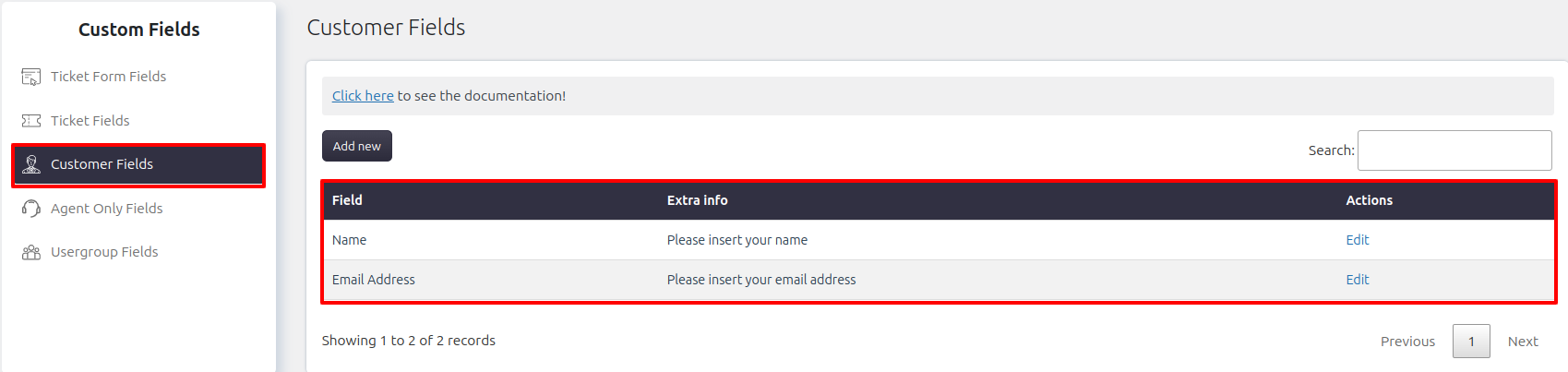
By default, SupportCandy includes some basic customer fields:
- Name: Stores the customer’s full name
- Email Address: Stores the customer’s email address
Each field includes an Edit option under the Actions column, allowing you to modify field settings when needed.
Edit Customer Fields
You can update existing customer fields at any time.
Steps to Edit
- Go to SupportCandy → Custom Fields → Customer Fields
- Locate the field you want to modify
- Click Edit under the Actions column
- Update the required settings
- Click Save
View Customer Field Values
Customer field values can be viewed in multiple places within SupportCandy.
Locations
- Customer Profile Page
Go to Support → Customers → View to see all customer details along with custom field values - Ticket Page
Open any ticket and check the “Raised By” section
Click the info icon to view customer field details
Example
Suppose you want to store a customer’s company name:
- Go to Customer Fields
- Click Add New
- Create a field named Company Name
- Save the field
Now, this field will be available to store and view company information for each customer.
Notes / Tips
- Use customer fields to store important data like company name, phone number, or address
- Keep field names clear and meaningful for better usability
- Avoid creating unnecessary fields to keep the interface clean
- Regularly review and update fields as your requirements evolve