
Overview
Canned replies allow Support Agents to create reusable responses that can be quickly added to Ticket replies. They help save time and maintain consistent responses to common customer queries.
Where to Find
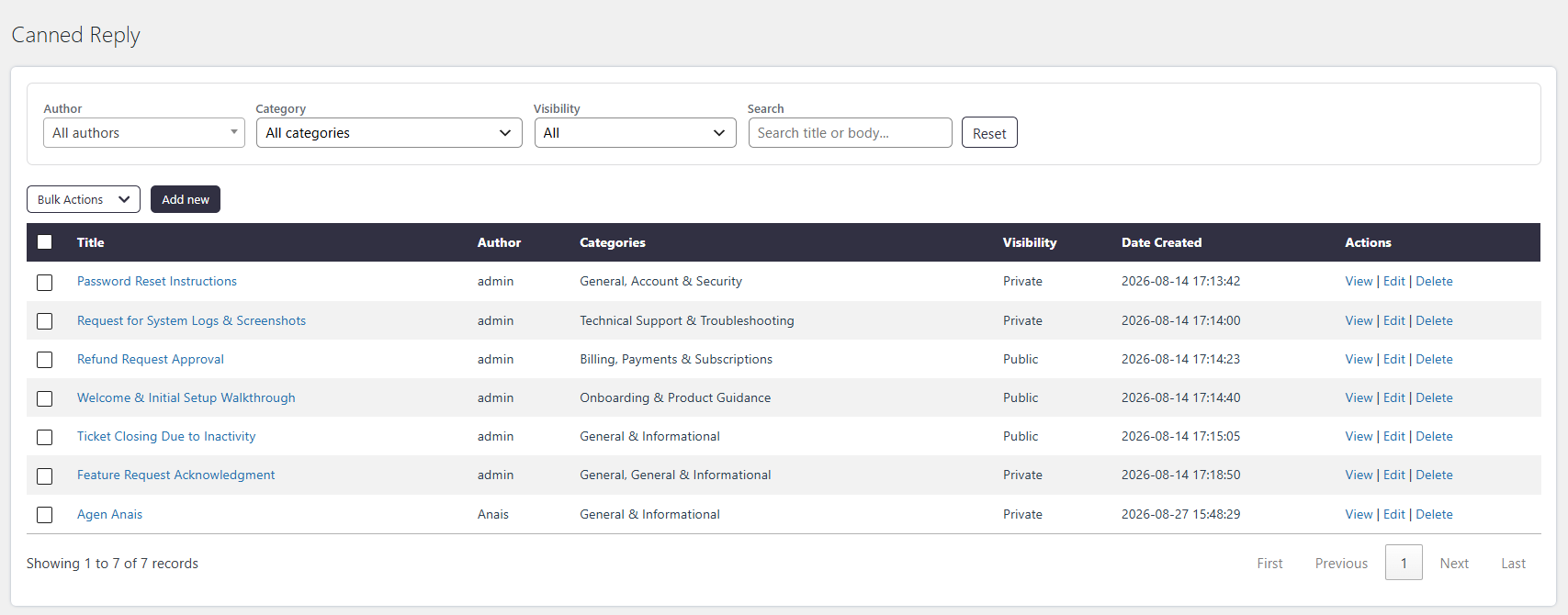
Go to Support → Canned Reply.
How It Works
Create a canned reply by defining its Title, Body, Categories, and Visibility. Once created, Agents can use the canned reply when responding to Tickets based on its visibility and category.
You can filter the canned reply using filters provided above:
- Author: Select the author whose canned replies you want to view.
- Category: Select a category listed under Canned Reply Categories in Settings.
- Visibility: Filter canned replies by Private or Public visibility.
- Search: Enter a word or phrase to search for a specific canned reply.
Step-by-Step Guide
- Go to Support → Canned Reply.
- Click Add New to create a canned reply.
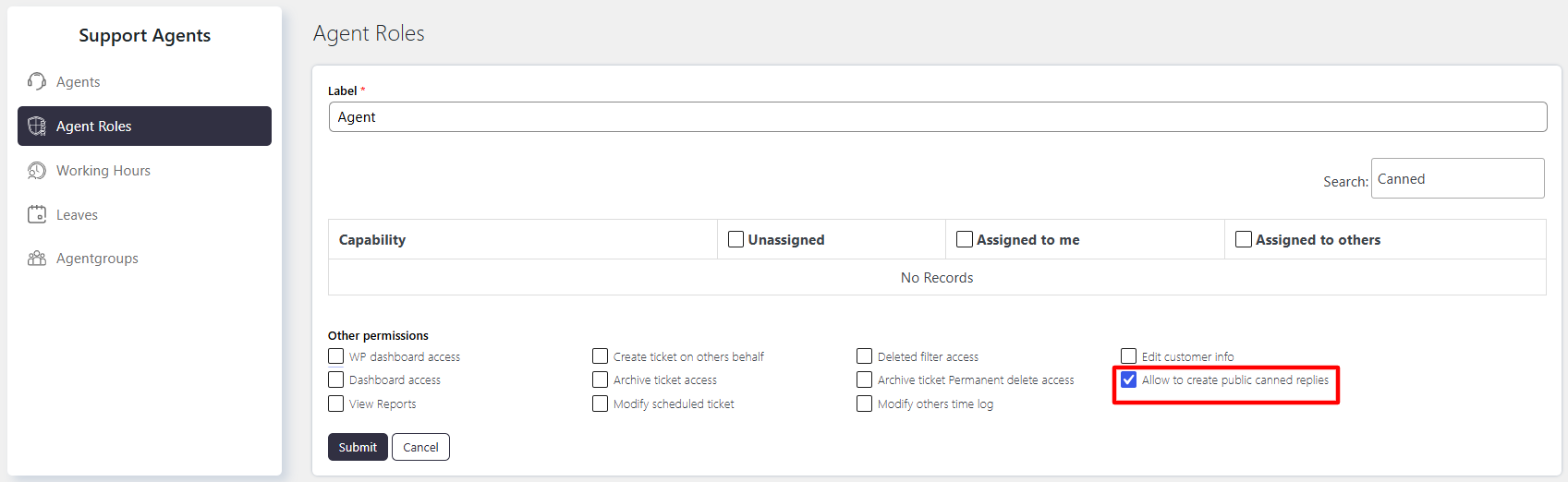
- Enter a suitable Title.
- Add the response content in Body.
- Select a Categories for the canned reply.
- Select the required Visibility.
- Save the canned reply.
Options / Settings
Title
Enter a suitable title that clearly identifies the canned reply.
Body
Enter the response content that will be used when the canned reply is inserted into a Ticket reply.
- You can use macros to insert dynamic information.
- Macros can include details such as Customer name, Subject, Date of creation, and Assignee.
Categories
Assign a category to organize canned replies and make them easier to find.
- Categories can be managed from Support → Settings → Canned Reply → Categories.
- You can use categories to group related canned replies.
Visibility
Controls which users can view and use the canned reply.
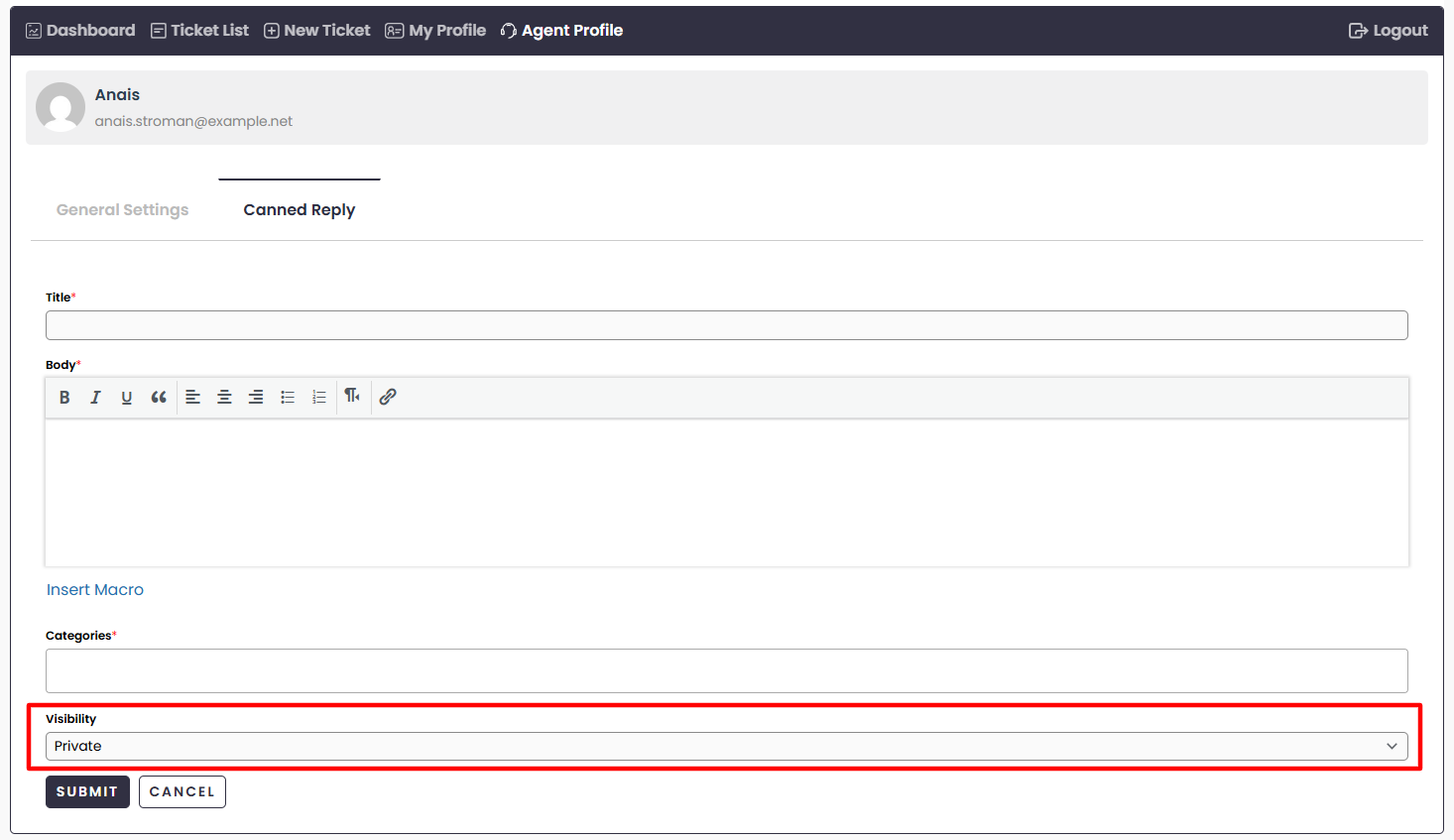
- Private – Only the author of the canned reply can view and use it.
- Public – All Support Agent roles can view and use it.
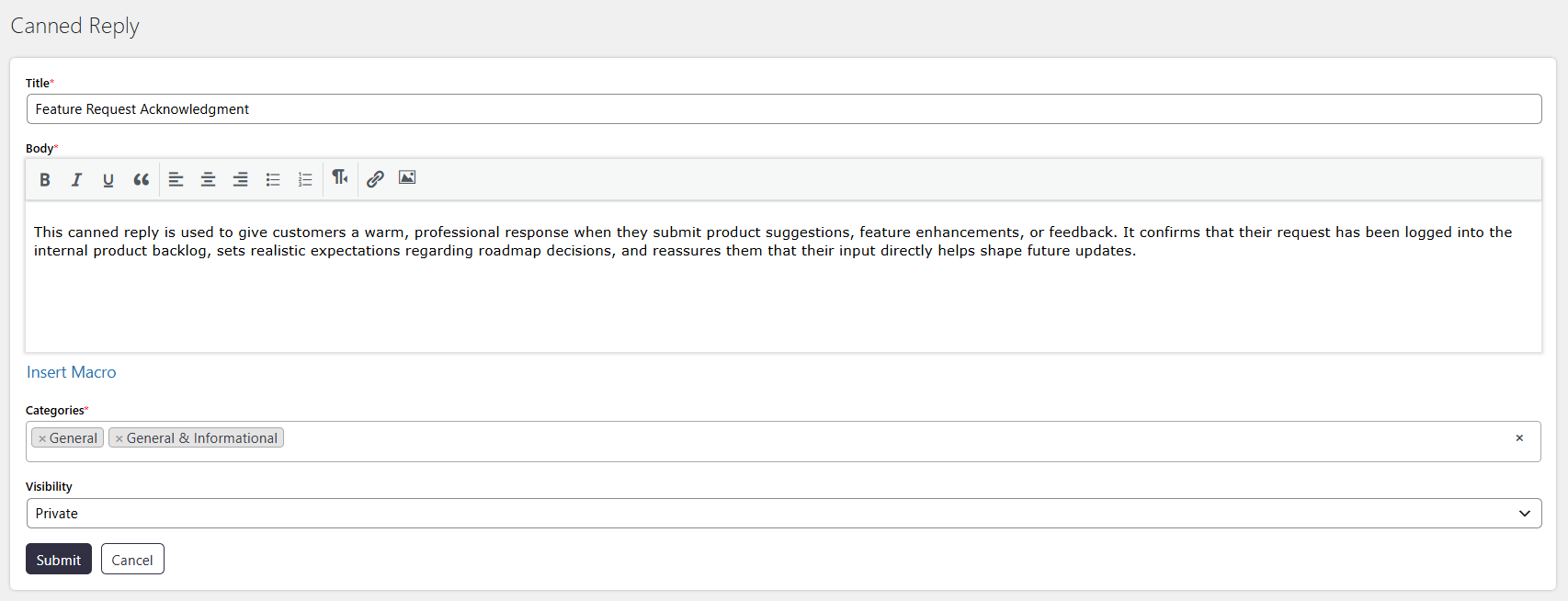
Allow to create public canned replies
Agent can add public canned replies
Agents can add canned replies in the same way as administrators. However, the Allow to create public canned replies permission controls whether an agent can create public canned replies.
- If the agent has this permission, they can create Public canned replies that are available to all agents.
- If the agent does not have this permission, they can create only Private canned replies.
Example
For a frequently asked question about ticket response times, you can create a canned reply with the title Response Time, add the standard response in Body, assign an appropriate Categories, and set Visibility to Public so Support Agents can use it.
Notes / Tips
- Use clear and descriptive Title values to make canned replies easy to identify.
- Use Categories to organize frequently used responses.
- Use macros in Body when the response needs dynamic Ticket or customer information.
- Use Private visibility for responses intended only for personal use and Public for responses shared across Support Agent roles.