
Overview
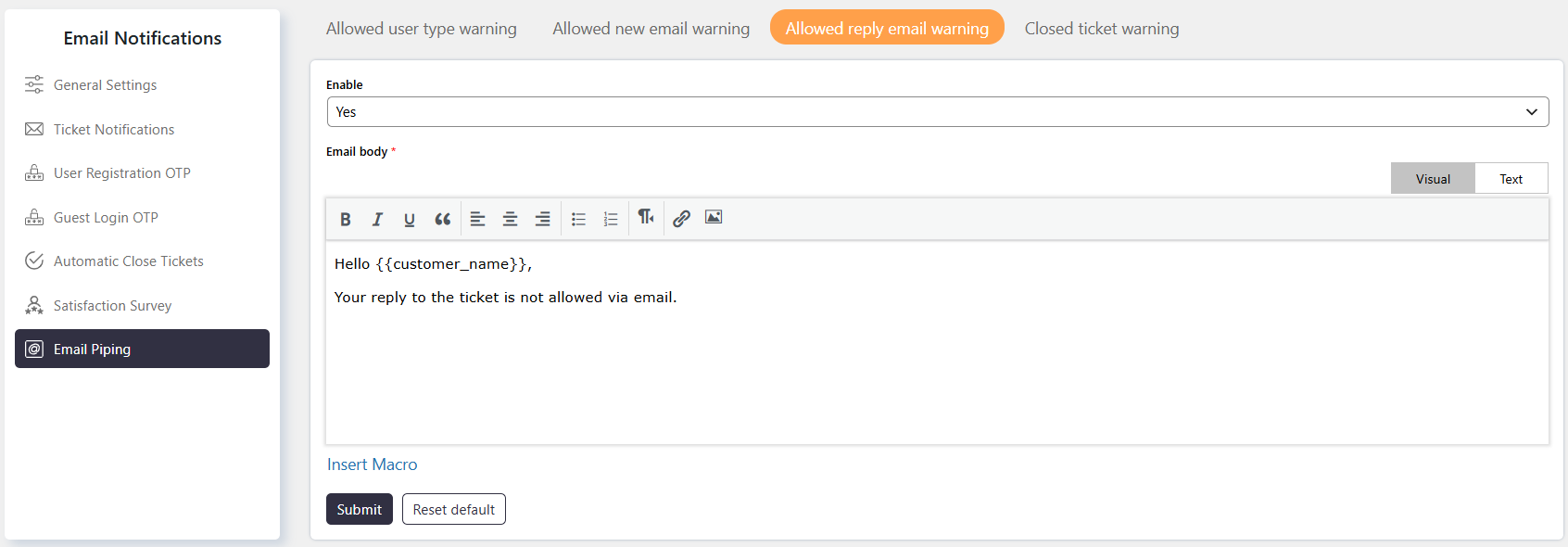
The Allowed Reply Email Warning notification is used when email piping is configured to create new tickets only.
If a user tries to reply to an existing ticket through email piping, the system blocks the reply and sends this notification.
Where to Find
Go to Support → Email Notifications → Email Piping → Allowed Reply Email Warning.
How It Works
When Allowed Emails is set to allow only new emails, email piping accepts emails that create new tickets.
Replies to existing tickets are not imported. The sender receives the Allowed Reply Email Warning notification instead.
Step-by-Step Guide
- Go to Support → Settings → Email Piping → General.
- Locate Allowed Emails.
- Configure the setting to allow only new emails.
- Go to Support → Email Notifications → Email Piping → Allowed Reply Email Warning.
- Configure the warning notification as required.
- Save the notification settings.
Options / Settings
Allowed Emails
Controls which types of emails can be imported through email piping.
When email piping is configured for new emails only, users cannot use email piping to reply to existing tickets.
Example
If email piping is configured to create new tickets only and a customer replies to an existing ticket by email, the reply will not be imported. The customer will receive the Allowed Reply Email Warning notification.
Notes / Tips
- Use Allowed Reply Email Warning when email piping is intended only for creating new tickets.
- Configure the email piping behavior from Support → Settings → Email Piping → General → Allowed Emails.
- Customize the warning notification from Support → Email Notifications → Email Piping → Allowed Reply Email Warning.
The structure and writing style above follow the uploaded SupportCandy documentation guidelines, including short sections, clear navigation paths, actionable steps, and consistent terminology.