
Overview
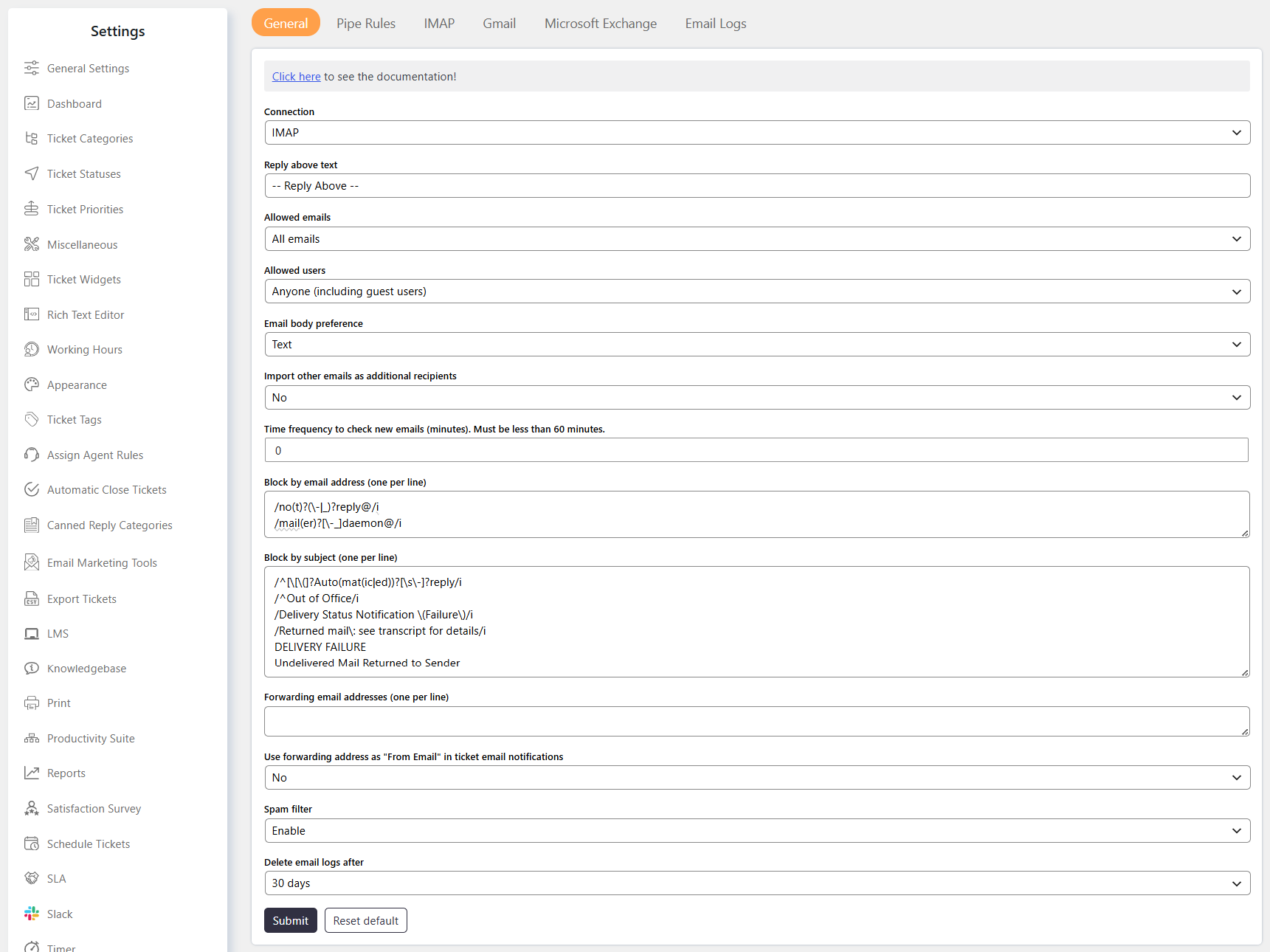
The General settings control how SupportCandy imports emails and creates or updates Tickets through Email Piping.
You can configure the email connection, allowed emails and users, email content, blocking rules, forwarding, spam protection, and email logs.
Where to Find
Go to Support → Settings → Email Piping → General.
How It Works
SupportCandy connects to one email account and checks it for incoming emails.
Based on your settings, incoming emails can:
- Create new Tickets.
- Add replies to existing Tickets.
- Be limited to registered users.
- Be blocked based on the sender or subject.
- Be imported with CC and BCC addresses as additional recipients.
Step-by-Step Guide
- Go to Support → Settings → Email Piping → General.
- Select the email account under Connection.
- Configure Reply above text if required.
- Select the required Allowed emails option.
- Select the required Allowed users option.
- Choose the preferred Email body preference.
- Configure Import other emails as additional recipients if required.
- Set the Time frequency to check new emails.
- Configure email and subject blocking rules if required.
- Configure Forwarding email addresses if you use multiple support email addresses.
- Enable Spam filter if required.
- Configure Delete email logs after.
- Save the settings.
Options / Settings
Connection
Select the email connection used for Email Piping.
Email Piping supports:
- IMAP
- GMail
- Microsoft Exchange
Email Piping can use only one connection at a time.
Reply above text
Adds the configured text to outgoing email notifications.
The text tells Customers where to place their reply.
When a Customer replies above this text, SupportCandy imports that reply instead of importing the complete email history.
This helps prevent previous Ticket threads from being imported repeatedly.
Allowed emails
Controls which incoming emails can be imported.
Available options are:
- All Emails – Imports new Ticket emails and replies to existing Tickets.
- New Emails Only – Imports only emails that create new Tickets. Replies to existing Tickets are blocked. Blocked replies can trigger the Allowed reply email warning notification.
- Reply Only Emails – Imports only replies to existing Tickets. Blocked new emails can trigger the Allowed new email warning notification.
For Reply Only Emails, the incoming email must contain the Ticket ID in the subject. Emails without a Ticket ID are blocked.
The related notifications can be configured from Support → Email Notifications → Email Piping.
Allowed users
Controls which users can create Tickets or add replies through Email Piping.
Available options are:
- Anyone (including guest users) – Allows registered users and guest users to create Tickets or add replies.
- Registered users only – Allows only registered users to create Tickets or add replies.
When a non-registered user is blocked, SupportCandy can send the Allowed user type warning notification.
This notification can be configured from Support → Email Notifications → Email Piping.
Email body preference
Defines whether SupportCandy prefers the HTML or text version of an incoming email.
If the selected email format is unavailable, SupportCandy automatically imports the other available format.
For example, if Text is preferred but the email has no text body, the HTML body is imported.
Import other emails as additional recipients
Controls whether CC email addresses are added as additional recipients of the Ticket.
When enabled, these email addresses can receive Ticket notifications.
Time frequency to check new emails (minutes). Must be less than 60 minutes
Defines how frequently SupportCandy checks the connected email account for new emails.
Enter the value in minutes.
The configured value must be less than 60 minutes.
The email piping depends on WordPress cron. If there are fewer visitors to your site, then cron will run after any visitor hits the site. To speed up the email piping synchronization, another option is to set up an external cron. You can set up the external cron directly to the wp-cron.php file.
Block by email address
Blocks incoming emails from creating Tickets or adding replies based on the sender’s email address.
You can use three types of rules:
- Exact email address – Blocks a specific email address.
- Wildcard – Uses
*to match part of an email address. - Regular expression – Matches email addresses using a regular expression.
Examples:
[email protected]– Matches one specific email address.*@test.com– Matches email addresses ending with@test.com.test@*– Matches email addresses starting withtest@.*paypal*– Matches email addresses containingpaypal.
Regular expressions must use the supported format: /your-regular-expression/i
Block by subject
Blocks incoming emails from creating Tickets or adding replies based on the email subject.
You can use:
- Exact subject – Matches one specific subject.
- Wildcard – Uses
*to match part of a subject. - Regular expression – Matches subjects using a regular expression.
Examples:
SPAM– Matches the exact subject.*SPAM– Matches subjects ending withSPAM.SPAM*– Matches subjects starting withSPAM.*SPAM*– Matches subjects containingSPAM.
Regular expressions must use the supported format: /your-regular-expression/i
Forwarding email addresses
Allows SupportCandy to process emails received through multiple email addresses.
First, configure your email provider to forward emails from other addresses to the email account connected to SupportCandy.
Then, add those forwarding email addresses to this setting.
For example, you may use:
If [email protected] is connected to SupportCandy, configure the other addresses to forward emails to it.
Then add the forwarding addresses to Forwarding email addresses.
Important: Manual forwarding is not supported for this setup. You must configure automatic email forwarding. When automatic forwarding is enabled, incoming emails from the configured addresses are forwarded to your piped email address and processed by SupportCandy to create or update tickets.
If your email accounts are provided by your hosting provider, you can usually configure automatic forwarding through cPanel.
Using automatic forwarding also allows SupportCandy to correctly identify the original email sender as the ticket creator. You can also change the ticket creator after the ticket has been created.
Use forwarding address as “From Email” in ticket email notifications
Controls the From Email address used for Ticket email notifications when Email Piping uses forwarding addresses.
When enabled, SupportCandy sends the notification from the same forwarding address where the Customer originally sent the email.
For example, if a Customer sends an email to [email protected], the notification can also be sent from [email protected].
Spam filter
The Spam Filter helps prevent duplicate emails from creating duplicate ticket replies or tickets.
When the Spam Filter is enabled, SupportCandy performs the following checks:
- Message-ID check: If the email has the same Message-ID as an email already processed, SupportCandy blocks it as a duplicate.
- Content similarity check: SupportCandy compares the email content with the most recent matching email.
- If the content is more than 95% similar and the emails were received within five minutes, the email is blocked as a duplicate.
For example, if the same email is received multiple times within five minutes, SupportCandy imports the first email and blocks subsequent emails that match the duplicate criteria.
The five-minute check applies to emails with matching content. The Message-ID check can block a duplicate regardless of this five-minute comparison.
Delete email logs after
Controls how long imported email logs are stored.
Email logs are created for imported emails and can be viewed from:
Support → Settings → Email Piping → Email Logs
The logs are automatically deleted after the configured time period.
Example
Suppose your support email is [email protected] and you want Customers to create new Tickets by email.
Configure the settings as follows:
- Select your
[email protected]connection under Connection. - Select All Emails under Allowed emails.
- Select Anyone (including guest users) or Registered users only under Allowed users.
- Select the preferred email format under Email body preference.
- Enable Spam filter to block repeated emails.
- Configure Delete email logs after according to your requirements.
- Save the settings.
SupportCandy will then check the connected mailbox and process incoming emails according to these rules.
Notes / Tips
- Email Piping supports one active Connection at a time.
- The Time frequency to check new emails must be less than 60 minutes.
- Reply Only Emails requires the Ticket ID in the email subject.
- New Emails Only blocks replies to existing Tickets.
- Allowed user type warning, Allowed email reply warning, and Allowed new email warning notifications can be configured under Support → Email Notifications → Email Piping.
- Use Block by email address to prevent specific senders from creating Tickets or adding replies.
- Use Block by subject to prevent emails with specific subjects from being imported.
- When using forwarding, configure email forwarding at your mail provider and add the forwarding addresses in SupportCandy.
- Enable Spam filter to help prevent repeated duplicate emails from creating multiple Tickets.
- Email logs are available under Support → Settings → Email Piping → Email Logs.
Important
WordPress Cron must be working correctly for email piping to process incoming emails reliably.
On websites with low traffic, WordPress’s default Cron system may not run frequently because it relies on site visits to trigger scheduled tasks. In this case, we recommend configuring a server-side Cron job to ensure WordPress Cron runs regularly and email piping can process emails without delays.