
Overview
The Satisfaction Survey allows you to collect customer feedback about the service provided by your support team and the performance of agents on individual tickets.
Where to Find
Go to Support → Settings → Satisfaction Survey → General.
How It Works
[wpsc_sf] shortcode.Step-by-Step Guide
- Create a new WordPress page for the Satisfaction Survey.
- Add the
[wpsc_sf]shortcode to the page. - Save or publish the page.
- Configure the Satisfaction Survey to use this page for customer feedback.
Setting up Survey Page
Create a new page where customers will be redirected when they click the Satisfaction Survey link.
Add the following shortcode to the page: [wpsc_sf] This page will display the Satisfaction Survey for customers to submit their feedback.
Options / Settings
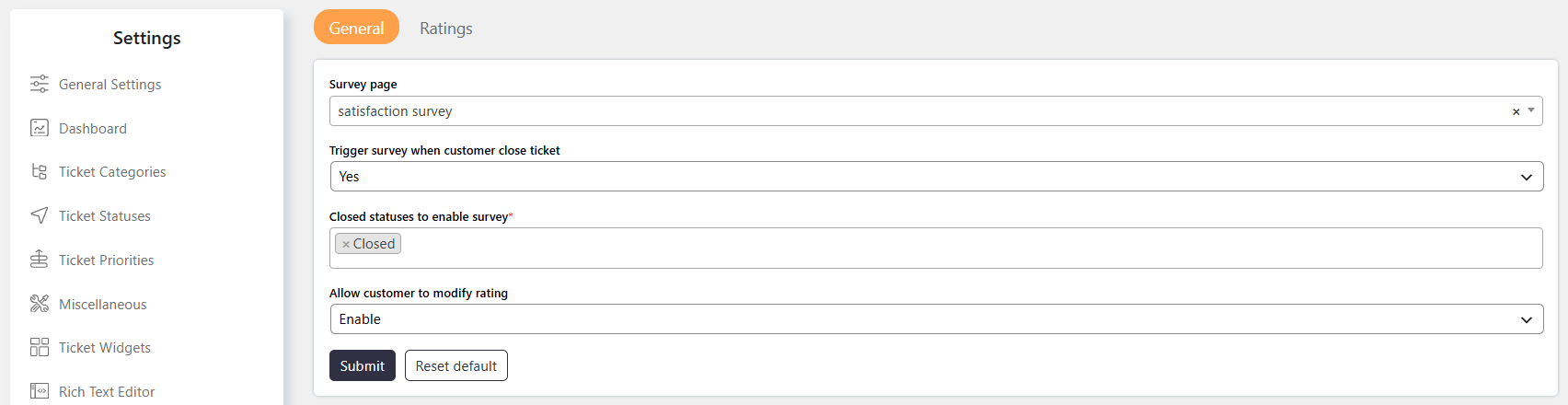
Survey page
Select the page where the Satisfaction Survey will appear.
- Create a new page for the survey.
- Add the
[wpsc_sf]shortcode to the page. - Select the created page in this setting.
Trigger survey when customer close ticket
Controls whether a survey is automatically triggered when a customer closes a ticket.
- Yes – Automatically displays the survey popup when the customer closes the ticket.
- No – The survey will not be automatically triggered when the customer closes the ticket.
Closed statuses to enable survey
Defines which ticket statuses can trigger the Satisfaction Survey.
Select the closed statuses for which the survey should be triggered when the ticket is closed by the customer.
Allow customer to modify rating
Controls whether customers can modify feedback they have already submitted.
- Enabled – Customers can edit their previously submitted rating or feedback.
- Disabled – Customers cannot modify their submitted rating or feedback.
Example
If you want customers to receive a survey when they close tickets with the Closed status, select the survey page, enable Trigger survey when customer close ticket, and select Closed under Closed statuses to enable survey. Enable Allow customer to modify rating if customers should be able to update their feedback later.
Notes / Tips
- Create the survey page using the
[wpsc_sf]shortcode before selecting it under Survey page. - Use Closed statuses to enable survey to control which closed statuses trigger the survey.
- Enable Allow customer to modify rating if customers should be able to update their submitted feedback.