
Overview
The Customer Management section in SupportCandy allows administrators to view, edit, track, and manage all customers who interact with the support system. It provides a centralized view of customer information, ticket activity, and history logs.
Where to Find
Go to: SupportCandy → Customers
Customer List
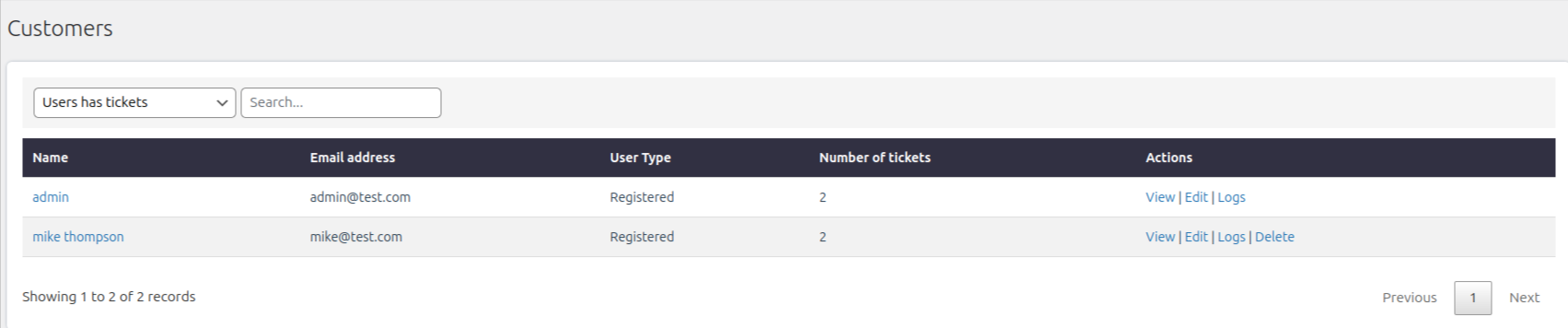
The Customer List displays all users associated with SupportCandy, along with important details to help you manage them efficiently.
Available Information
- Name – Customer’s name
- Email Address – Customer’s registered email
- User Type – Type of user (e.g., registered user, guest)
- Number of Tickets – Total tickets created by the customer
Filters
Filters help you quickly narrow down customers based on their activity.
- All Users – Displays all customers, including those without any tickets
- Users Has Tickets – Displays only customers who have created tickets
You can also use the search bar to find customers by name or email address.
Edit Customer
You can update customer details from the edit section.
Steps to Edit
- Go to SupportCandy → Customers
- Click Edit next to the desired customer
- Modify the required details
- Click Save
Editable Fields
- Customer Name
- Custom field values associated with the customer
Important Note
- The email address cannot be edited from SupportCandy.
To change a customer’s email:
- Go to Dashboard → Users → All Users
- Search for the user
- Click Edit
- Update the email address
- Click Save Changes
Delete Customer
You can permanently remove a customer from SupportCandy.
Steps to Delete
- Go to SupportCandy → Customers
- Click Delete next to the customer
What Gets Deleted
Deleting a customer from SupportCandy removes:
- Customer information
- Custom field data
- All tickets created by the customer
Important Note
If you delete a user from WordPress Dashboard → Users, only the WordPress account is removed.
SupportCandy will still retain:
- Customer data
- Custom fields
- Tickets
Logs
The Logs section helps you track changes made to customer information.
What Logs Show
- Field updates
- What was changed
- Date and time of change
- User who made the change
Steps to View Logs
- Go to SupportCandy → Customers
- Click Logs next to the customer
Notes / Tips
- Use filters to quickly identify active customers.
- Always double-check before deleting a customer, as this action is permanent.
- Logs provide a useful audit trail for tracking updates.
- Email changes must be handled from the WordPress user settings.