
Overview
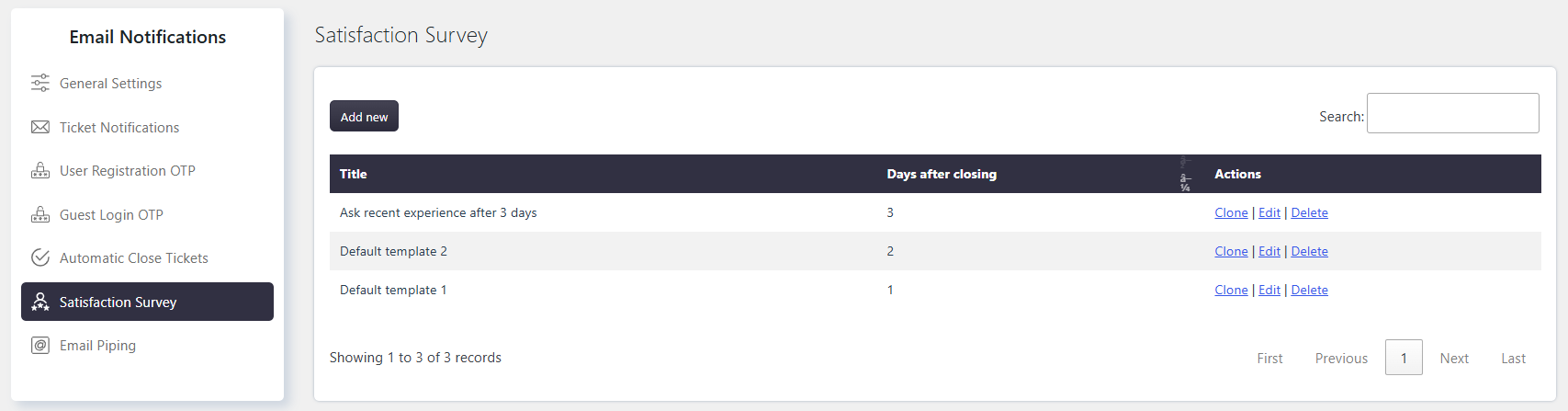
The Email templates settings allow you to configure email notifications for Satisfaction Surveys. When a Ticket is closed by a Customer, Agent, or automatically, a survey email can be sent to the Customer.
Where to Find
Go to Support → Email Notifications → Satisfaction Survey.
How It Works
You can configure when the survey email is sent and customize its subject and content. The email can include a link that allows the Customer to submit their rating.
Step-by-Step Guide
- Go to Support → Email Notifications → Satisfaction Survey.
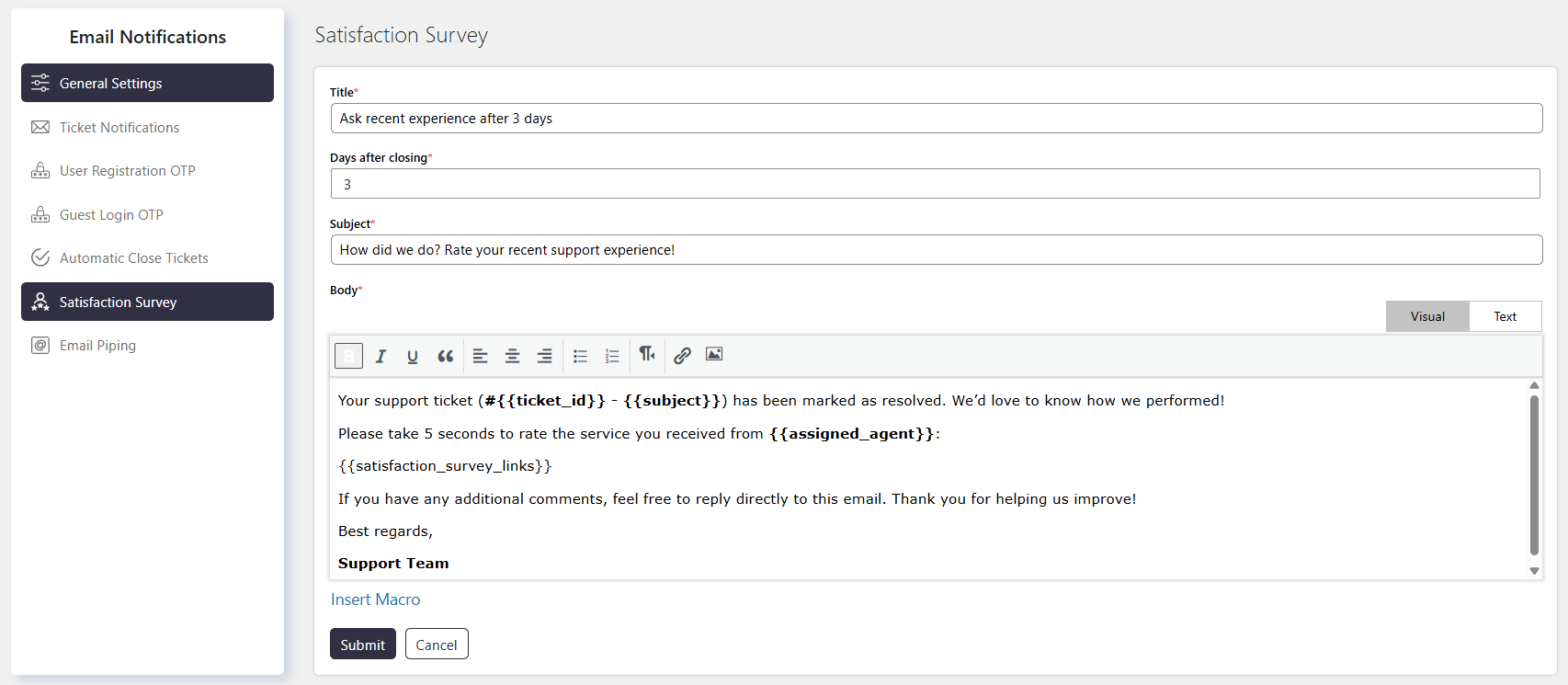
- Set the required Days after closing.
- Enter the email Subject.
- Customize the email Body.
- Use the
{{satisfaction_survey_links}}macro to add the survey link. - Save the changes.
Options / Settings
Title
Give desired title name to identify what the template contains.
Days after closing
Set the number of days after a Ticket is closed before the Satisfaction Survey email is sent to the Customer.
Subject
Enter the subject for the Satisfaction Survey email. Use a clear subject that helps the Customer understand the purpose of the email.
Body
Customize the content of the Satisfaction Survey email.
- You can add your own message to explain the survey.
- Use the
{{satisfaction_survey_links}}macro to insert the survey page link. - The Customer can use the link to submit a rating for the Ticket.
Notes / Tips
- Make sure the API key matches the selected AI provider.
- If AI is not working, check the connection whether it is connected or not and verify the API key and the selected provider.
- Choose a balanced Max Tokens value to maintain response quality while controlling API costs.
Example
- Days after closing: 3
- Subject: Please rate your support experience
- Body: Thank you for contacting our support team. Please take a moment to rate your support experience.
{{satisfaction_survey_links}}