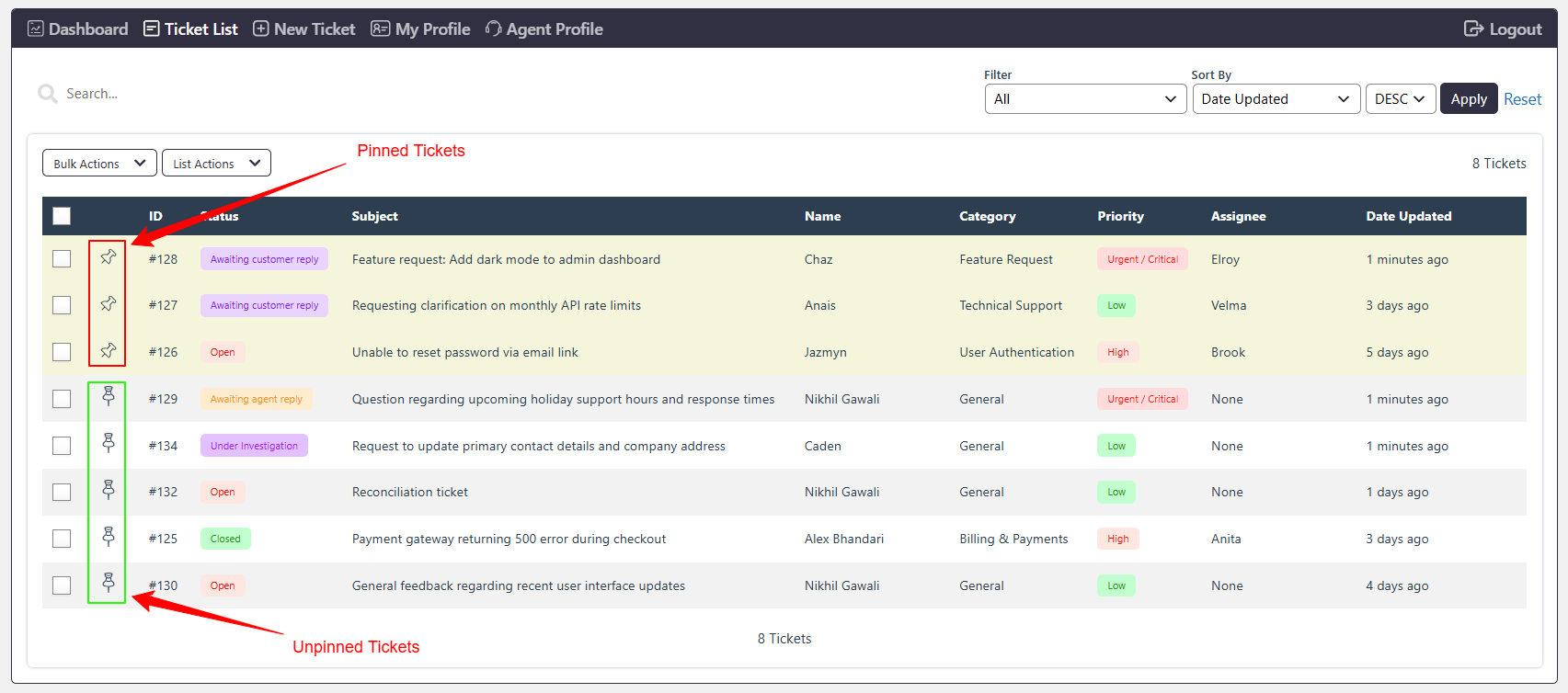
The Pin Tickets feature allows Agents to keep important Tickets easily accessible. Pinned Tickets remain at the top of the Ticket list, regardless of the selected sorting order.
Where to Find
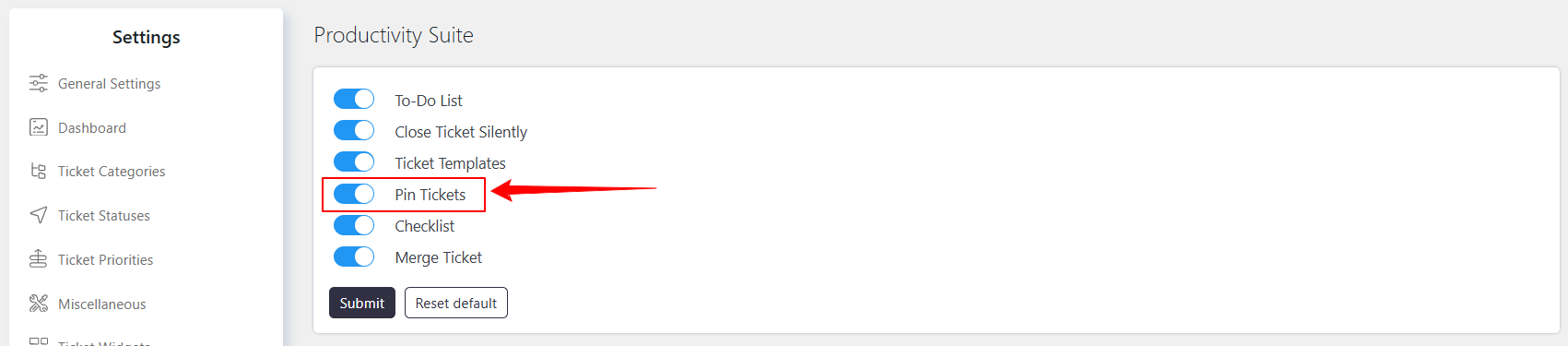
Enable the feature from Support → Settings → Productivity Suite → Pin Ticket.
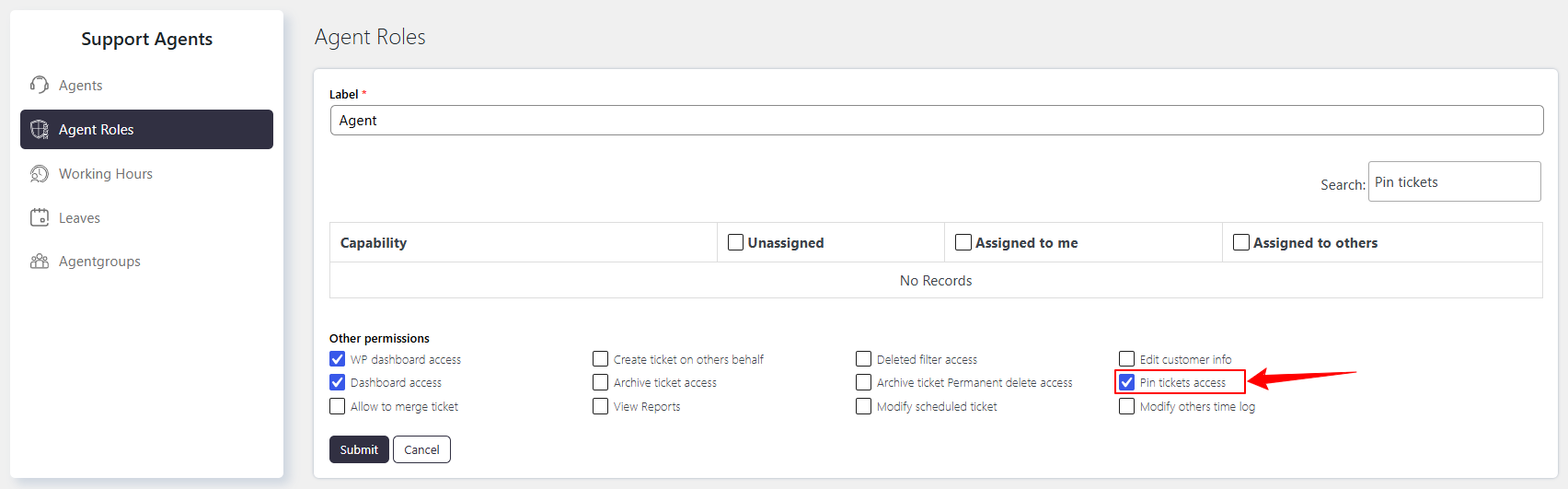
Manage Agent permissions from Support → Support Agents → Agent Roles → Edit → Pin Ticket Access.
How to Enable
Go to Support → Settings → Productivity Suite → Pin Ticket.
Enable the Pin Tickets feature.
Save the settings.
Who can pin ticket
Admin users can control which Agent roles can pin Tickets. To configure this permission:
Go to Support → Support Agents → Agent Roles.
Select the required Agent role and click Edit.
Configure Pin Ticket Access.
Save the changes.
How to use
Go to the Ticket list.
Find the Ticket you want to keep easily accessible.
Use the pin option for the Ticket.
The pinned Ticket will appear at the top of the Ticket list.
Unpin the Ticket when it is no longer required at the top.
Example
An Agent is handling an urgent Ticket that needs regular attention. The Agent can pin the Ticket so it remains at the top of the Ticket list.
Notes / Tips
Pinned Tickets remain at the top regardless of the selected sorting order.
A pinned Ticket will not appear in a filtered list if it does not match the selected filter.
Only Agents with Pin Ticket Access can pin Tickets.