
Email notifications are not enabled by default. You need to set up email notification settings to enable it.
Also, you must need an active SMTP plugin that actually sends an email from your website.
Overview
SupportCandy does not send email notifications by default. To notify customers and agents about ticket activity, you must configure the email notification settings.
Your WordPress website must also have a properly configured SMTP plugin to send emails successfully.
Where to Find
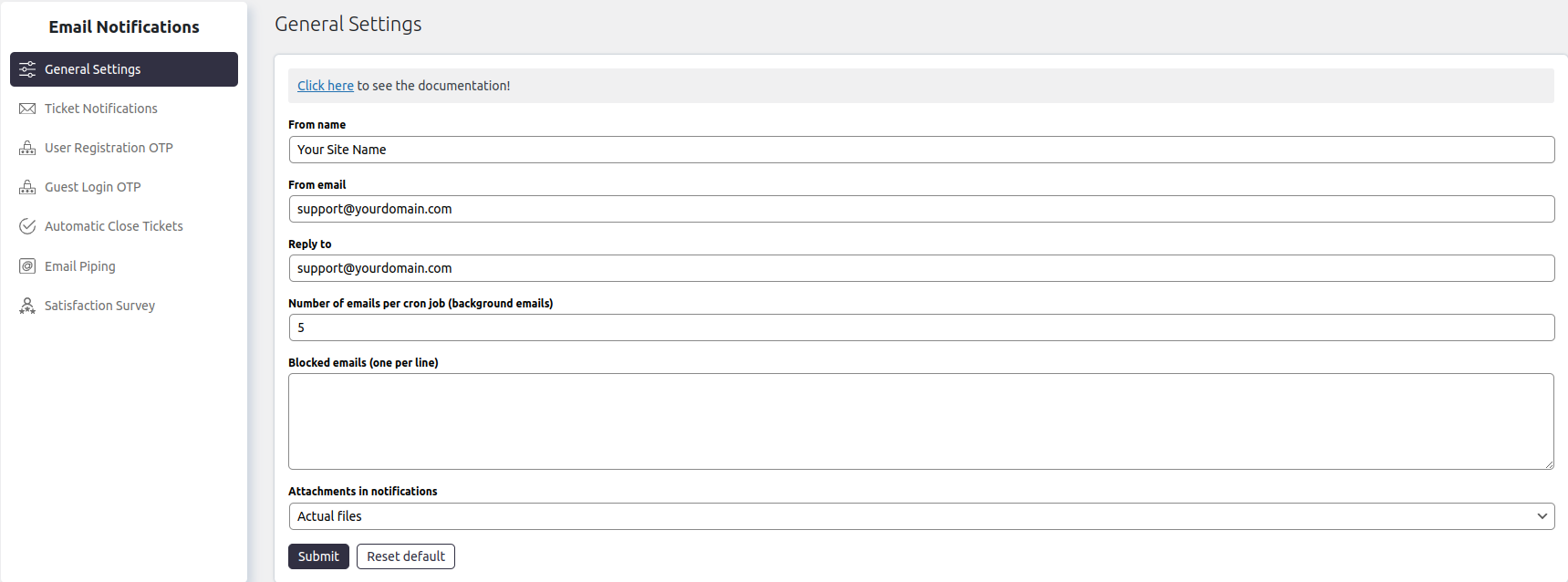
Go to: Support → Email Notifications
How It Works
SupportCandy generates email notifications for various ticket events, such as ticket creation, replies, status changes, and assignments. However, the plugin does not send emails by itself.
An SMTP plugin is required to deliver these emails from your WordPress website. Once SMTP is configured and the required notifications are enabled, SupportCandy will automatically send email notifications when the corresponding events occur.
Step-by-Step Guide
- Install and configure an SMTP plugin on your WordPress website.
- Verify that your website can send emails successfully.
- Go to Support → Email Notifications.
- Configure the required email notification settings.
- Enable the email notifications you want to send.
- Click Submit to save your changes.
Notes / Tips
- Email notifications are disabled by default.
- A properly configured SMTP plugin is required for reliable email delivery.
- After completing the setup, create a test ticket to verify that email notifications are working correctly.
- If emails are not being delivered, verify your SMTP plugin configuration before troubleshooting SupportCandy.