
Overview
The Appearance Settings allow you to customize the look of the AI Chatbot launcher on your website.
Where to Find
Dashboard → Support → Settings → AI ChatBot → Appearance
How It Works
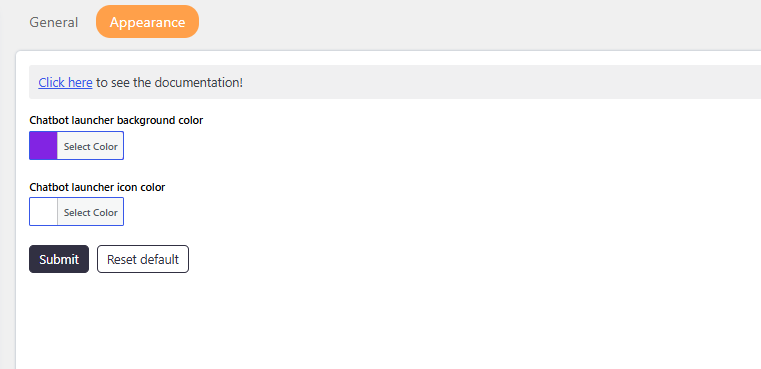
These settings help you match the chatbot launcher with your website design. You can control the background color and icon color of the chatbot button, ensuring it blends well with your brand and improves visibility for users.
Options / Settings
Chatbot launcher background color
Set the background color of the chatbot launcher button.
- Controls the main color of the chatbot icon background
- Helps match the chatbot with your website theme
- Use a color that is clearly visible to users
Chatbot launcher icon color
Set the color of the icon displayed inside the chatbot launcher.
- Controls the icon color inside the button
- Should contrast with the background color for better visibility
- Improves user experience and accessibility
Step-by-Step Guide
- Go to Dashboard → Support → Settings → AI ChatBot
- Open the Appearance tab
- Choose a background color for the chatbot launcher
- Select an icon color
- Click Submit to save changes.
Notes / Tips
- Always use contrasting colors for better readability
- Match colors with your brand theme
- Avoid very light colors for both background and icon