
Overview
The Connection settings allow you to configure how the AI Assistant connects to external AI services and how AI responses are generated.
These settings are used to configure the AI service provider, API authentication, and response length.
Where to Find
Go to: Support → Settings → AI Assistant → Connection
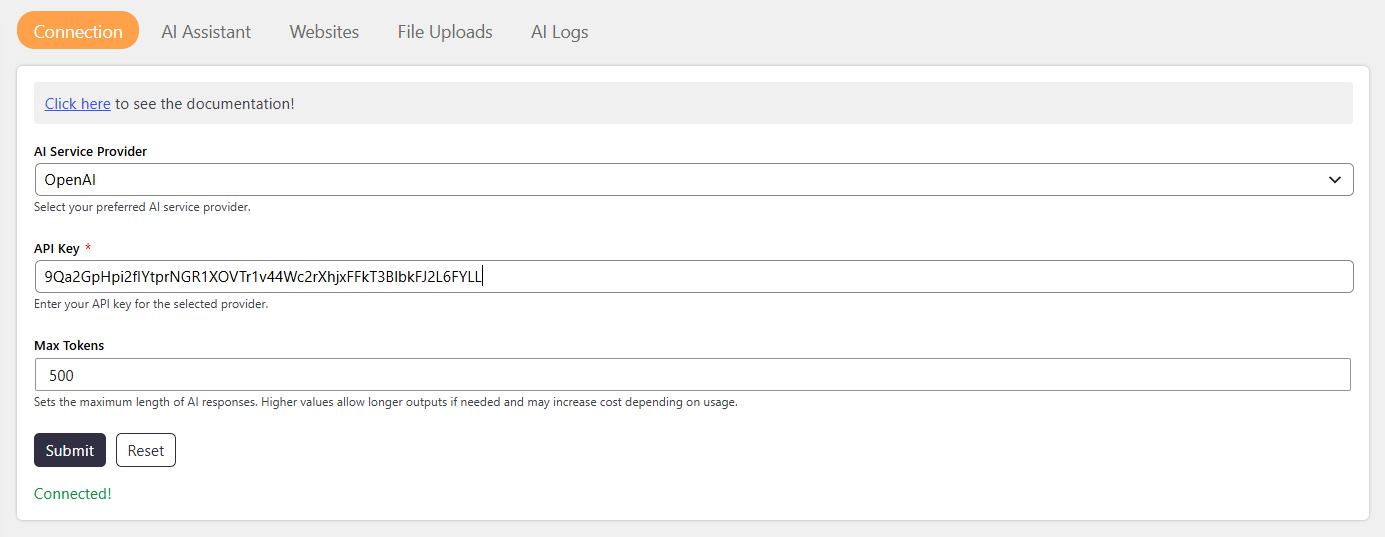
How It Works
The AI Assistant connects to an external AI provider using an API key.
You can select an AI service provider. The connection settings support the following AI service providers:
- OpenAI
- Google Gemini
Step-by-Step Guide
- Go to Dashboard → Support → Settings → AI Assistant.
- Open the Connection tab.
- Select your preferred AI Service Provider.
- Enter the API Key for the selected provider.
- Set the Max Tokens value.
- Click Save Changes.
Options / Settings
AI Service Provider
The AI Service Provider setting allows you to select which external AI service generates AI responses.
Available options:
- OpenAI
- Google Gemini
API Key
The API Key setting is used to authenticate the selected AI service provider.
Enter a valid API key for the selected provider.
The API key must match the selected AI Service Provider.
Max Tokens
The Max Tokens setting defines the maximum length of AI-generated responses.
- A higher value allows longer responses.
- A lower value allows shorter responses.
- A higher Max Tokens value may increase API costs.
Notes / Tips
- Make sure the API key matches the selected AI provider.
- If AI is not working, check the connection whether it is connected or not and verify the API key and the selected provider.
- Choose a balanced Max Tokens value to maintain response quality while controlling API costs.