
Overview
Out of SLA notifications are sent when a Ticket exceeds the configured time limit of an SLA Policy.
You can create notifications for all SLA Policies or use conditions to send different notifications based on Ticket fields, such as category or priority.
Where to Find
Go to Support → Email Notifications → Ticket Notifications to create and manage email notifications for Tickets that go Out of SLA.
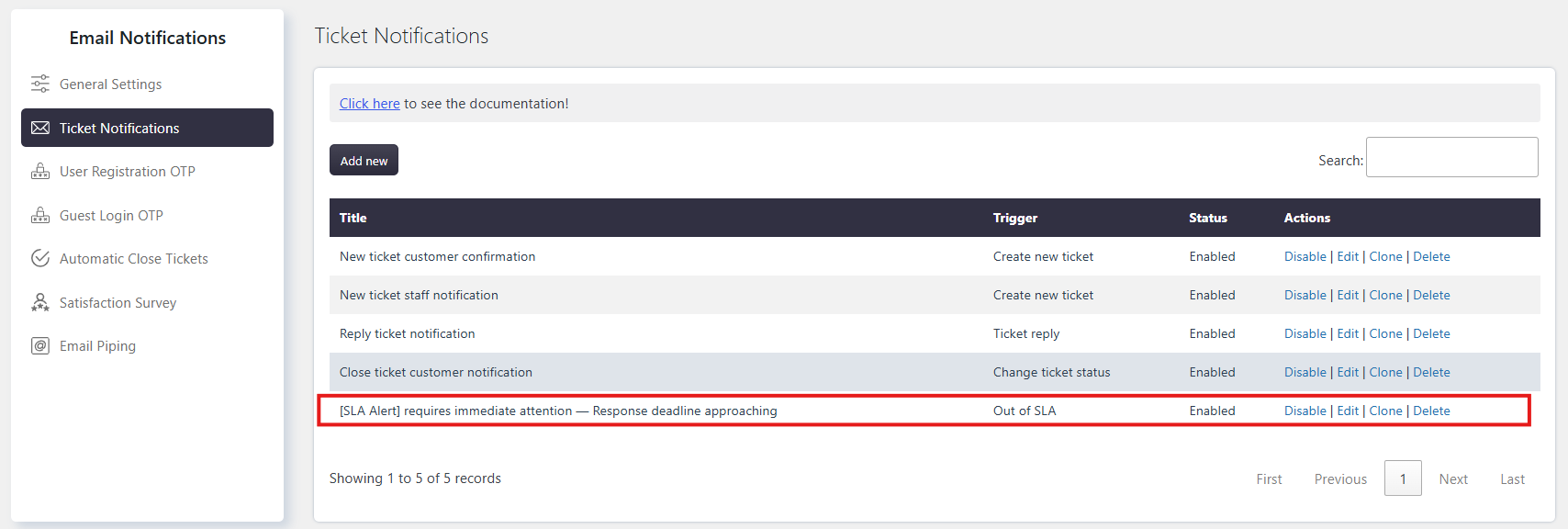
Create Out of SLA Notification
You can create a notification that is sent when the configured time for any SLA Policy is exceeded.
To create an Out of SLA notification:
- Go to Support → Email Notifications → Ticket Notifications.
- Click Add New.
- Set Trigger to Out of SLA.
- Configure the notification details and recipients.
- Save the notification.
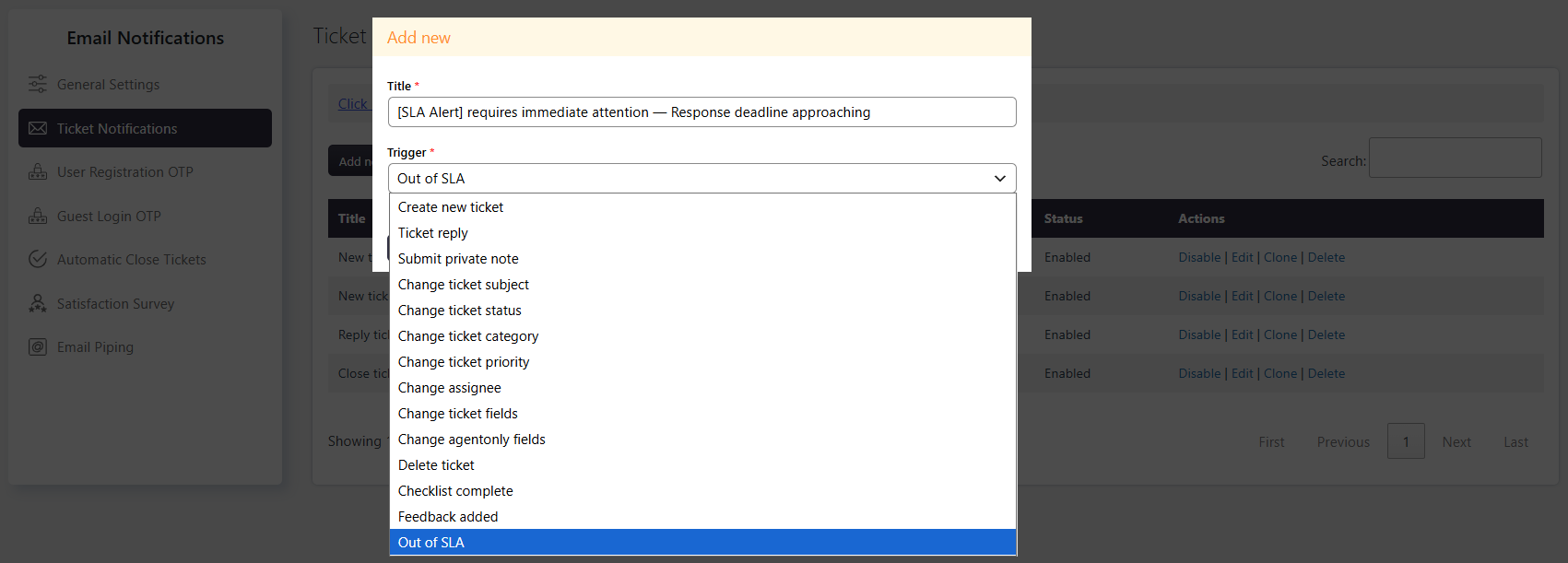
Create Out of SLA Notification
Adding conditions to an Out of SLA notification is optional.
Without conditions, the notification is sent for all SLA Policies.
You can add conditions to create different notifications for specific Ticket types.
For example, to send an Out of SLA notification only for the Marketing category:
- Set Trigger to Out of SLA.
- Add the condition Category = Marketing.
Subject and Email Body
You can customize the Subject and Email Body according to your requirements.
You can also specify the recipients who should receive the notification.
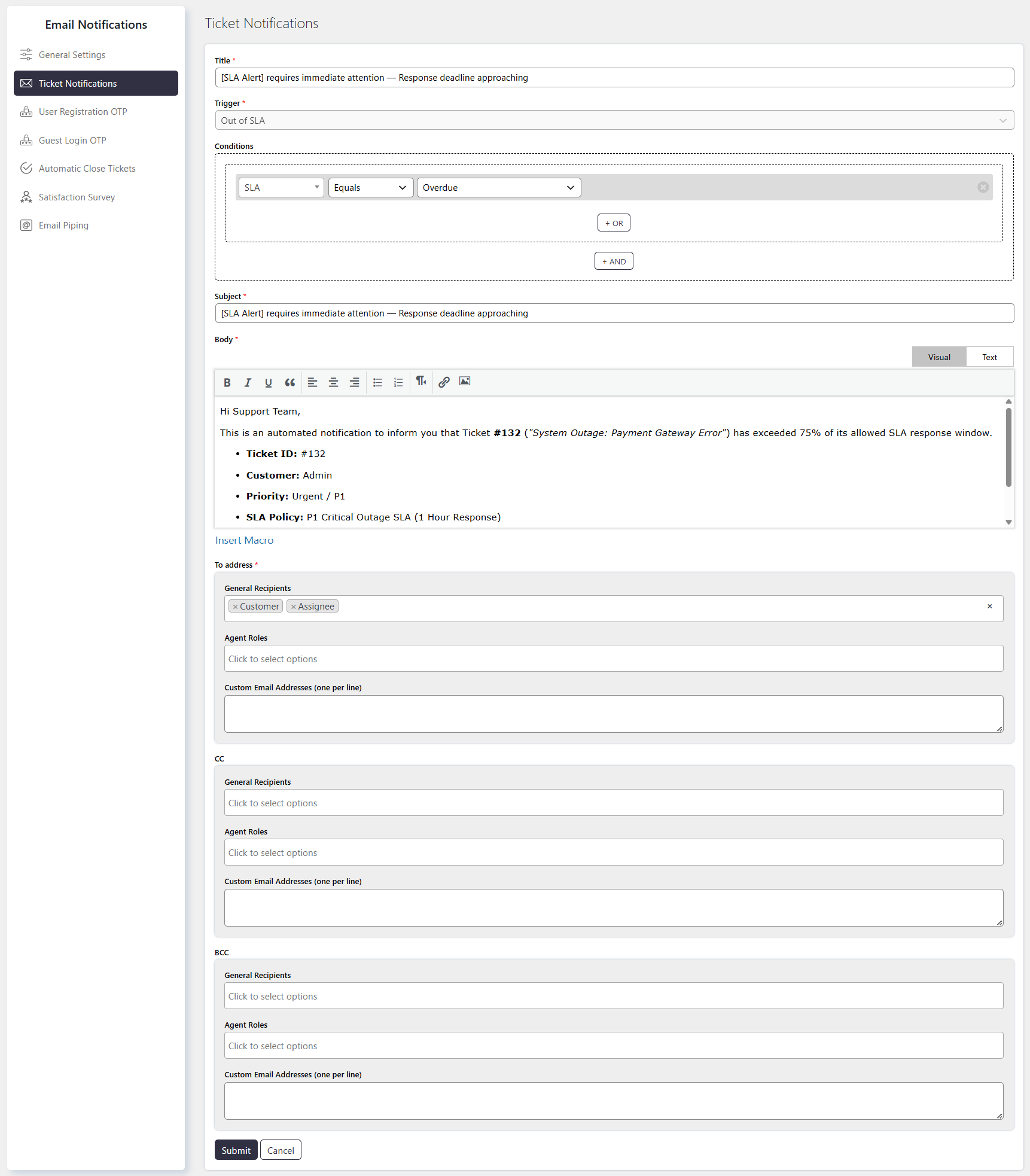
Multiple Notifications
You can create multiple Out of SLA notifications and use conditions to differentiate them based on Ticket fields.
For example, you can create separate notifications for different categories, priorities, or other Ticket fields.