
Overview
The Order Ticket setting automatically creates a Ticket when a new order is placed in WooCommerce.
You can customize the Ticket subject and body using order details such as the customer name, products, order status, and order ID.
Where to Find
Go to SupportCandy → WooCommerce → Order Ticket.
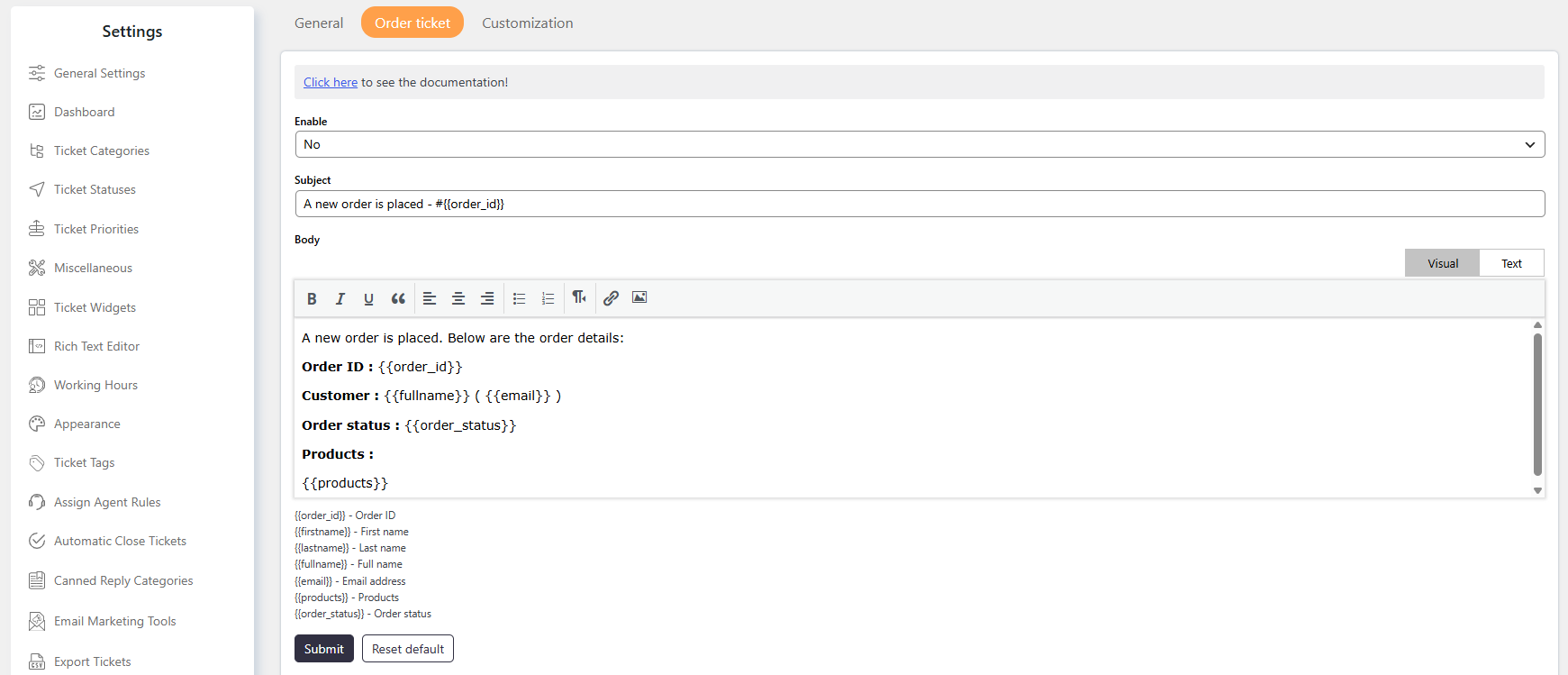
How It Works
When Order Ticket is enabled, SupportCandy automatically creates a Ticket whenever a new WooCommerce order is placed. The Ticket includes the customer and order details based on the configured Subject and Body templates.
Step-by-Step Guide
- Go to Support → Settings → WooCommerce → Order Ticket.
- Enable the setting
- Add a ticket subject
- Add a ticket description text
- Save the settings.
Options / Settings
Enable
Enable this option to automatically create a Ticket when a new WooCommerce order is placed.
Subject
Enter the subject for the Ticket created from a WooCommerce order.
You can use the available macros to include order or customer information in the subject.
Body
Enter the content for the Ticket description.
You can use the available macros to automatically add information from the WooCommerce order.
Available Macros
Use the following macros in the Subject and Body fields:
{{order_id}}— Order ID{{firstname}}— Customer first name{{lastname}}— Customer last name{{fullname}}— Customer full name{{email}}— Customer email address{{products}}— Products included in the order{{order_status}}— Order status
For example, you can use {{order_id}} in the Subject field to include the WooCommerce order ID in the Ticket subject.
Example
Subject:New Order #{{order_id}} from {{fullname}}
Body:A new order has been placed by {{fullname}} ({{email}}).
Order ID: {{order_id}}Products: {{products}}Order Status: {{order_status}}
Notes / Tips
- Use macros to automatically add customer and order details to the Ticket.
- You can use the same macros in both the Subject and Body fields.
- Make sure each macro is entered exactly as shown, including the
{{ }}characters. - Keep the Ticket template clear so Agents can quickly understand the order details.