
Overview
The GDPR settings help you manage user consent and personal data retention.
You can display GDPR information on the Create Ticket Form and Registration Form. You can also define how long personal information is retained in tickets before it is anonymized.
Where to Find
Go to Support → Settings → Miscellaneous → GDPR.
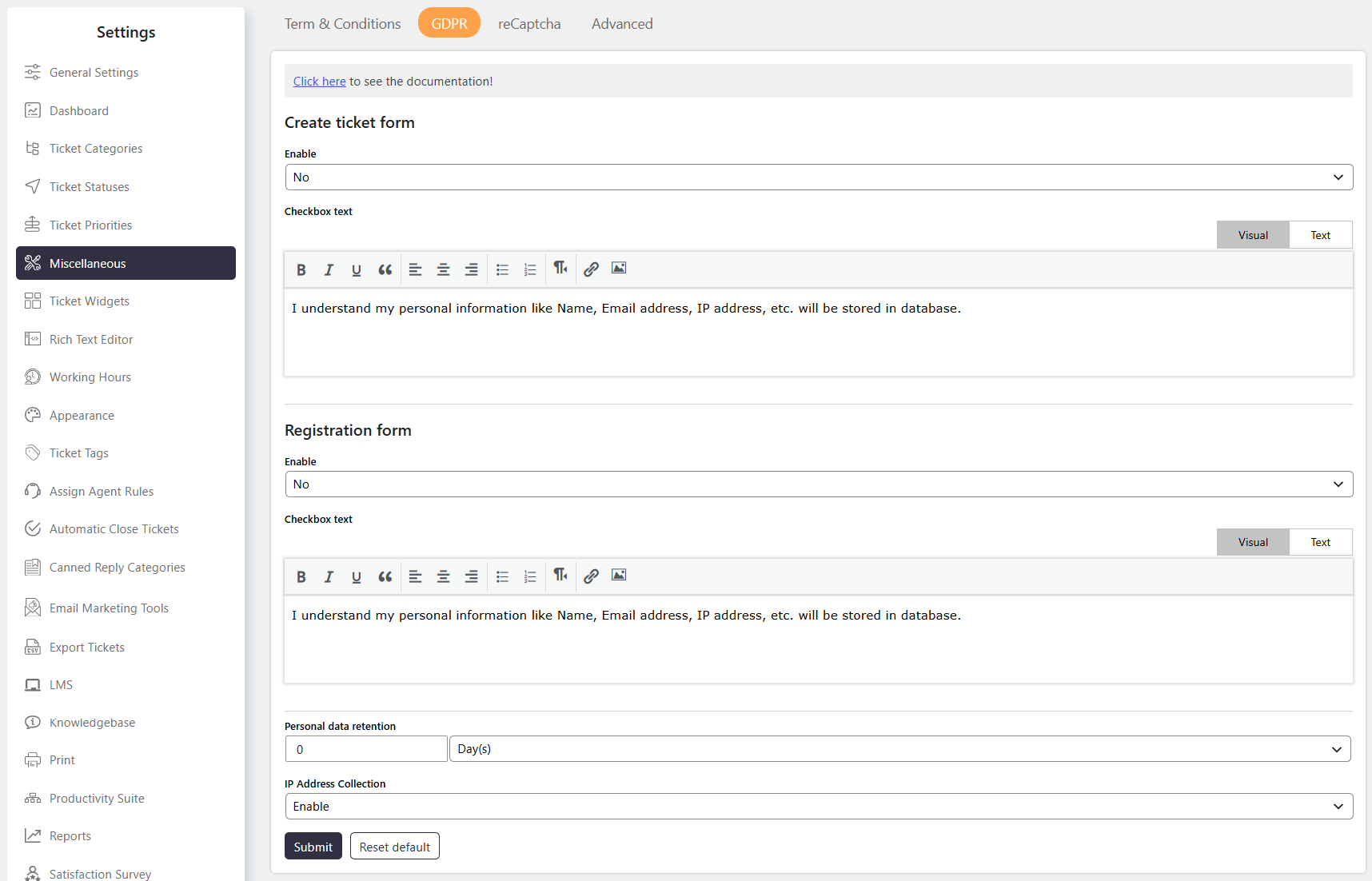
How It Works
The GDPR settings control how users are informed about personal data storage and how long personal information remains stored in tickets.
When the retention period expires, personal information is anonymized in the database.
You can also require users to acknowledge data storage before submitting a ticket or registering.
Step-by-Step Guide
- Go to Support → Settings → Miscellaneous → GDPR.
- Configure Create Ticket Form if you want to display GDPR information during ticket submission.
- Set Personal Data Retention according to your data retention requirements.
- Configure Registration Form GDPR Consent if users must acknowledge data storage during registration.
- Save the settings.
Options / Settings
Create Ticket Form
Controls whether GDPR information is displayed on the ticket submission form.
When enabled:
- A checkbox appears on the ticket submission form.
- A custom message informs users about the personal information stored in the database.
- The message can be customized to match your privacy policy.
Registration Form GDPR Consent
Controls whether users must acknowledge and consent to data storage during registration.
When enabled, a checkbox appears on the registration form.
Personal Data Retention
Defines how long personal information within tickets is stored.
Personal information includes:
- Name
- Email Address
- IP Address
- Custom fields marked as personal information
The retention period is calculated from the date the ticket was created.
After the retention period ends, the personal information is anonymized in the database.
Set the retention period to 0 days to retain personal information indefinitely.
Example
If you want to inform Customers about personal data storage when they create a ticket:
- Go to Support → Settings → Miscellaneous → GDPR.
- Enable Create Ticket Form.
- Customize the GDPR message to explain the personal information stored.
- Set Personal Data Retention to the required period.
- Save the settings.
Customers will see the GDPR checkbox and message on the ticket submission form.
Notes / Tips
- Use Create Ticket Form to display GDPR information during ticket submission.
- Use Registration Form GDPR Consent to request consent during registration.
- Personal Data Retention applies to personal information stored within tickets.
- Personal information includes Name, Email Address, IP Address, and custom fields marked as personal information.
- Personal information is anonymized after the configured retention period.
- Set Personal Data Retention to
0 daysto retain personal information indefinitely. - Customize the GDPR message to match your organization’s privacy policy.