
Overview
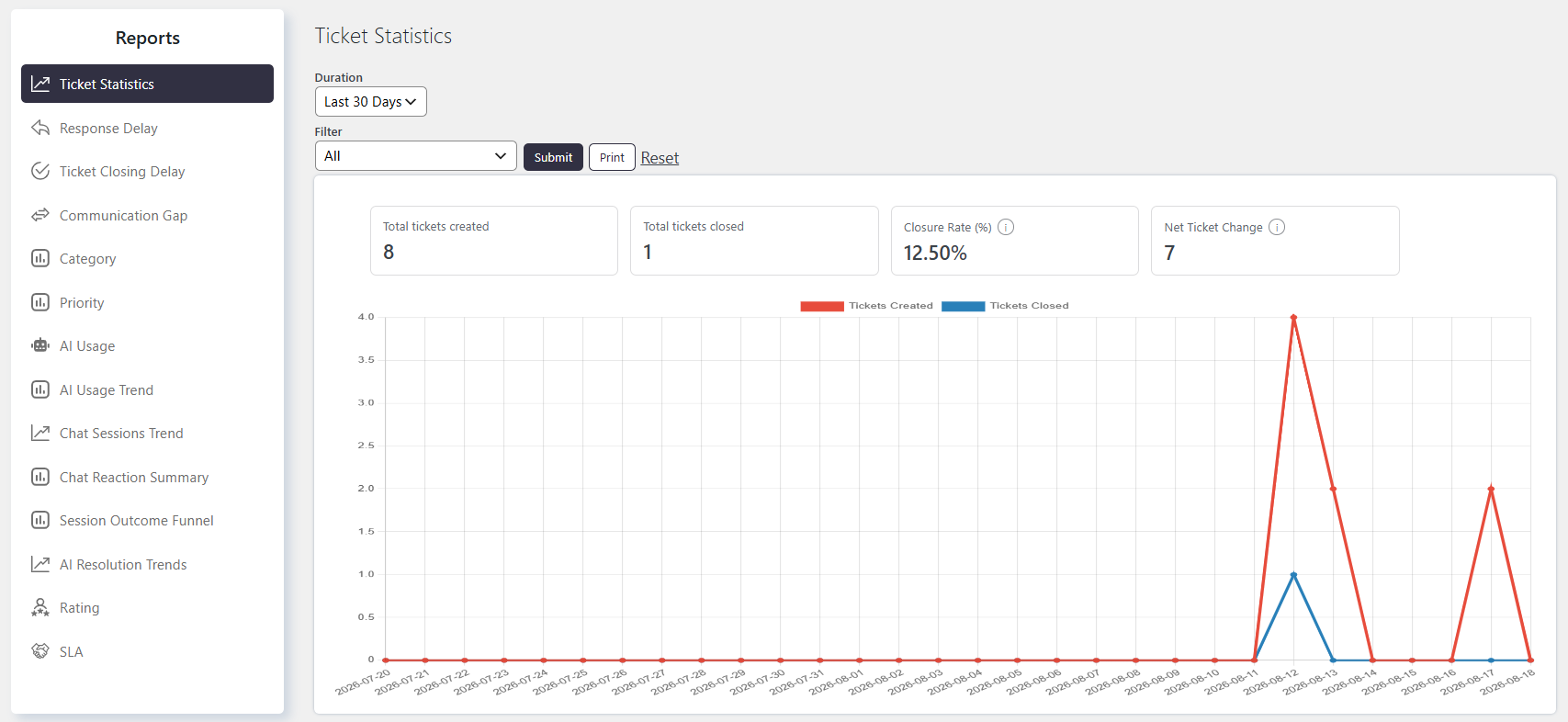
The Reports feature helps you monitor support performance and review ticket-related data over different time periods. It provides auto-generated reports for key ticket metrics and allows you to generate reports based on selected custom fields.
Where to Find
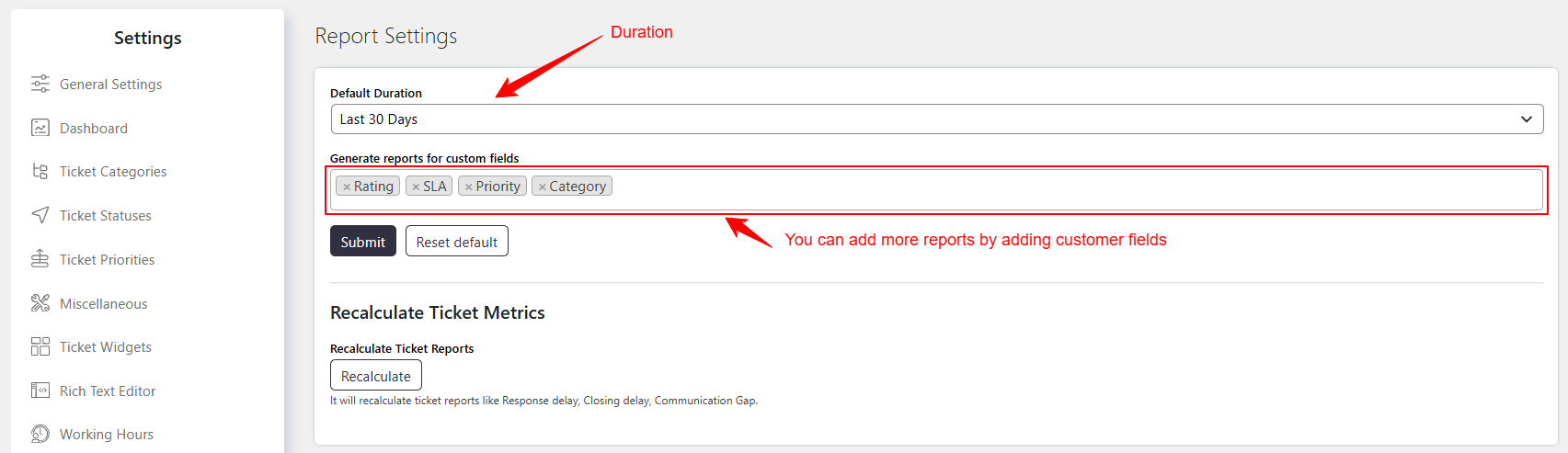
Go to Support → Settings → Reports to configure the reporting settings.
Generated reports can be viewed from Support → Reports.
How It Works
The Reports feature provides auto-generated reports for:
- Ticket statistics
- Response Delays
- Ticket Closing Delays
- Communication gaps
You can also generate reports for selected custom fields and apply filters to get more precise results.
Reports can be generated for different time periods, including:
- Days
- Weeks
- Last 30 days
- Quarters
- Custom date selections
Reports can also be printed for a selected duration.
How to Configure
- Go to Support → Settings → Reports.
- Configure the Default Duration.
- Select the custom fields under Generate reports for custom fields for which you want to generate reports.
- Save the settings.
- Go to Support → Reports to view the generated reports.
Options / Settings
Default Duration
Defines the default time period used when generating reports. When a report is generated, the selected duration is used by default.
Generate reports for custom fields
Allows you to select the custom fields for which reports should be generated. Reports for the selected custom fields will be available under Support → Reports.
Using Report Filters
You can apply custom filters to generated reports to obtain more precise results. Select the required time period or other available filters based on the information you want to analyze.
Notes / Tips
- Reports can be generated for both standard ticket information and selected custom fields.
- You can select a predefined time period or specify a custom date range.
- Reports can be printed for the selected duration.