
Overview
The Auto Draft Reply (AI) feature automatically generates a suggested reply for support agents using AI.
It helps agents respond faster by generating:
- Context-aware responses
- Professional and well-structured replies
- Grammatically correct content
- Relevant answers based on knowledge base and past tickets
This helps reduce response time while maintaining reply quality and consistency.
Where to Find
Dashboard → Support → Ticket List → Open any Ticket → Auto Draft (AI)
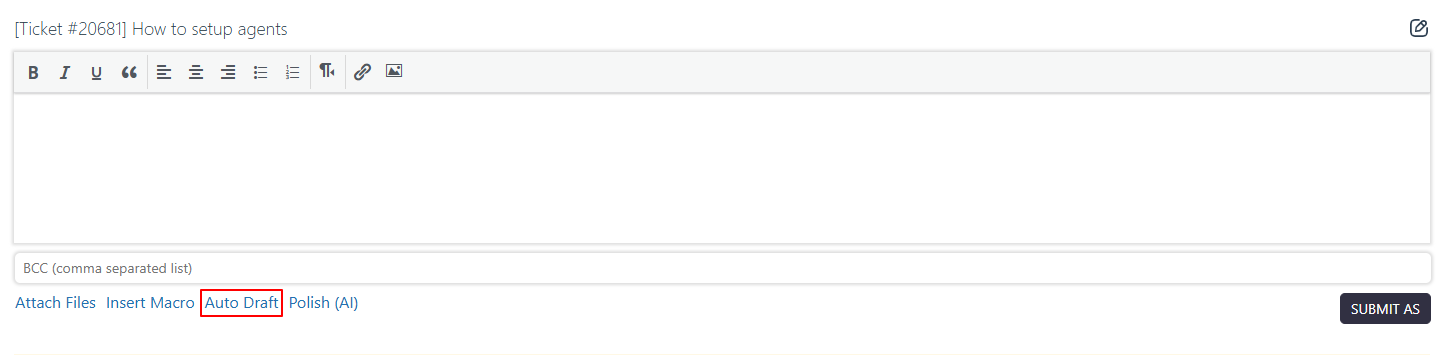
Auto Draft Generation
The AI automatically generates a suggested reply based on:
- Current ticket conversation
- Customer message history
- AI training data (RAG)
- Knowledge base or documentation content
The generated reply is inserted directly into the reply editor for review.
Generated Reply Features
Professional Tone
The AI generates responses that are:
- Professional
- Clear and easy to understand
- Customer-friendly
Context Awareness
The AI attempts to understand:
- Customer issues
- Previous conversation messages
- Ticket-related context
Editable Draft
Agents can fully modify the generated response before sending it.
Use this when:
- You want to save reply time
- You need a quick response suggestion
- You want consistent support communication
How It Works
When clicking Auto Draft action in individual ticket, an agent can automatically generate a draft reply based on the ticket conversation and available training data.
The AI will:
- Analyze the ticket conversation
- Understand customer queries and context
- Generate a relevant and professional response form RAG
- Create a ready-to-review draft reply
The generated draft appears in popup, where agents can review, modify, or append or replace it into reply.
Note: Only agents who have permission to reply to tickets can use this feature.
Step-by-Step Guide
- Go to Dashboard → Support → Ticket List
- Open any support ticket
- Click on Auto Draft in the reply editor
- Wait while AI generates the draft response
- Review the generated reply
- Edit the response if needed
- Send the reply to the customer
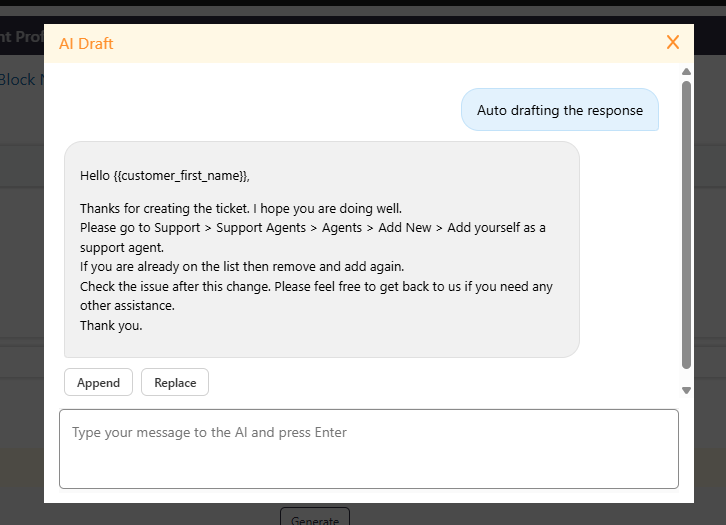
Options Available
Append
Adds the AI-generated draft reply below your existing message.
Use this when:
- You want to compare both versions
- You want to keep your original content and add AI suggestions
- You want to manually combine both responses
Replace
Replaces your current message with the AI-generated draft reply.
Use this when:
- You are satisfied with the AI-generated response
- You want a clean and professional final reply
- You want to quickly respond without manual editing
Notes / Tips
- Always review the AI-generated reply before sending
- Edit the draft if additional information is required
- Works best when ticket conversations contain clear context
- AI responses improve when proper RAG training data is available
- Large ticket conversations may take slightly longer to process
- Make sure AI settings (API key, provider, and training setup) are properly configured
- AI-generated drafts should be reviewed for accuracy before sending to customers