
Overview
The General settings allow you to configure how the AI Assistant connects to external AI services and controls how responses are generated.
These settings are required to enable AI features such as ticket summaries, polish replies, and more.
You can also define custom prompts (additional instructions) to control how the AI writes, summarizes, and generates replies.
Where to Find
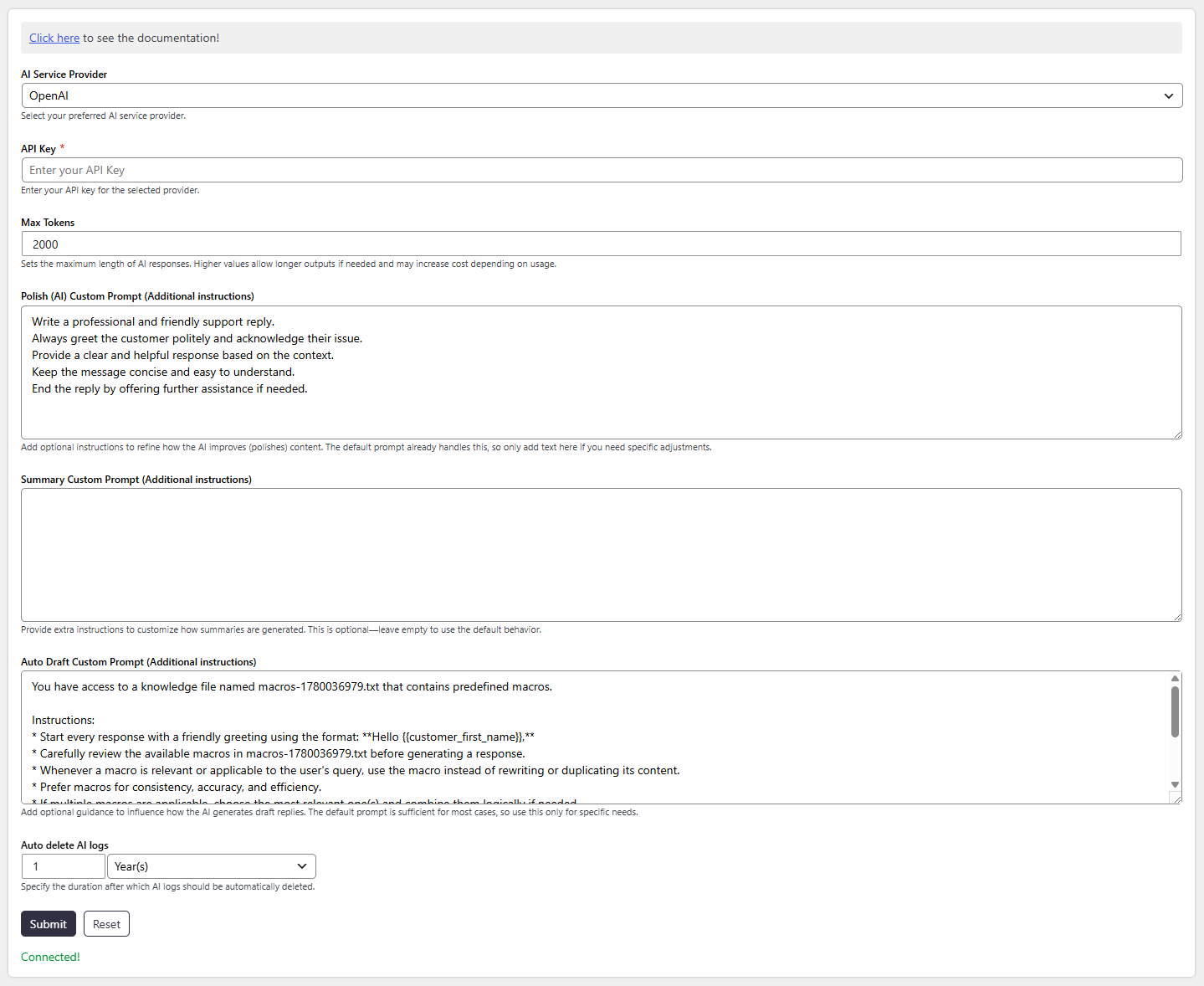
- The selected provider handles AI requests
- The system controls response length using Max Tokens
- Logs are stored and automatically deleted based on your settings
Step-by-Step Guide
- Go to Dashboard → Support → Settings → AI Assistant
- Open the General tab
- Select your preferred AI Service Provider
- Enter the API Key
- Set the Max Tokens
- Add Custom Prompts (optional)
- Configure Auto Delete AI Logs
- Click on Save Changes
Options / Settings
AI Service Provider
- OpenAI
- Google Gemini
API Key
- Required for authentication
- AI features will not work without it
Max Tokens
- Higher value → Longer responses
- Lower value → Short responses
Auto Delete AI Logs
- Days
- Months
- Years
This setting allows you to define a custom instruction that the AI will follow while generating or improving responses.
The custom prompt is especially useful for:
-
Maintaining a consistent tone (e.g., professional, friendly)
-
Adding company-specific instructions
-
Controlling how replies should be written
When using features like Polish Reply (AI), the AI will consider this prompt along with the ticket content.
Notes / Tips
-
Make sure the API key matches the selected provider
-
If AI is not working, check API key and provider selection
-
Keep Max Tokens balanced for cost and quality
-
Enable auto-delete logs to manage database size