The Merge Ticket feature allows you to combine multiple tickets from the same customer into a single ticket. This helps avoid duplicate conversations and keeps all communication in one place.
Where to Find
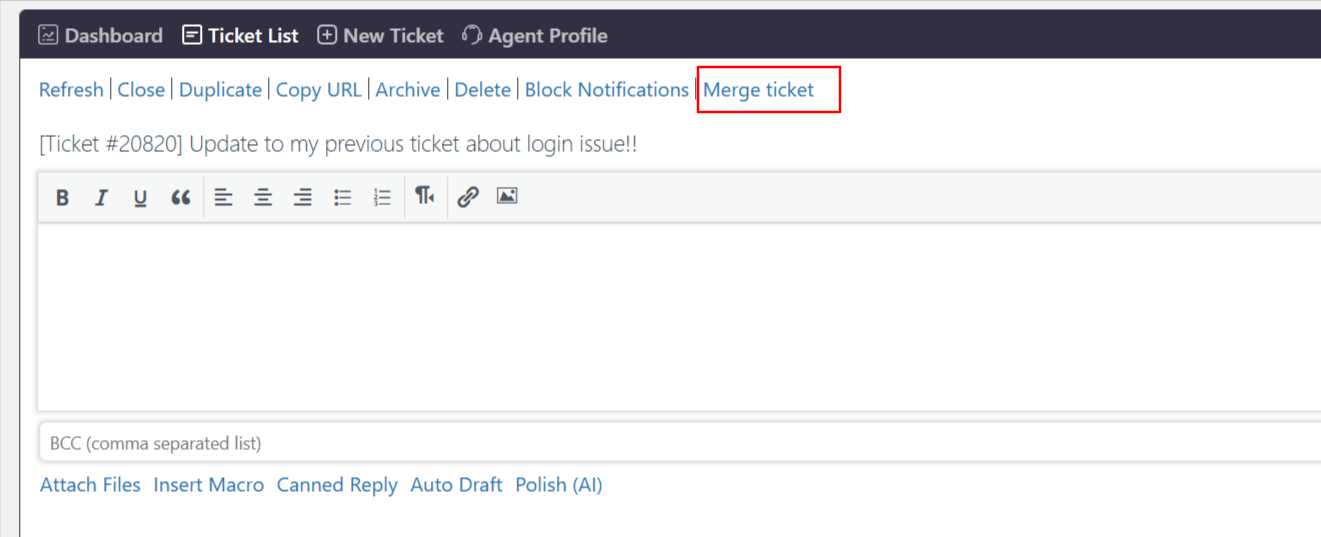
Go to: Support → Ticket List → Open any Ticket → Click “Merge ticket”
How It Works
You can merge tickets created by the same customer only
Tickets from different users cannot be merged
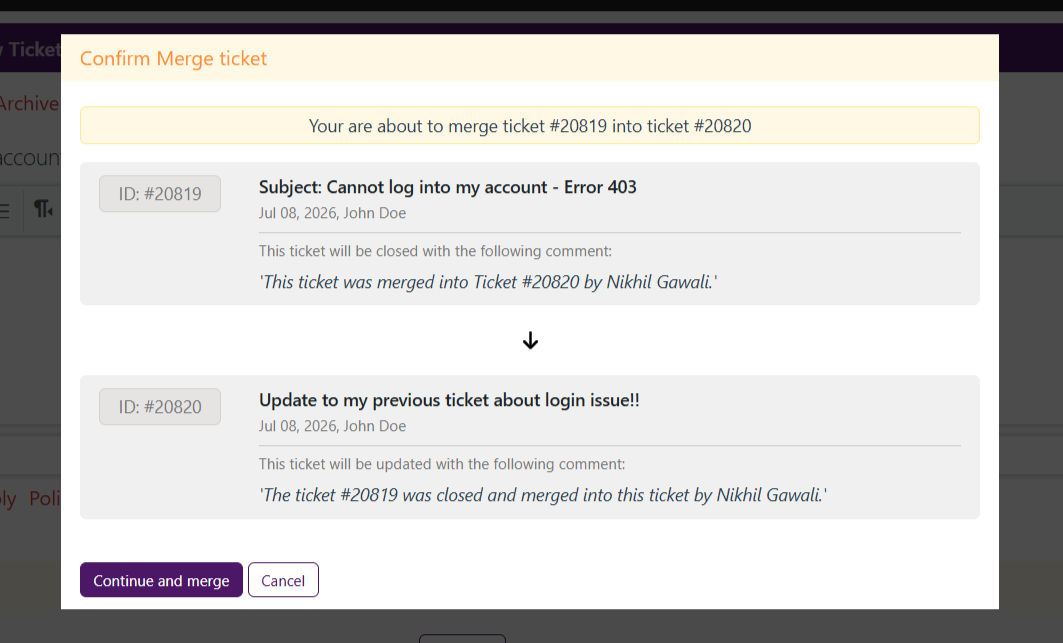
The source ticket (merged ticket) will be:
Closed automatically
A note will be added indicating it was merged
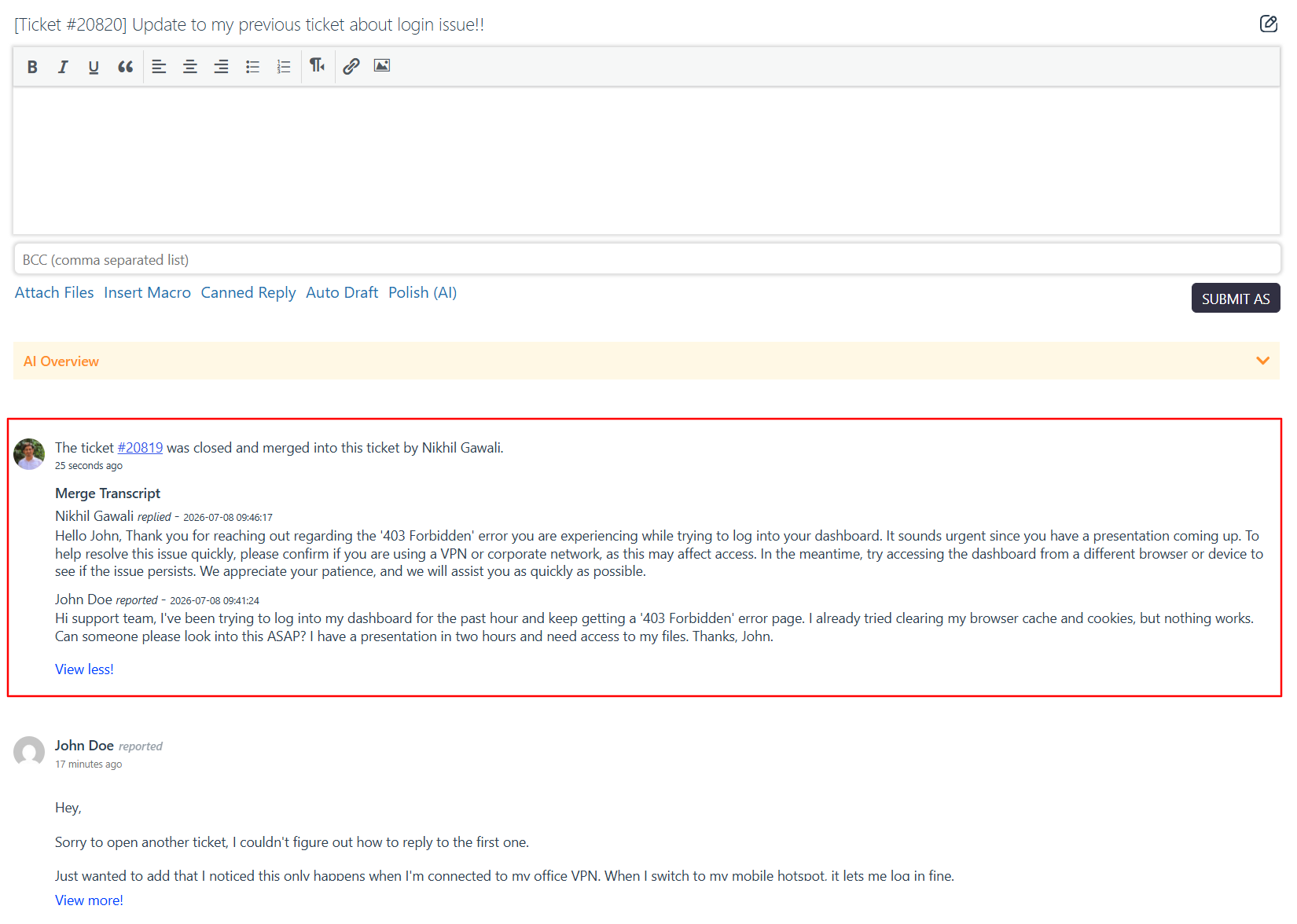
The target ticket (main ticket) will:
Receive a merge note
Include the full transcript of the merged ticket conversation
Step-by-Step Guide
Step 1: Open the Ticket
Go to Support → Ticket List
Open the ticket where you want to merge another ticket
Step 2: Click on Merge Ticket
Click the “Merge ticket” option from the ticket actions
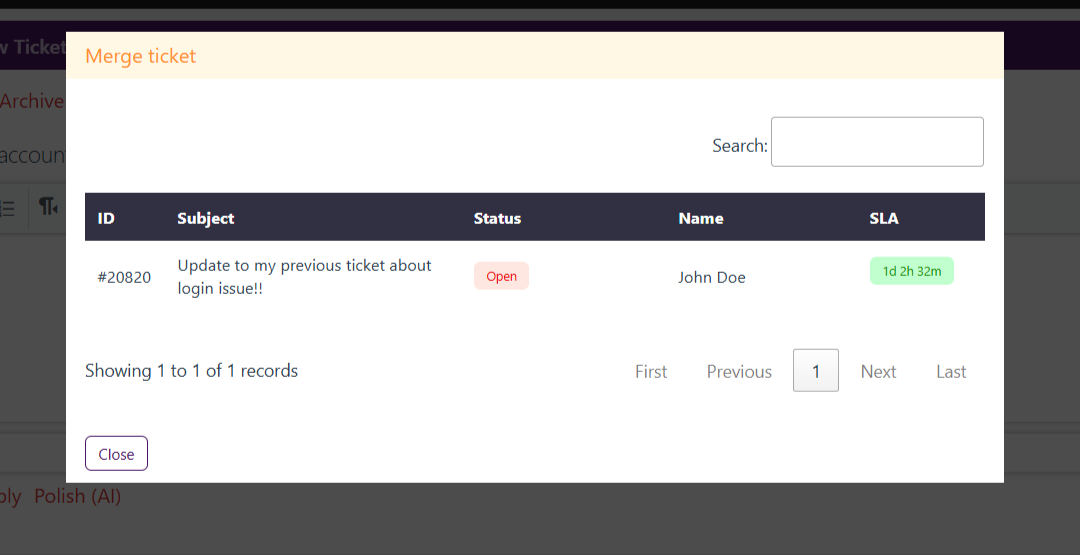
Step 3: Select Ticket to Merge
A popup will appear with a list of tickets
Search and select the ticket you want to merge
Step 4: Confirm Merge
Review the merge details
Click “Continue and merge”
Step 5: View Merged Result
The merged ticket will be closed
The main ticket will show:
Merge note
Full conversation transcript
Notes / Tips
Only tickets from the same customer can be merged
Once merged, the action cannot be undone
Use this feature to manage duplicate or related tickets efficiently
Helps maintain a single conversation history for better tracking