
Chat Sessions List Page
This page shows all chatbot conversations (sessions) in one place. Each row represents one chat between a customer and the AI chatbot.
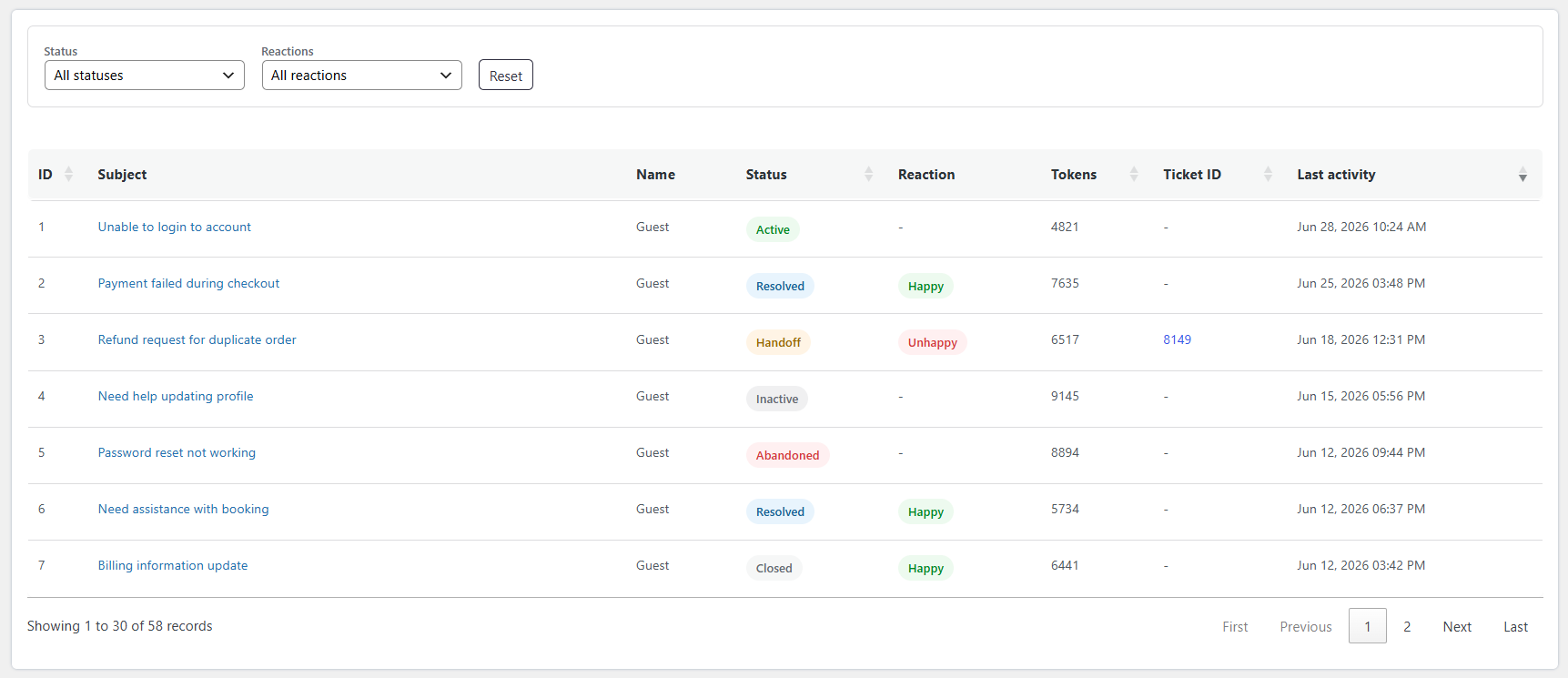
Filters:
- Status Filter – Filter sessions based on their current status (Active, Resolved, Closed, etc.)
- Reactions Filter – Filter sessions based on user feedback (Happy / Unhappy)
- Reset Button – Clears applied filters and shows all sessions
Fields explained:
- ID (Session ID)
A unique number assigned to each chatbot conversation. It helps identify and track a specific session. - Subject
A short title or summary of the user’s query. It helps you quickly understand what the conversation is about. - Name
Displays the customer name (e.g., Guest or registered customer name). - Status
Shows the current state of the chat session:- Active – Chat is currently ongoing
- Inactive – Chat is paused or no recent activity
- Abandoned – User left the chat without completing it
- Handoff – Chat was transferred to a human agent by creating a ticket
- Resolved – User query was successfully answered
- Closed – Chat session is completed and no longer active
- Reaction
Displays user feedback on the chatbot response:- Happy – User is satisfied
- Unhappy – User is not satisfied
- Tokens
Total AI tokens used in the session. Higher values indicate more AI processing. - Ticket ID
Shows the linked support ticket if the chat was converted into a ticket. If empty, no ticket was created. - Last Activity
The date and time of the last message in the session. Helps identify recent or inactive chats.
Single Chat (Session) Details Page
This screen shows complete information about a single chatbot conversation, including messages and session details.
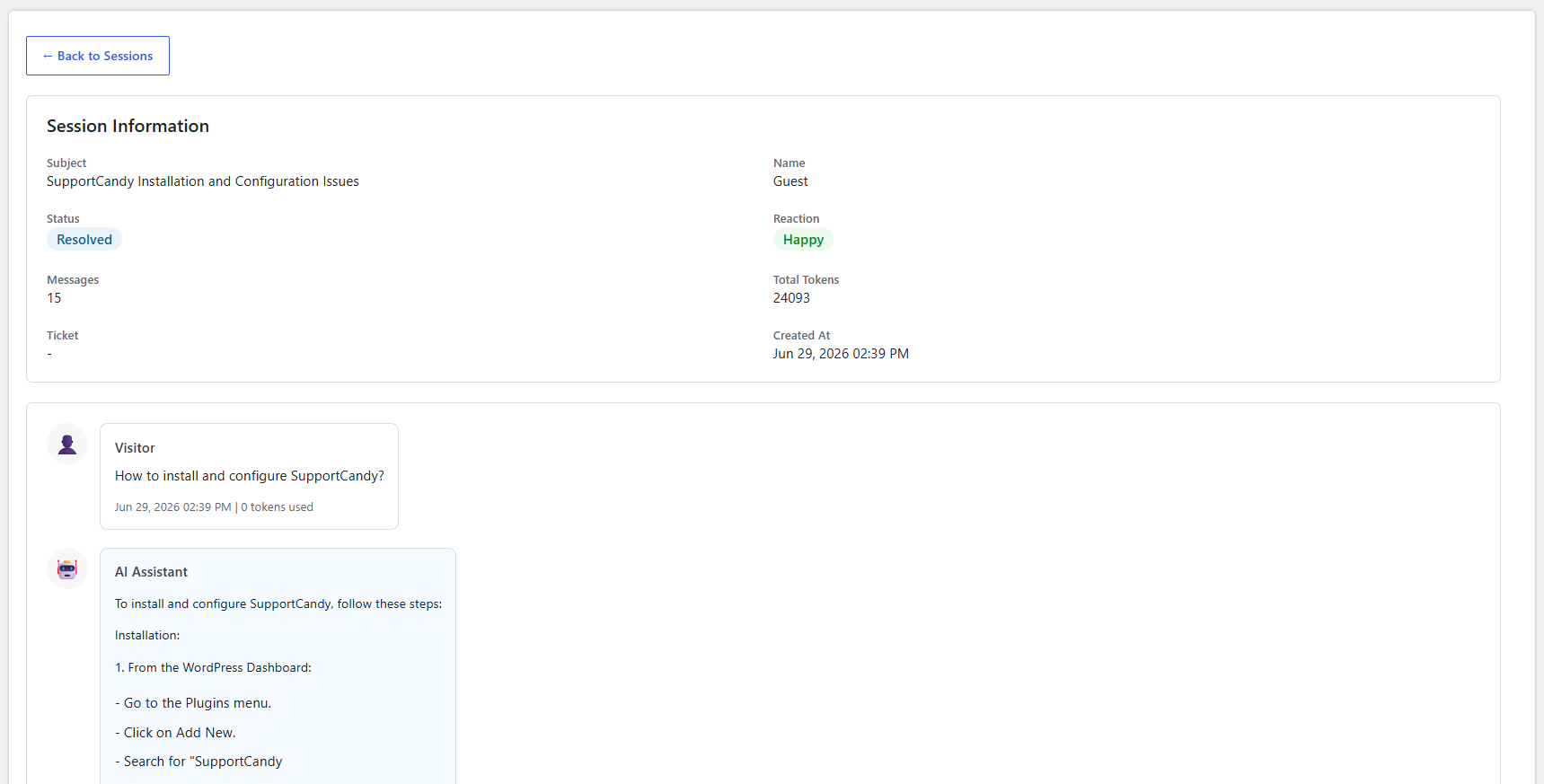
Session Information:
- Subject
Displays the topic or main query of the conversation. - Name
Indicates the customer name (e.g., Guest or registered customer name). - Status
Shows the current state of the session (Active, Resolved, Closed, etc.). - Reaction
Indicates whether the user was satisfied (Happy) or not (Unhappy). - Messages
Total number of messages exchanged in the session. - Total Tokens
Represents the AI usage for this session. Higher tokens mean more AI processing was used. - Ticket
Displays the linked ticket ID if the conversation was converted into a support ticket. - Created At
The date and time when the chat session started.
Conversation View:
- Shows the full chat between Customer and AI Assistant
- Messages are displayed in order for easy understanding
- Helps you review what the user asked and how the AI responded
This page is useful for analyzing chatbot performance, understanding user behavior, and improving response quality.