
Overview
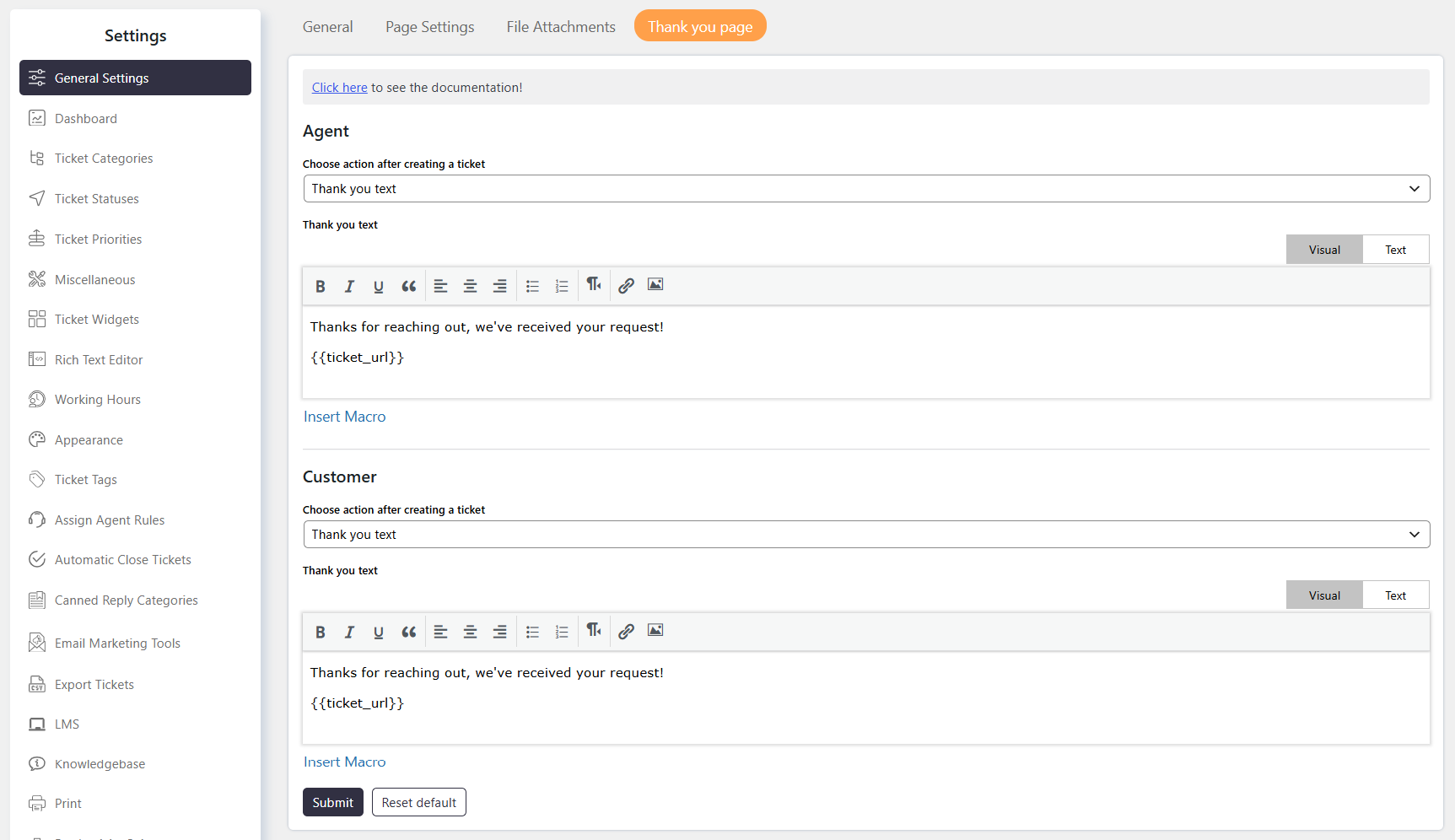
The Thank You Page settings control what happens after a new ticket is created.
You can redirect users to another page, open the individual ticket, or display a thank you message.
You can configure separate actions for Agents and Customers.
Where to Find
Go to Support → Settings → General Settings → Thank You Page.
How It Works
After a ticket is created, SupportCandy performs the action configured for the user type.
You can select a different action for Agents and Customers based on your requirements.
Step-by-Step Guide
- Go to Support → Settings → General Settings → Thank You Page.
- Select the required action after creating a ticket.
- Configure the action separately for Agents and Customers, if required.
- If you select the thank you message option, customize the Thank You Text.
- Add Macros if you want to display dynamic ticket information.
- Save the settings.
Options / Settings
Choose Action After Creating a Ticket
Defines what happens after a ticket is created.
Available options include:
- Redirect to a Custom Page – Redirects the user to a specific URL or custom page.
- Redirect to the Individual Ticket Page – Redirects the user to the details page of the newly created ticket.
- Show a Thank You Message – Displays a custom confirmation message after the ticket is created.
Thank You Text
Allows you to customize the confirmation message displayed after creating a ticket.
Text Editor
Allows you to edit the thank you message using the Visual or Text editor.
You can add plain text, formatting, or custom HTML code.
Insert Macros
Allows you to insert dynamic ticket information into the thank you message.
For example: {{ticket_url}} – Inserts the link to the newly created ticket.
Example
To display a confirmation message with a link to the newly created ticket, use:Thanks for reaching out, we’ve received your request!{{ticket_url}}
The message confirms that the ticket was submitted and provides a direct link to the ticket.
Notes / Tips
- Configure separate thank you actions for Agents and Customers when different behavior is required.
- Use Redirect to the Individual Ticket Page when users should immediately view their newly created ticket.
- Use Show a Thank You Message when you want to provide a custom confirmation.
- Use
{{ticket_url}}to provide a direct link to the newly created ticket. - Use Redirect to a Custom Page when users should be sent to a specific page after ticket creation.