
Overview
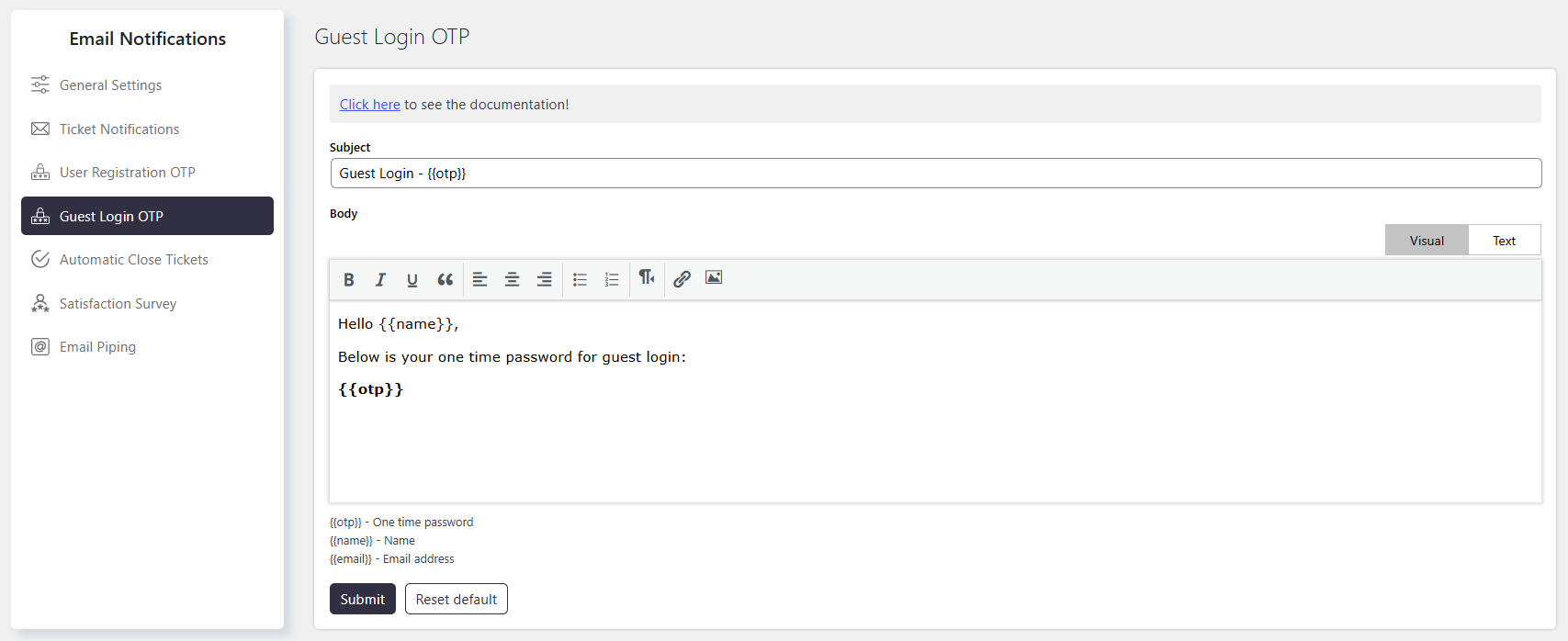
Guest Login OTP allows you to configure the email notification sent to users during guest login authentication.
The Guest Login OTP helps secure guest access by verifying the user’s email address with a one-time password (OTP).
Where to Find
Go to Support → Email Notifications → Guest Login OTP.
How It Works
When a guest user needs to authenticate their login, SupportCandy sends an email containing an OTP.
You can customize the email Subject Field and Body Section using available Macros.
Step-by-Step Guide
- Go to Support → Email Notifications → Guest Login OTP.
- Configure the Subject Field.
- Customize the Body Section.
- Add the required Macros to display dynamic user and OTP information.
- Save the email template.
Options / Settings
Subject Field
Defines the subject line of the OTP email.
Use a clear subject that helps the user understand the purpose of the email.
Body Section
Defines the content of the OTP email. You can add instructions and dynamic user information using available Macros.
Using Macros (Placeholders)
Macros allow you to insert dynamic information into the email.
Common Macros include:
{{otp}}– Inserts the one-time password.{{name}}– Inserts the recipient’s name.{{email}}– Inserts the recipient’s email address.
Example
You can use the following Macros in the email body:
{{name}}to display the guest user’s name.{{otp}}to display the one-time password.{{email}}to display the guest user’s email address.
Notes / Tips
- Use
{{otp}}to include the one-time password in the email. - Use the available Macros to personalize the guest login email.
- Keep the OTP email clear so users can easily identify and use the verification code.