
Overview
Ticket Fields store information related to a support ticket. SupportCandy includes several default ticket fields, and you can create additional custom fields to collect information specific to your support process.
Once added to the Ticket Form, these fields are displayed when customers create a ticket. They are also available in the Ticket Fields widget within the ticket details. After a ticket is created, only agents with the Change Ticket Fields permission can edit these fields.
Where to Find
Go to: Support → Custom Fields → Ticket Fields
How It Works
Ticket Fields define the information stored for each support ticket. After creating a ticket field, you can add it to the Ticket Form so customers can provide the required information while submitting a ticket.
Each field type provides different configuration options, allowing you to customize its appearance, default values, validation, and display throughout SupportCandy.
Step-by-Step Guide
- Go to Support → Custom Fields → Ticket Fields.
- Click Add New.
- Select the field type you want to create.
- Configure the available field settings.
- Click Submit.
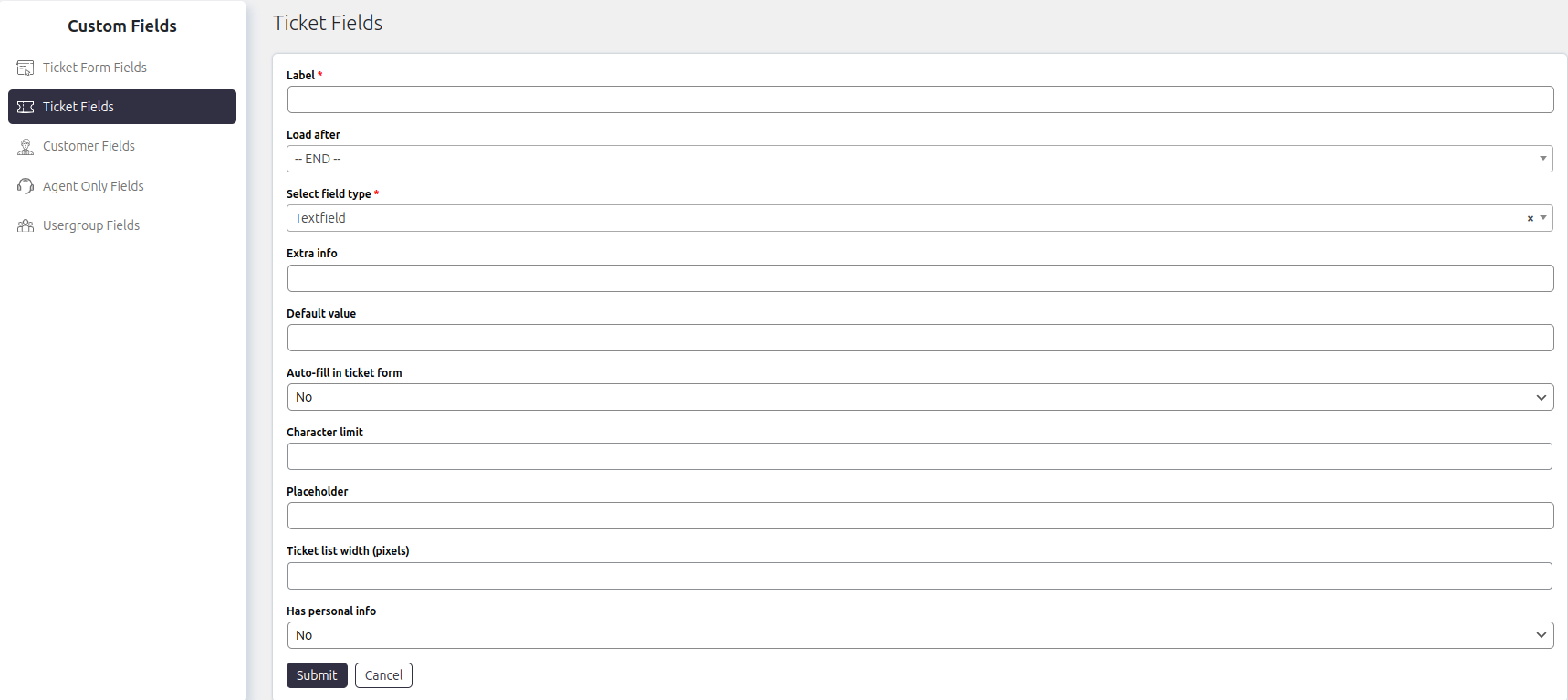
Options / Settings
- Label: Specifies the display name of the field shown on the ticket form and within the ticket details.
- Load After: Determines the position of the field by placing it after another field in the ticket form.
- Extra Info: Displays additional instructions or helpful information below the field on the ticket form.
- Default Value: Sets a default value that is automatically assigned if the field is left empty when the ticket is created.
- Auto-fill in Ticket Form: Automatically fills the field with the configured default value when the New Ticket form is displayed.
- Character Limit: Sets the maximum number of characters that users can enter in the field.
- Placeholder: Displays placeholder text inside the field before the user enters a value.
- Ticket List Width: Specifies the width (in pixels) of the field’s column when displayed in the ticket list.
- Date Display As: Determines how date values are displayed. Available options include:
- Date – Displays the actual date.
- Relative Time – Displays the difference from the current date (for example, 2 days ago).
- Date Format: Specifies the format used to display dates. If left empty, SupportCandy uses the default date format configured in General Settings.
- Has Personal Info: Indicates whether the field stores personal information.
- When enabled, the field is included in personal data exports to help comply with privacy regulations such as GDPR.
- Field Options: Allows you to define the available options for supported field types, such as dropdowns, radio buttons, and checkboxes.
Example
- Create a new Order Number ticket field.
- Set the label to Order Number.
- Add helpful instructions using Extra Info.
- Limit the field to 20 characters.
- Add the field to the Ticket Form.
Notes / Tips
- Ticket Fields store information related to the support ticket itself.
- Creating a Ticket Field does not automatically add it to the ticket form.
- After creating a field, add it to SupportCandy → Custom Fields → Ticket Form Fields.
- Only agents with the Change Ticket Fields permission can edit ticket fields after a ticket has been created.
- Enable Has Personal Info for fields that store personal customer information to support GDPR compliance.