
Overview
The Working Hours settings define when your company or organization is available for support operations.
These settings are used to calculate SLA deadlines and support other features that depend on company or agent availability.
You can also configure Exceptions, Holidays, and individual agent Leaves.
Where to Find
Go to Support → Settings → Working Hours.
Individual Agent working hours and leaves can be managed from Support → Support Agents.
How It Works
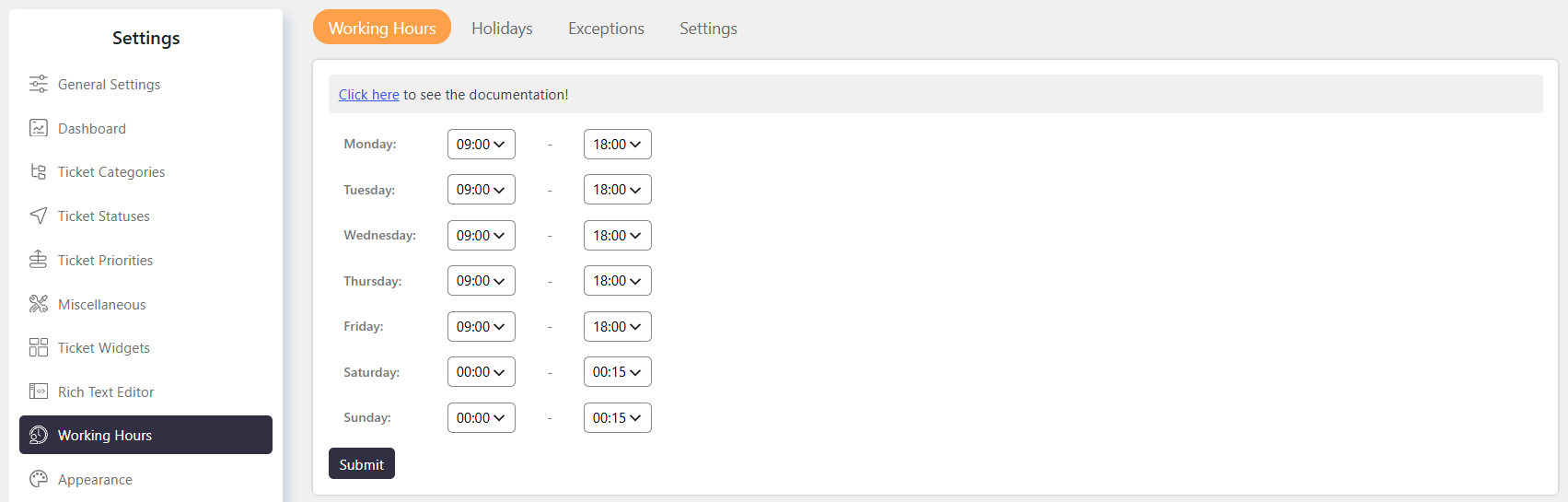
The Working Hours tab defines the regular working schedule for the company or organization.
This schedule is also used as the template for working hours when new Agents are added.
Changes to company-level working hours do not change the working hours of existing Agents.
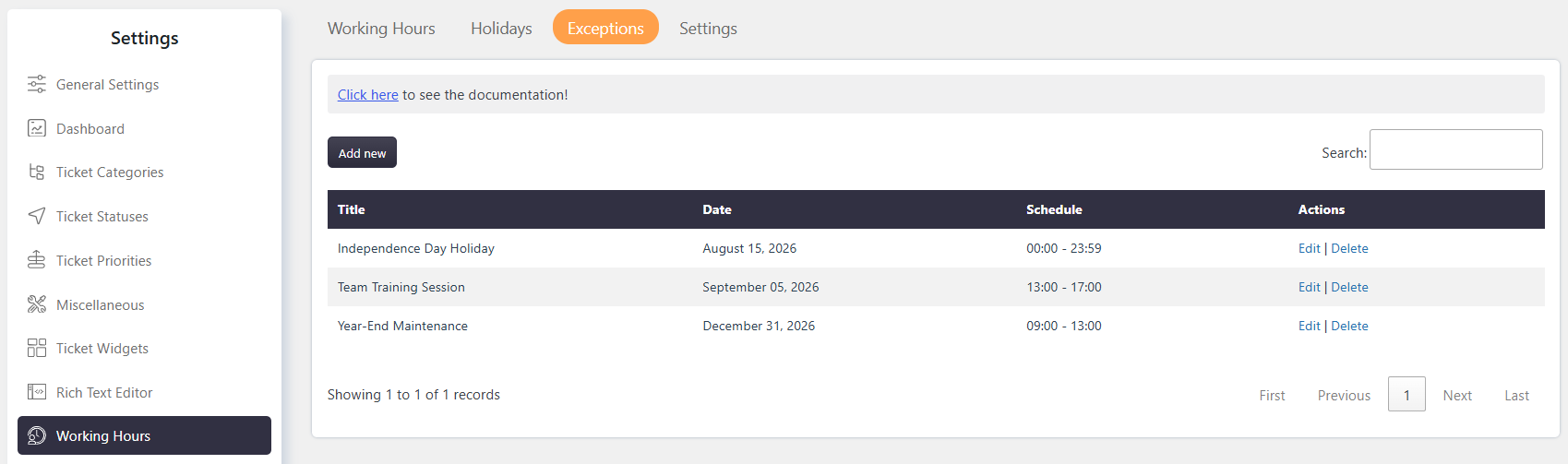
Exceptions allow you to change working hours for specific dates.
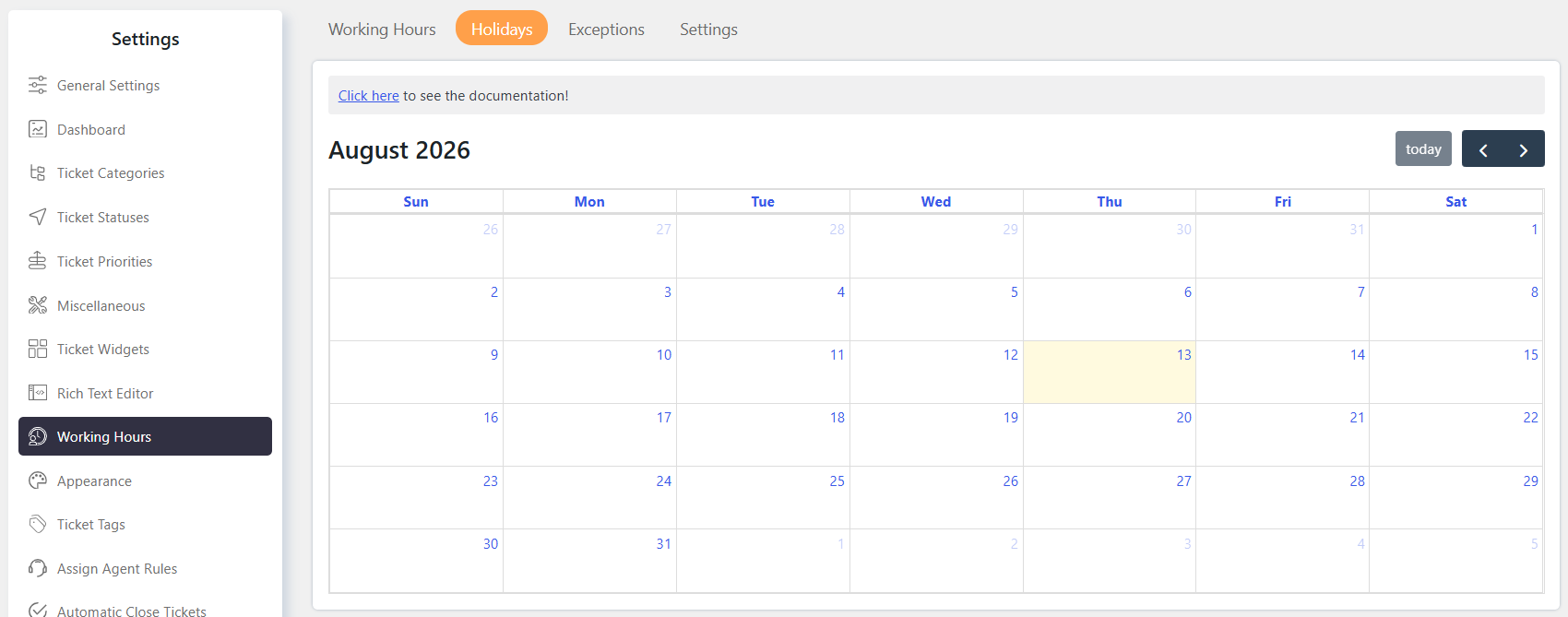
Holidays allow you to mark specific dates or date ranges as non-working days. These settings affect availability and SLA calculations.
Individual Agent Leaves can be configured separately from Support Agents.
Step-by-Step Guide
Configure Working Hours
- Go to Support → Settings → Working Hours.
- Open the Working Hours tab.
- Select the start and end time for each day from Monday to Sunday.
- Click Submit to save the changes.
By default, all days are set to 00:00 to 23:59.
Configure Exceptions
- Go to Support → Settings → Working Hours.
- Open the Exceptions tab.
- Select the date for which you want to change the working hours.
- Enter the required start and end time.
- Submit the changes.
The exception applies to the selected date and takes precedence over the regular working hours.
Configure Holidays
- Go to Support → Settings → Working Hours.
- Open the Holidays tab.
- Select a date or date range.
- Choose Add new holidays.
- Enable Repeat every year if the holiday should repeat annually.
- Click Submit to save the changes.
To remove holidays, select Delete existing holidays instead.
Settings
- Go to Support → Settings → Working Hours.
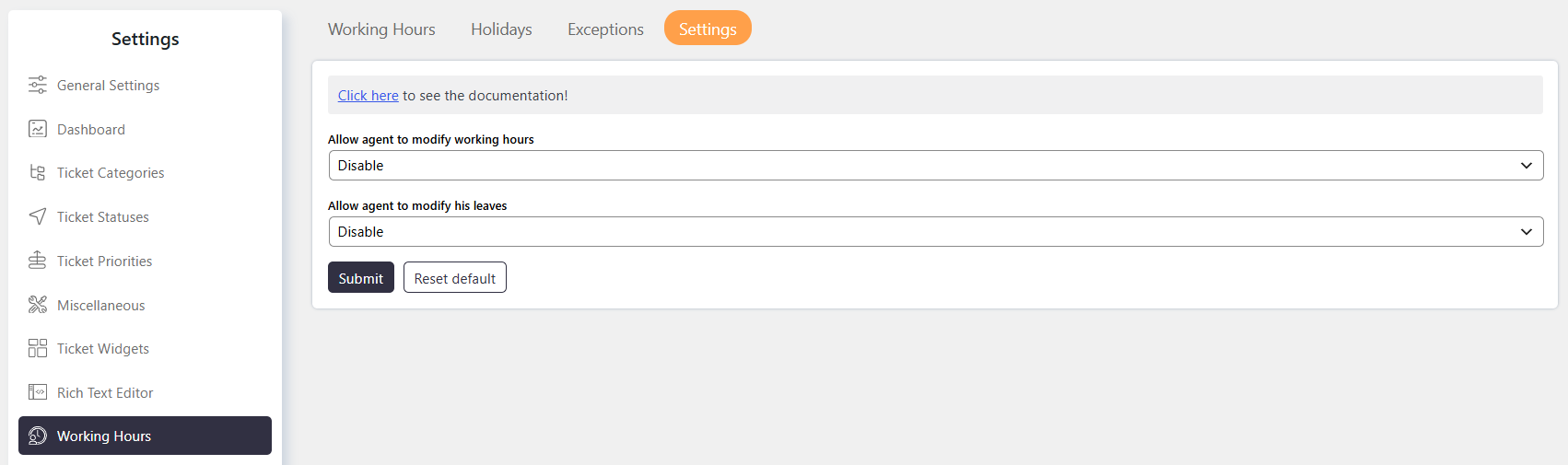
- Open the Settings tab.
- Enable or Disable the Allow agent to modify working hours if you want to allow agent to modify working hours by its own.
- Enable or Disable the Allow agent to modify his leaves if you want to allow agent to modify leave by its own.
- Click Submit to save the changes.
To remove holidays, select Delete existing holidays instead.
Configure Agent Leaves
- Go to Support → Support Agents.
- Select the Agent whose leave you want to configure.
- Add the required leave or day-off dates.
- Save the changes.
Agent-specific leaves help maintain accurate availability information for ticket assignment and SLA monitoring.

Options / Settings
Working Hours
Defines the regular working schedule for the company or organization.
Each day from Monday to Sunday can have its own start and end time.
Exceptions
Defines different working hours for specific dates.
For example, if Monday normally has working hours from 9:00 AM to 6:00 PM, you can configure a specific Monday to work from 9:00 AM to 2:00 PM.
Holidays
Defines dates or date ranges when the organization is not available.
Holidays automatically affect availability and SLA calculations.
Leaves
Defines planned absences or days off for individual Agents.
Agent leaves are configured from Support → Support Agents.
Example
Suppose the regular working hours are 9:00 AM to 6:00 PM on Monday.
For one specific Monday, the organization will work only until 2:00 PM.
Configure an Exception for that date with:
- Start time: 9:00 AM
- End time: 2:00 PM
The exception will override the regular Monday schedule for that date.
Notes / Tips
- The default working hours are 00:00 to 23:59 for every day.
- Company-level working hours act as the template for newly added Agents.
- Changing company-level working hours does not update existing Agents.
- Use Exceptions for temporary changes to regular working hours.
- Company-level exceptions take precedence over regular working hours for the selected dates.
- Use Holidays for organization-wide non-working dates.
- Use Leaves for individual Agent absences.
- Working hours, holidays, and exceptions can affect SLA deadlines.
- Individual Agent working hours and leaves are managed from Support → Support Agents.