
Overview
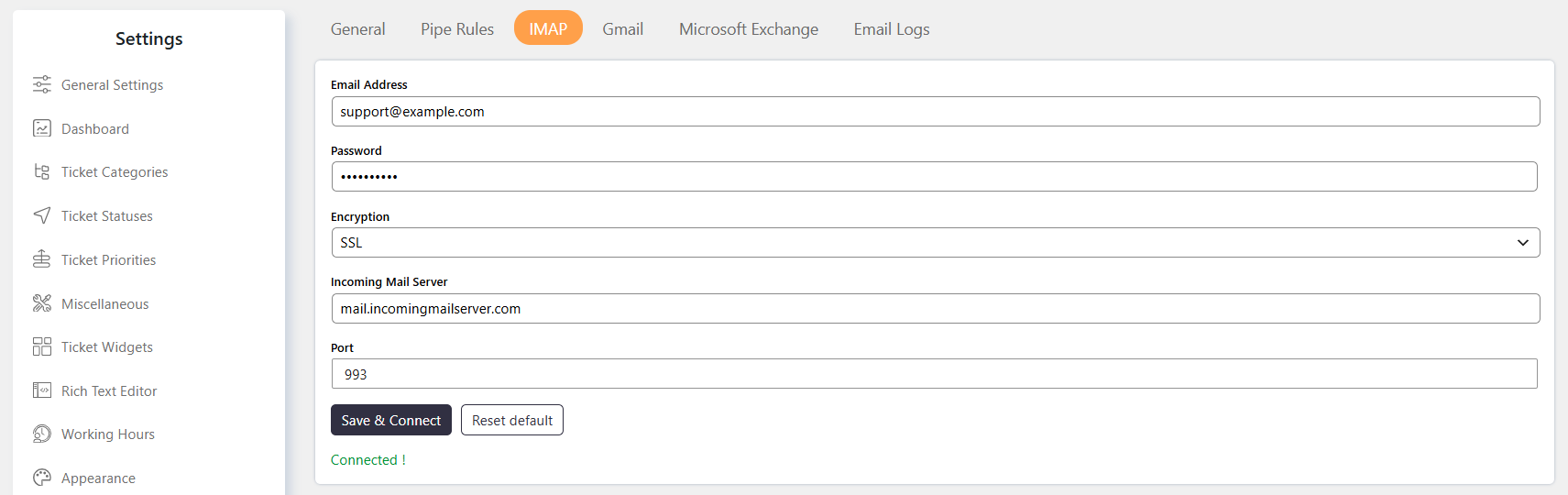
The IMAP Settings allow you to connect an email account to SupportCandy using the IMAP protocol. Once configured, emails received in the connected account can be processed through Email Piping.
The required connection details are provided by your email provider.
Important: Microsoft Exchange and GMail emails should not be configured using these IMAP settings. SupportCandy provides dedicated Email Piping methods for Microsoft Exchange and GMail.
Where to Find
Go to Support → Settings → Email Piping → IMAP.
How It Works
SupportCandy connects to the selected email account using the IMAP protocol.
To establish the connection, enter the email account credentials and IMAP server details provided by your email provider.
You need the following information:
- Email address
- Password
- Encryption
- Incoming Mail Server
- Port
Step-by-Step Guide
- Go to Support → Settings → Email Piping → IMAP.
- Enter the Email address of the email account you want to pipe.
- Enter the account Password.
- Select the Encryption method provided by your email provider.
- Enter the Incoming Mail Server provided by your email provider.
- Enter the Port provided by your email provider.
- Save the settings and configure the email account for Email Piping as required.
Options / Settings
Email address
Enter the email address of the account you want to use for Email Piping.
Password
Enter the password for the email account.
Encryption
Select the encryption method supported by your email provider.
Use a secure encryption method such as SSL or TLS instead of None, when supported by your email provider.
Incoming Mail Server
Enter the incoming mail server address provided by your email provider in its IMAP configuration details.
Port
Enter the IMAP port number provided by your email provider.
Typically:
- Secure IMAP connections use port 993.
- Insecure IMAP connections use port 143.
Always use the port provided by your email provider for your specific configuration.
Example
If your email provider provides the following IMAP details:
- Email address:
[email protected] - Password: Your email account password
- Encryption: SSL
- Incoming Mail Server: Provided by your email provider
- Port: 993
Enter these values under Support → Settings → Email Piping → IMAP and save the settings.
Notes / Tips
- Obtain the IMAP connection details from your email provider.
- Use SSL or TLS instead of None whenever supported.
- Port 993 is typically used for secure IMAP connections.
- Port 143 is typically used for insecure IMAP connections.
- Do not use this method for Microsoft Exchange email; use the dedicated Microsoft Exchange Email Piping method.
- GMail emails can be piped using the dedicated GMail Email Piping method.
Troubleshooting Tips
If you are unable to configure IMAP email piping, first try configuring the same email account in an email client such as Thunderbird, Outlook, or Apple Mail.
If the email account works successfully in the email client, use the same IMAP server, port, encryption, username, and password to configure email piping in SupportCandy. This can help verify that the email account details and IMAP connection settings are correct.