Overview
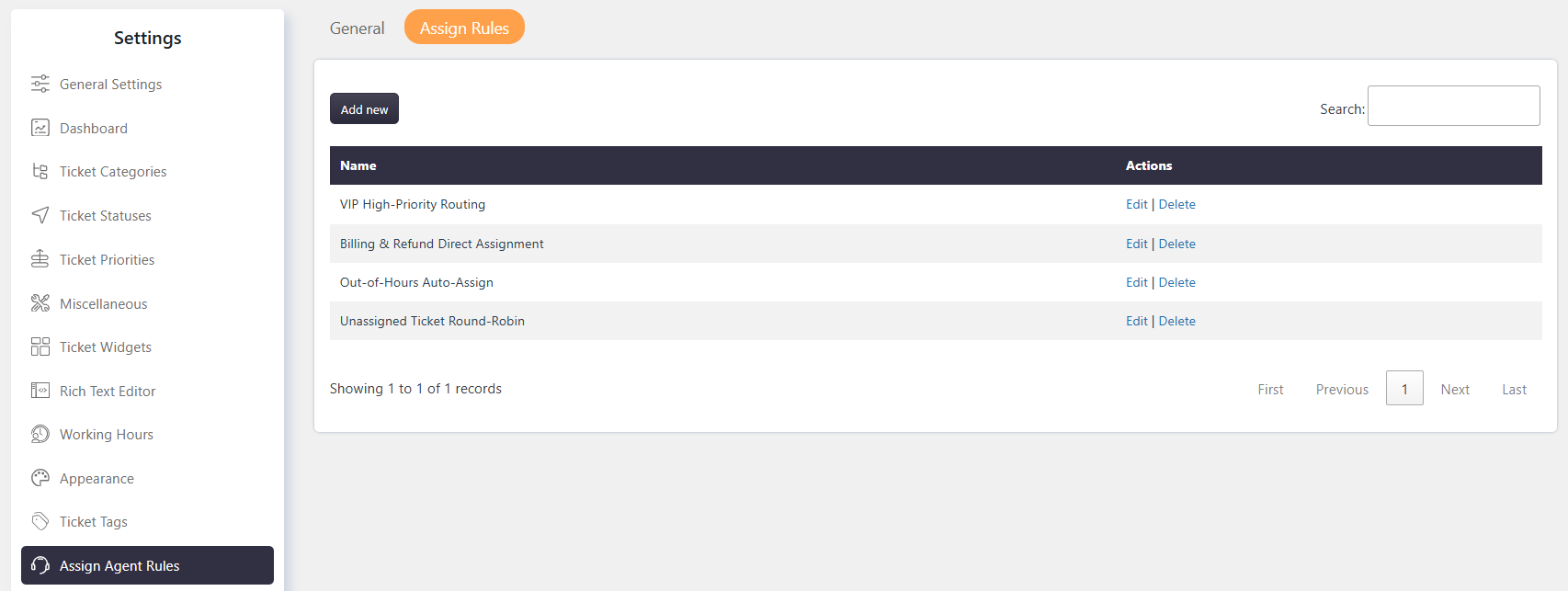
Assign Agent Rules automatically assign Tickets to Agents based on configured conditions and Agent availability.
When a Ticket is submitted, the system evaluates the configured rules and assigns the Ticket accordingly.
Where to Find
Go to Support → Settings → Assign Agent Rule → Assign Rules to create and manage Assign Agent Rules.
Conditions
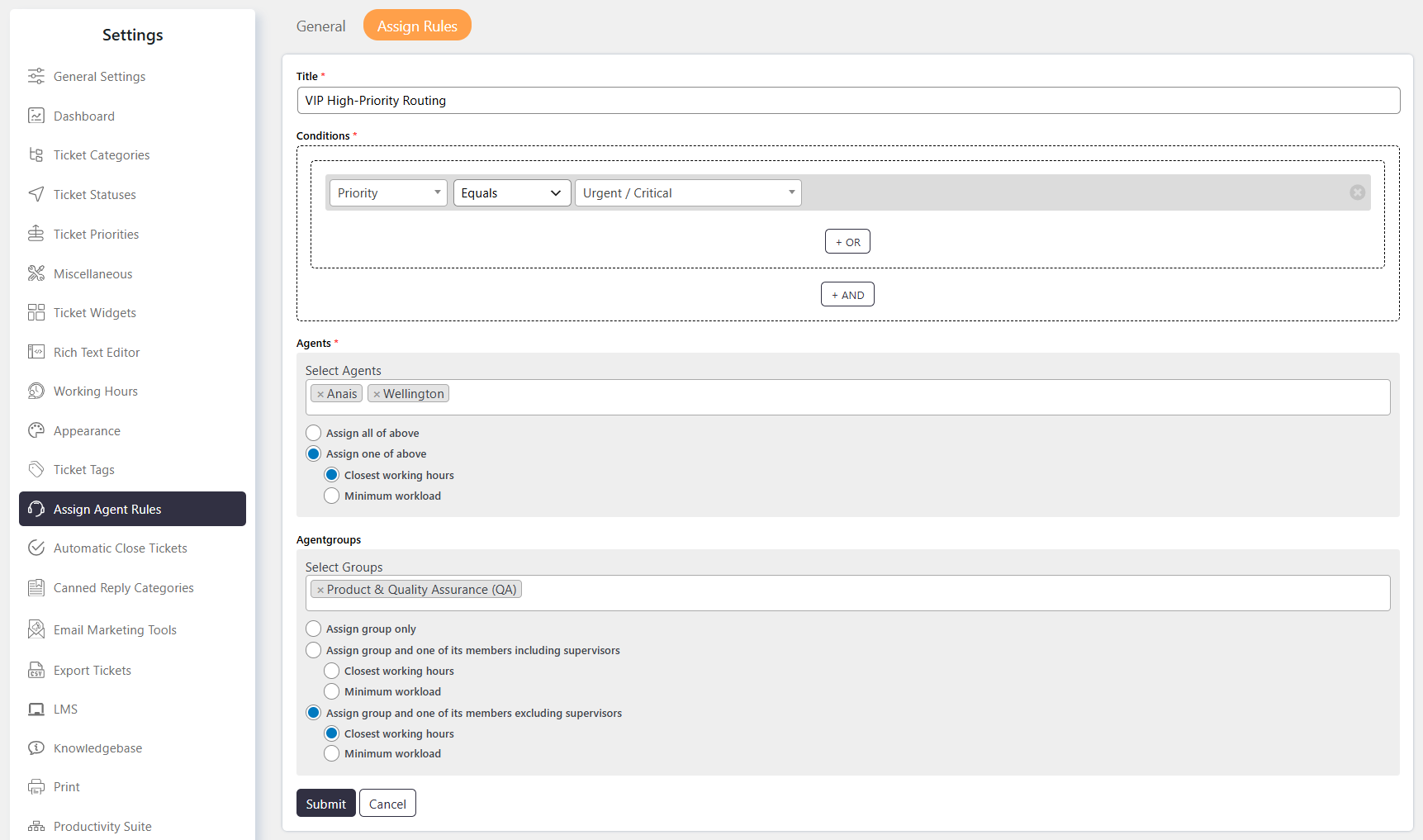
Conditions define when an Assign Agent Rule should apply to a Ticket.
You can use Ticket fields and properties such as Status, Category, Subject, or Customer.
You can also select an operator to compare the selected field. Available operators include equal to, matches, compare as, and Has word.
For example, to assign Tickets from the General or Pre-sale queries categories to a specific Agent, configure:
- Category → Matches → General and Pre-sale queries
Agents
Select the Agents who can receive the Ticket when the configured conditions are satisfied.
You can select one or multiple Agents for an Assign Agent Rule.
Agent Availablity
When multiple Agents are selected, Agent Availablity determines how the Ticket is assigned.
Assign all of the above
Select Assign all of the above to assign the Ticket to all selected Agents.
The Ticket is assigned to all selected Agents even when some Agents are unavailable.
Assign one of the above
Select Assign one of the above to assign the Ticket to one Agent from the selected Agents.
You can choose how the system selects the Agent based on availability or workload.
Closest working hours
Select Closest working hours to assign the Ticket based on Agent availability.
If an Agent is available, the Ticket is assigned to an available Agent. If no Agent is available, it is assigned to the Agent who will log in earliest.
If multiple Agents are available at the same time, the Agent with the least number of Tickets is selected.
Minimum workload
Select Minimum workload to assign the Ticket to the Agent with the least number of Tickets.
If multiple Agents have the same number of Tickets, the Agent who will log in earliest is selected.
AgentGroups
If the Agentgroups add-on is active, you can assign Tickets to Agentgroups.
You can assign a Ticket to the Agentgroup only or to the Agentgroup and one of its members.
Assign group only
Select Assign group only to assign the Ticket to the Agentgroup.
The group’s supervisors can view the Ticket and assign it to one of the group members.
Assign group and one of its members including supervisors
Select Assign group and one of its members including supervisors to assign the Ticket to the Agentgroup and one member.
Supervisors are included when selecting an Agent for the Ticket.
You must also select Closest working hours or Minimum workload to determine the assigned Agent.
Assign group and one of its members excluding supervisors
Select Assign group and one of its members excluding supervisors to assign the Ticket to the Agentgroup and one member.
Supervisors are excluded from Agent selection and cannot be assigned the Ticket.
You must also select Closest working hours or Minimum workload to determine the assigned Agent.