
Overview
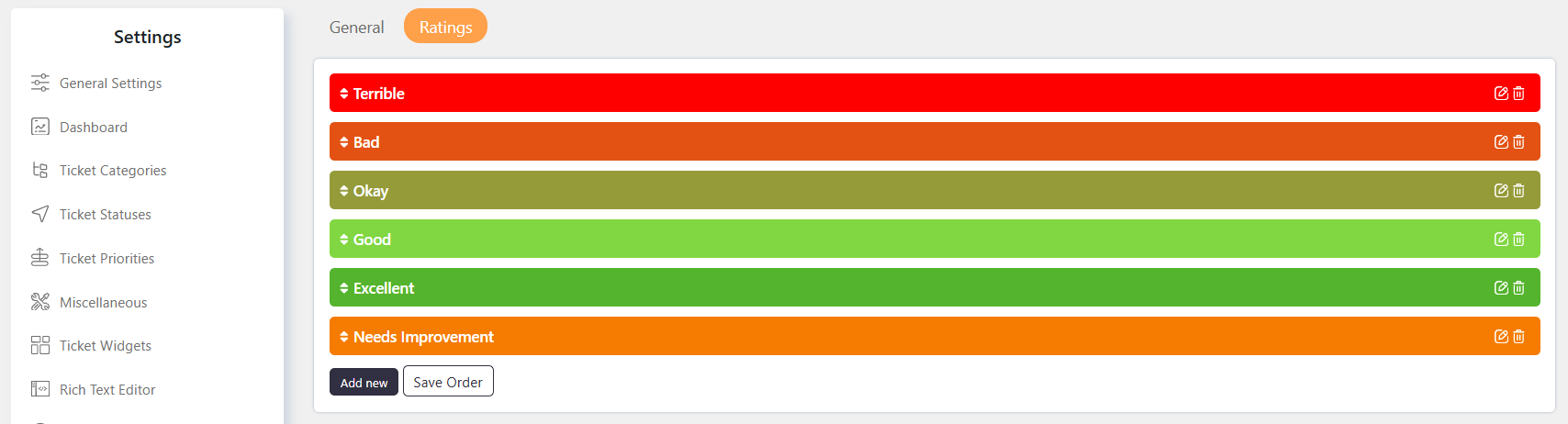
The Add new rating setting allows you to create rating options for the Satisfaction Survey. You can customize the rating label, its appearance, and the confirmation message shown after submission.
Where to Find
Go to Support → Settings → Satisfaction Survey → Rating.
How It Works
Create a rating by defining its Name, Color & Background Color, and Confirmation Text. Customers will see the configured rating option when submitting the Satisfaction Survey.
Step-by-Step Guide
- Go to Support → Settings → Satisfaction Survey → Rating.
- Click Add New.
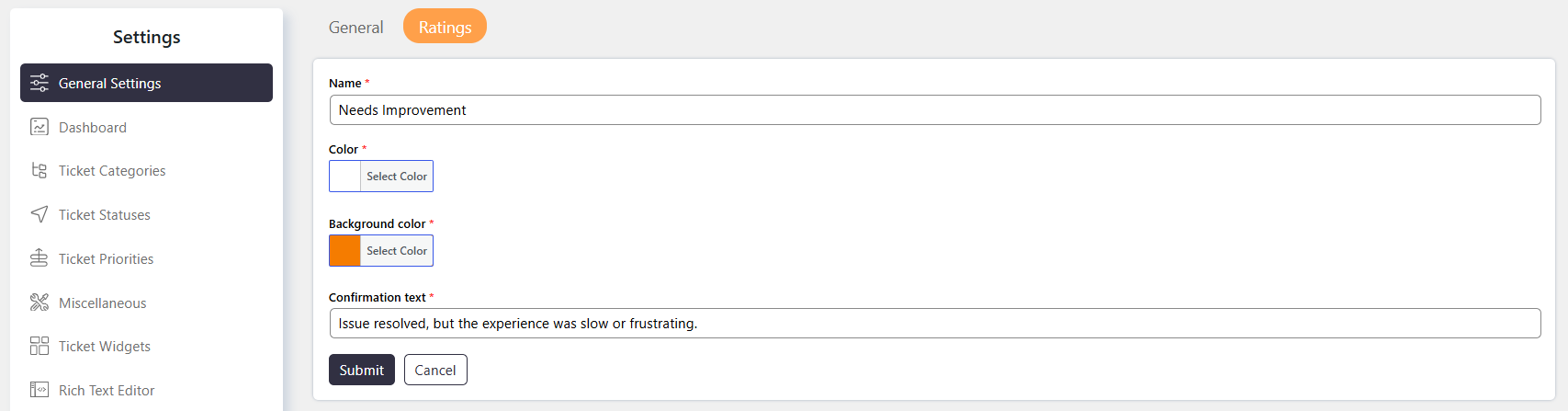
- Enter the rating label in Name.
- Select the Color & Background Color.
- Enter the Confirmation Text shown after the Customer submits the rating.
- Save the rating.
Options / Settings
Name
Enter the label for the rating option.
- You can use text, numbers, and special characters.
- Use a clear name that represents the rating.
Color & Background Color
Select the text color and background color for the rating label. These colors help distinguish different rating options in the Satisfaction Survey.
Confirmation Text
Enter the message displayed after a Customer submits the rating.
- Use a thank-you message for positive ratings.
- Use an appropriate message to acknowledge feedback for negative ratings.
Example
For a positive rating, you can set Name to Excellent and use Confirmation Text such as “Thank you for your feedback.”
For a negative rating, you can use Name as Poor and provide a message that acknowledges the Customer’s feedback.