
Overview
The Gravity Forms Integration allows you to create SupportCandy tickets from Gravity Forms submissions.
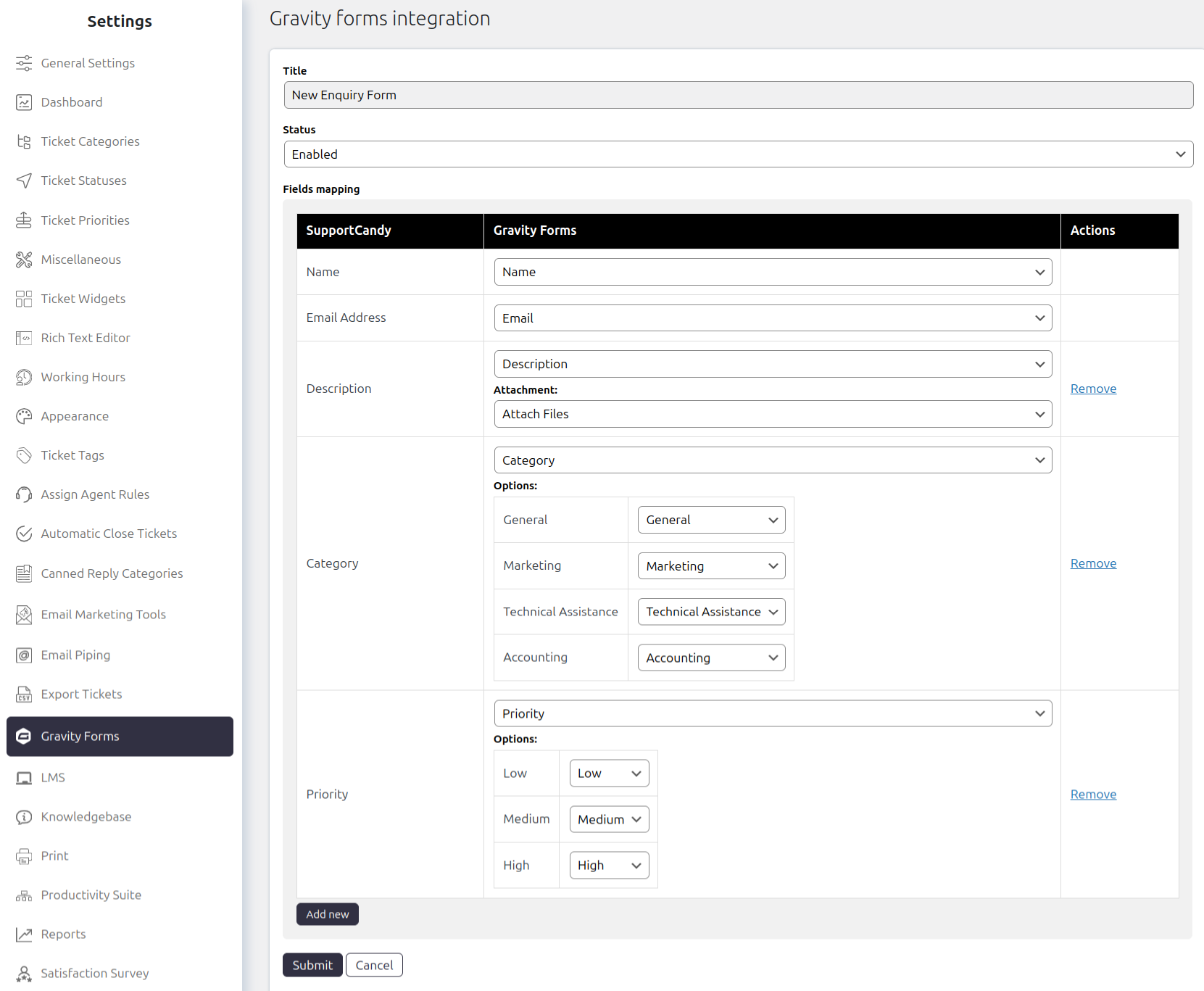
Create a mapping to connect Gravity Forms fields with the corresponding SupportCandy ticket fields. When a customer submits the mapped form, SupportCandy automatically creates a new ticket using the mapped field values.
Where to Find
Go to Support → Settings → Gravity Forms.
Add a New Mapping
- Create the required form in Gravity Forms.
- Go to Support → Settings → Gravity Forms.
- Click Add Mapping.
- Select the Gravity Form you want to connect.
- Map the Gravity Forms fields to the corresponding SupportCandy fields.
- Save the mapping.
After saving the mapping, submissions from the selected Gravity Form can create SupportCandy tickets automatically.
How It Works
When a customer submits a mapped Gravity Form, SupportCandy creates a new ticket.
The ticket fields are populated using the values received from the Gravity Form according to the configured mapping.
For example, you can map a Gravity Forms Name field to the SupportCandy Customer Name field.
Allowed Field Mapping
SupportCandy only allows compatible Gravity Forms field types to be mapped to each SupportCandy field type.
| SupportCandy Field Type | Allowed Gravity Forms Field Types |
|---|---|
| Checkbox | Checkbox, Multiselect, Select, Hidden |
| Date | Date, Hidden |
| DateTime | Date, Hidden |
| Email, Hidden | |
| File Attachment – Multiple | File Upload |
| File Attachment – Single | File Upload |
| Multi-select | Checkbox, Multiselect, Select, Hidden |
| Number | Number, Hidden |
| Radio Button | Radio, Select, Hidden |
| Single Select | Select, Hidden, Radio |
| Text Area | Textarea, Name, Text, Email, Number, Hidden, Date, Time, Phone, Website, Address |
| Text Field | Name, Text, Email, Number, Hidden, Date, Time, Phone, Website |
| Time | Time, Hidden |
| URL | Website, Hidden |
| Add Recipient | |
| Category | Select, Hidden, Radio |
| Customer Email | Email, Hidden |
| Customer Name | Name, Text, Hidden |
| Description | Textarea, Name, Text, Email, Number, Hidden, Date, Time, Phone, Website, Address |
| Priority | Select, Hidden, Radio |
| Status | Select, Hidden, Radio |
| Subject | Name, Text, Email, Number, Hidden, Date, Time, Phone, Website |
Allowed Field Mapping
The following Gravity Forms field types can be mapped with SupportCandy fields:
- Single Line Text
- Paragraph Text
- Drop Down
- Number
- Check Boxes
- Radio Buttons
- Hidden
- Name
- Date
- Time
- Phone
- Address
- Website
- File Upload
- Captcha
- List
- Multiselect
- Consent
Fields that are not listed can be supported through custom code as a paid customization.
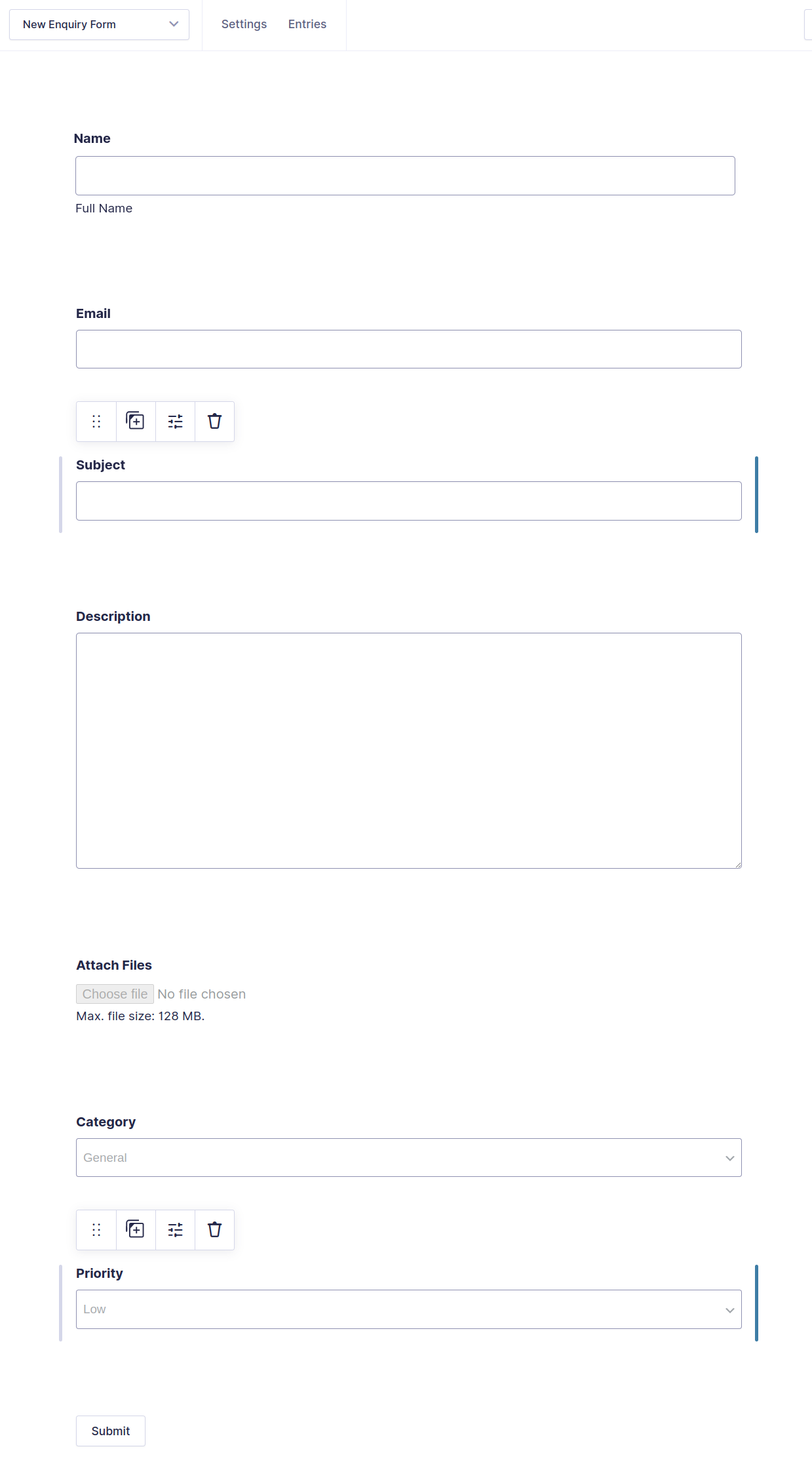
Gravity Form
Mapping
Notes / Tips
- Create the Gravity Form before creating its SupportCandy mapping.
- Map fields with compatible field types to avoid incorrect ticket data.
- Test the form after saving the mapping to confirm that tickets are created correctly.
- Use custom code customization for unsupported field types when required.