
Overview
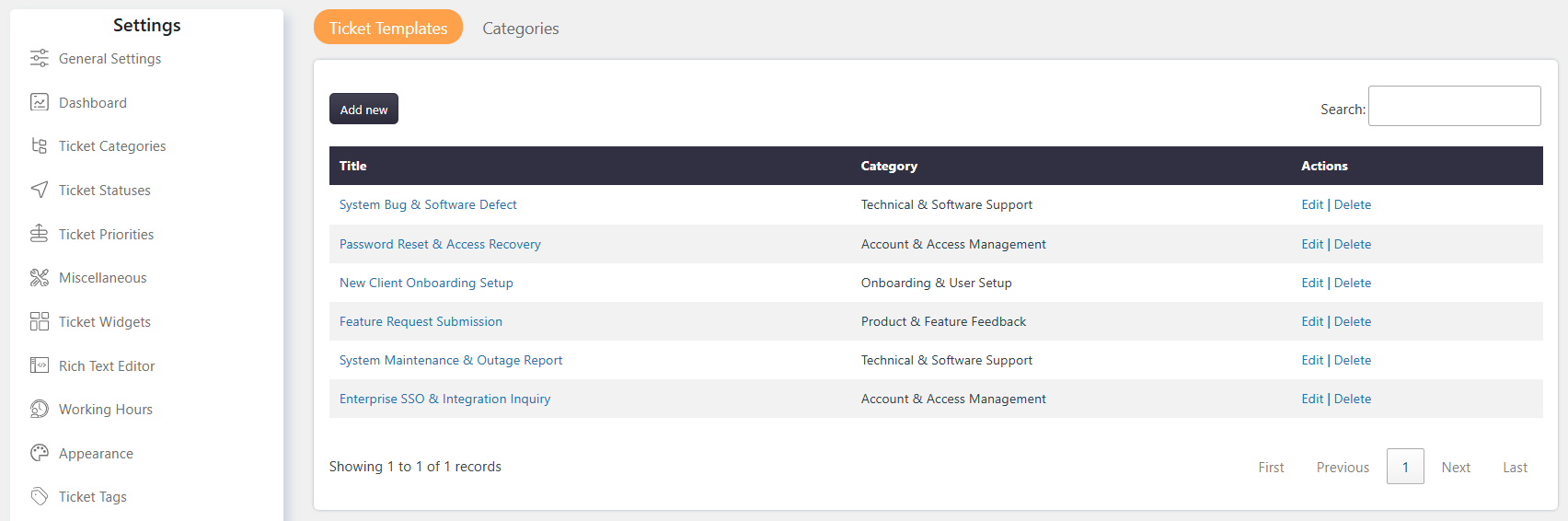
Ticket Templates allow Admin users to create predefined ticket forms with commonly used ticket information. Templates help Support Agents create tickets faster by automatically filling in predefined values and maintaining consistency across ticket submissions.
Where to Find
- Enable the feature from Support → Settings → Productivity Suite → Ticket Template.
- Create and manage templates from Support → Settings → Ticket Templates.
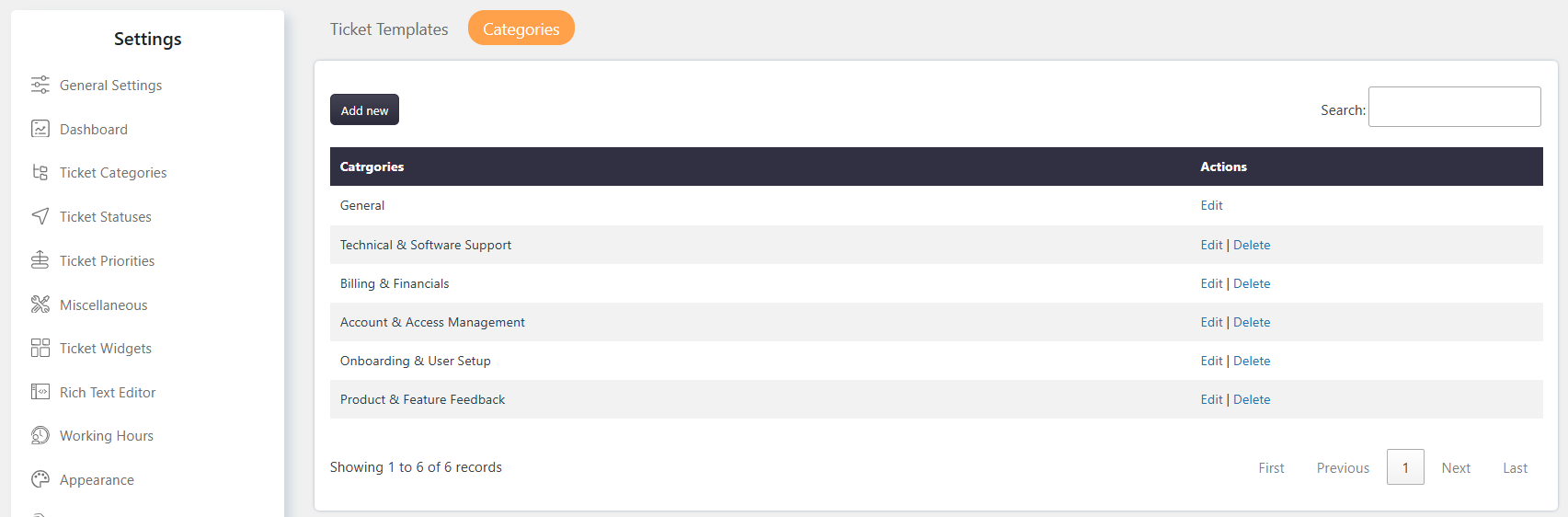
- Manage template categories from Support → Settings → Ticket Template → Categories.
How It Works
A Ticket Template contains predefined ticket information that can be applied when creating a new ticket. You can define values for default ticket fields, such as Subject and Description, as well as custom fields available in the New Ticket Form.
Not all fields are required. You can leave some or all field values blank if they are not needed for a particular template.
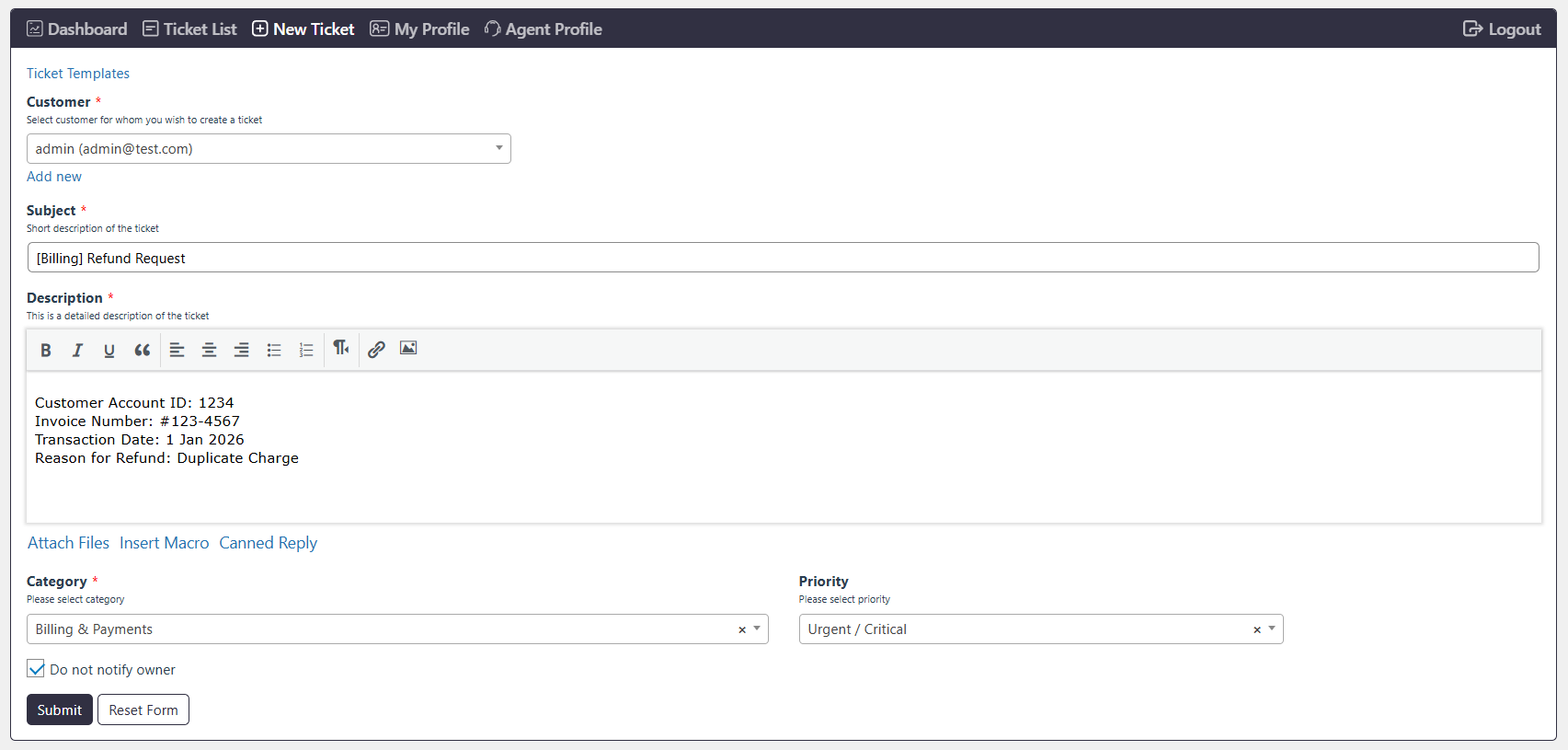
When creating a new ticket, Support Agents can select a template to automatically populate the configured ticket fields.
Step-by-Step Guide
Creating a New Ticket Template
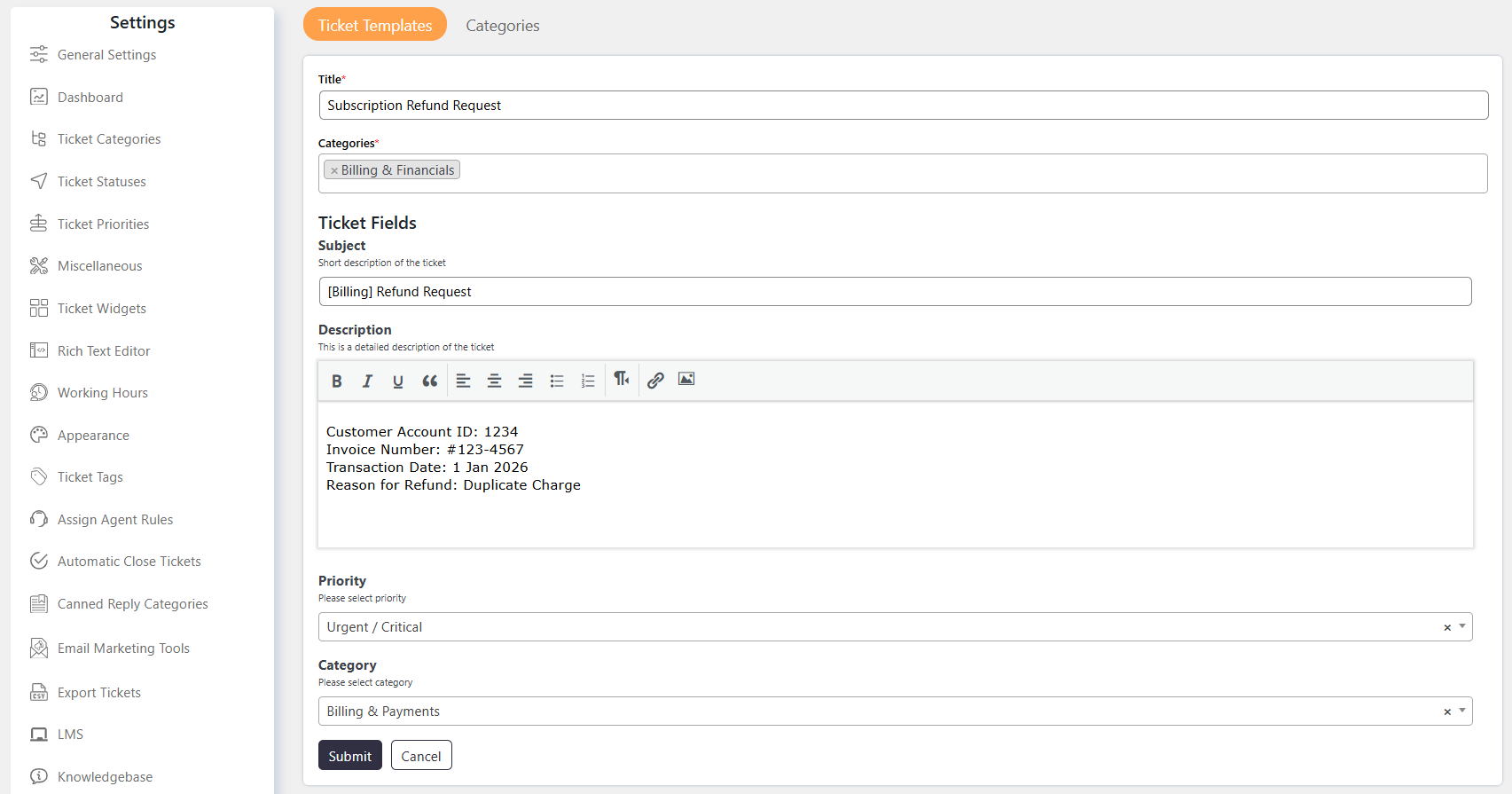
To create a new Ticket Template:
- Go to Support → Settings → Ticket Templates.
- Click Add New.
- Enter a Title for the template.
- Select a Category for the template.
- Configure the required ticket fields.
- Set values for default fields such as Subject and Description, if required.
- Set values for custom fields available in the New Ticket Form, if required.
- Save the template.
Managing Templates
From Support → Settings → Ticket Templates, Admin users can:
- Create new Ticket Templates.
- Edit existing Ticket Templates.
- Delete Ticket Templates.
- Manage the predefined values used by each template.
Categorizing Templates
Categories help organize Ticket Templates and make it easier to manage templates for different types of queries or support requirements.
To manage categories:
- Go to Support → Settings → Ticket Template → Categories.
- Create the required categories.
- Assign a category when creating or editing a Ticket Template
Using Ticket Templates
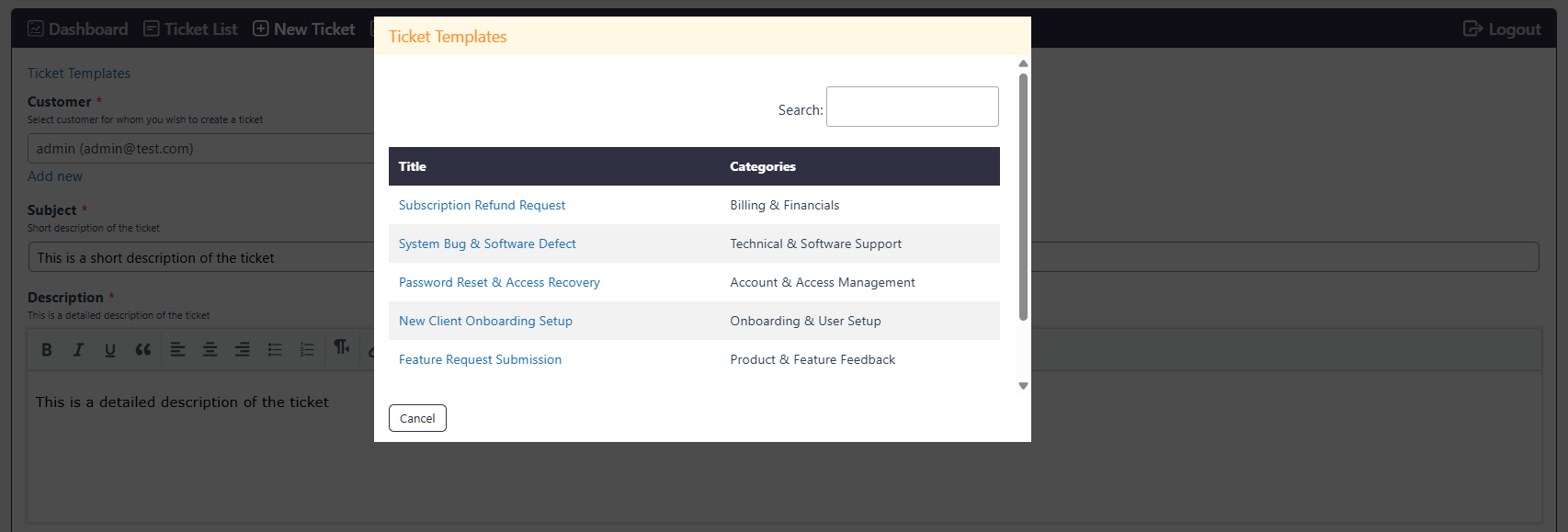
Once a Ticket Template is created, it becomes available on the New Ticket Form.
To use a template:
- Open the New Ticket Form.
- Click on Ticket Template & Select the required Ticket Template.
- The configured ticket fields are populated with the template values.
- Review or modify the values as required.
- Submit the ticket.
This helps Support Agents reduce repetitive data entry and create tickets with consistent information.
Notes / Tips
- You do not need to configure values for every ticket field. Leave fields blank when they are not required for the template.
- Ticket Templates can include default fields such as Subject and Description, as well as custom fields available in the New Ticket Form.
- Selecting a Ticket Template on the New Ticket Form populates the configured field values, which can be reviewed or modified before submitting the ticket.
- Use Categories to organize templates for different types of queries or support requirements.