
Overview
The Polish Reply (AI) feature helps agents improve and refine their response before sending it to the customer.
It uses AI to enhance the message by making it:
More professional
Clear and well-structured
Grammatically correct
This helps agents send high-quality replies with minimal effort.
Where to Find
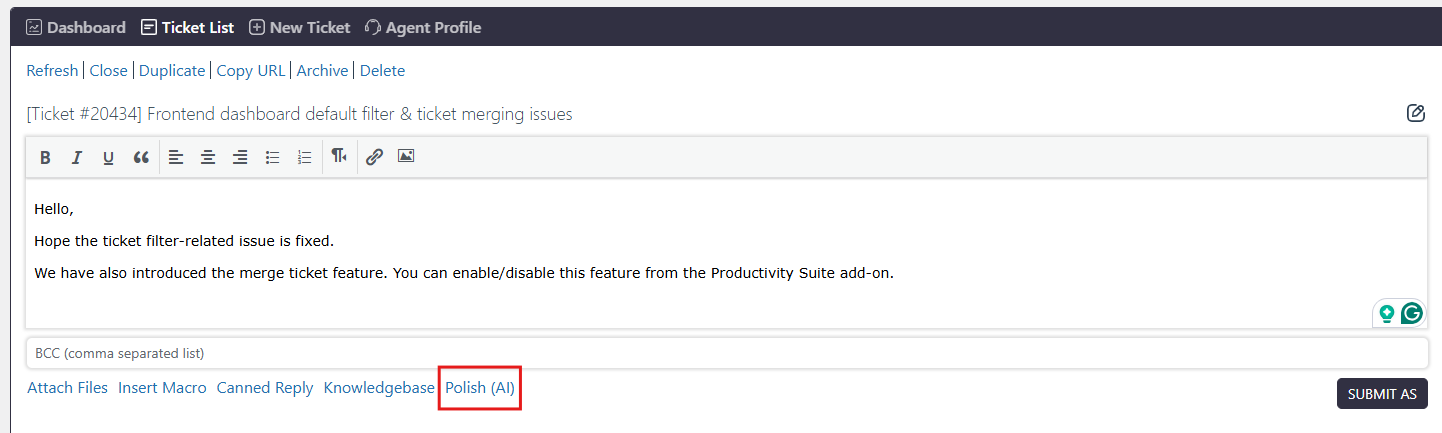
Dashboard → Support → Ticket List → Open any Ticket → Reply Editor → Polish (AI)
How It Works
Agents can write a reply as usual in the ticket editor and then use the Polish (AI) option.
The AI will:
Analyze the written message
Improve tone and clarity
Fix grammar and formatting
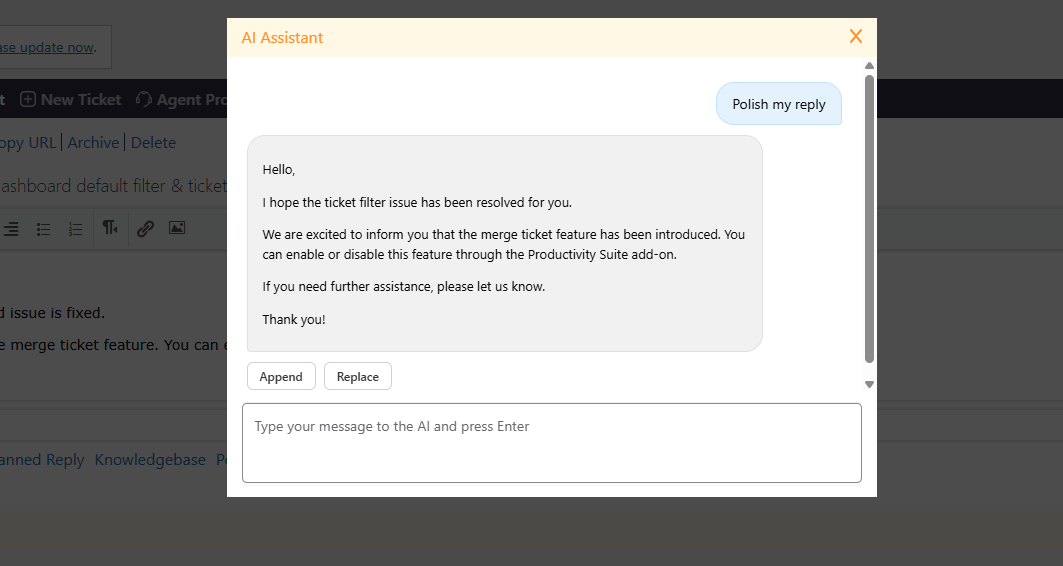
The improved version is shown in a popup, where agents can choose how to use it.
Note: Only agents who have permission to reply to tickets can use this feature.
Step-by-Step Guide
- Go to Dashboard → Support → Ticket List
- Open any ticket
- Write your reply in the editor
- Click on Polish (AI)
- Review the improved response in the pop-up
- Choose one of the following:
Append → Add the improved text to your existing reply
Replace → Replace your current reply with the improved version
Feature Interface
Options Available
Append
Adds the AI-generated improved text below your existing message.
Use this when:
You want to compare both versions
You want to keep original content and add improvements
Replace
Replaces your current message with the AI-polished version.
Use this when:
You are satisfied with the improved response
You want a clean and professional final reply
Notes / Tips
Always review the AI response before sending
Use Replace for quick improvements
Use Append if you want to compare versions
Works best when your initial message has basic context
Make sure AI settings (API key, provider) are properly configured