
Overview
The Websites and File Uploads section manages training data used by the Retrieval-Augmented Generation (RAG) system.
Administrators can add training data from published WordPress post types, files, and URLs. Each training item is processed and indexed so the AI Assistant can retrieve the content when generating responses.
Administrators can :
- Add new training items.
- Upload PDF and TXT files.
- Train the AI using website URLs.
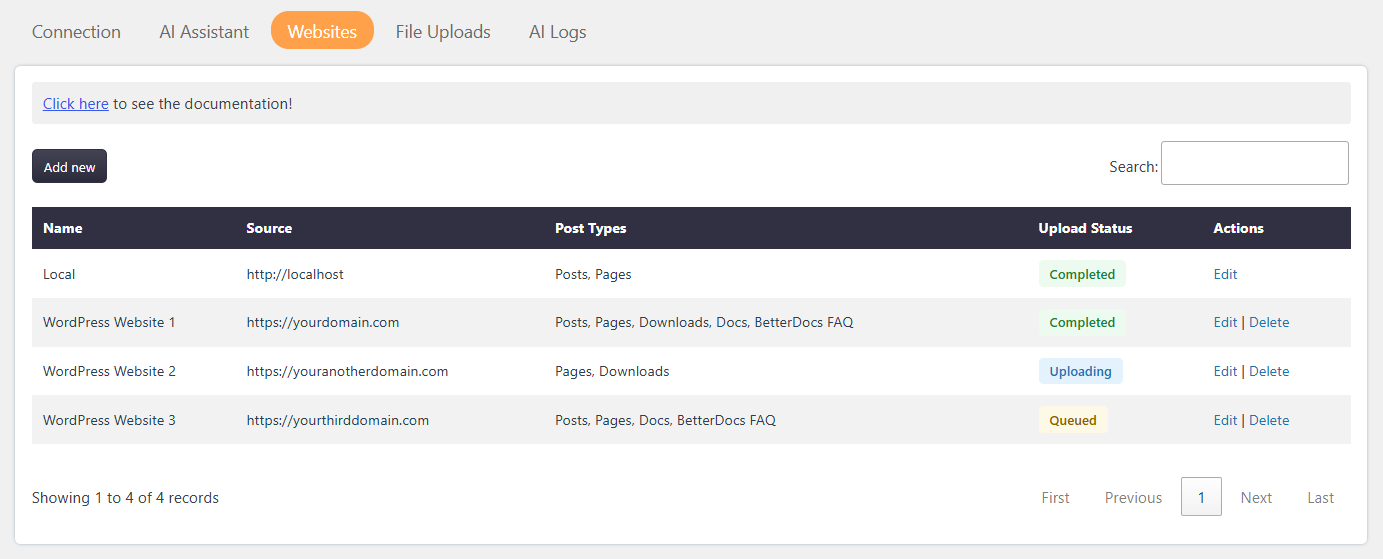
- Import published post types from local or external WordPress websites.
- Monitor training and indexing status.
- Delete training data from the AI provider and database.
Where to Find
For WordPress post types: Support → Settings → AI Assistant → Websites
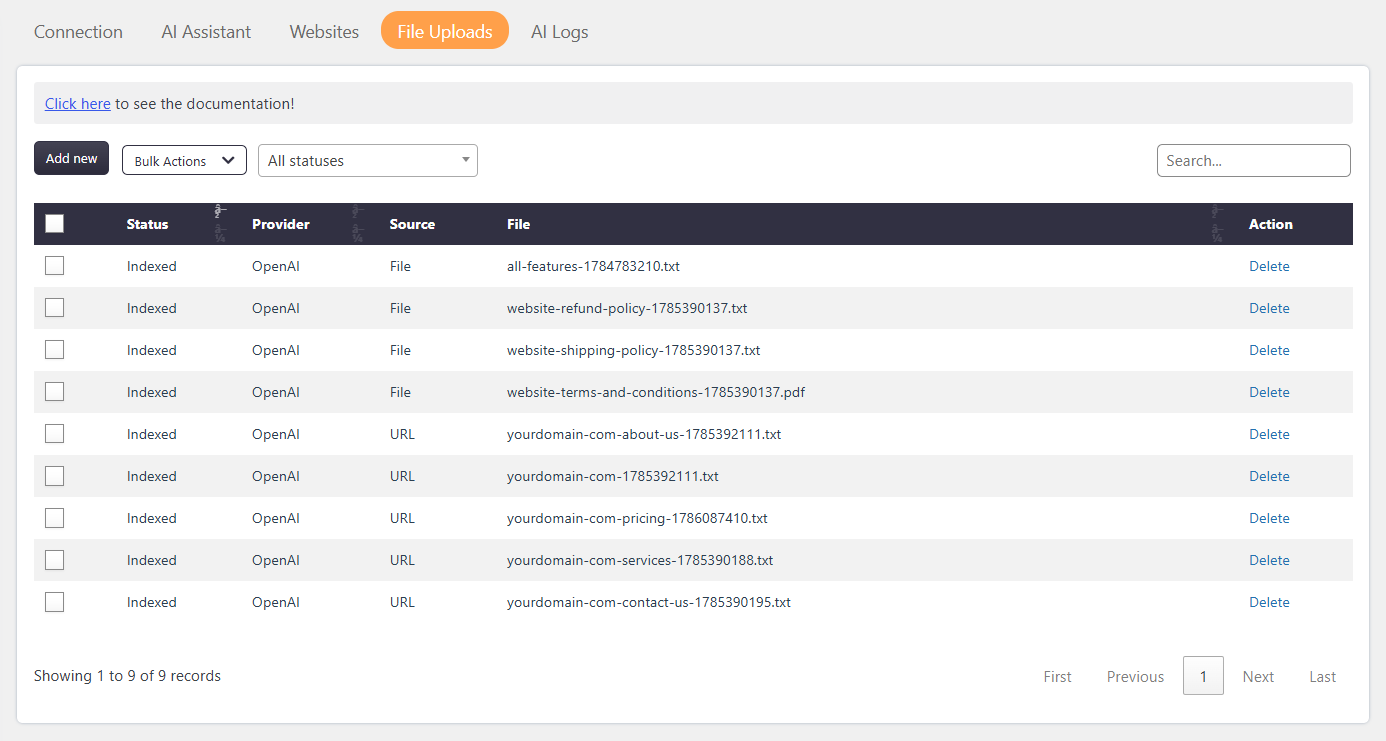
For files and URLs: Support → Settings → AI Assistant → File Uploads
How It Works
When a new training item is added, it is placed in a processing queue.
The system processes training items one by one using a cron event. The training data is uploaded to the selected AI provider and indexed into the RAG system.
Training data can come from:
- Published WordPress post types from local websites.
- Published WordPress post types from external websites.
- PDF files.
- TXT files.
- Website URLs.
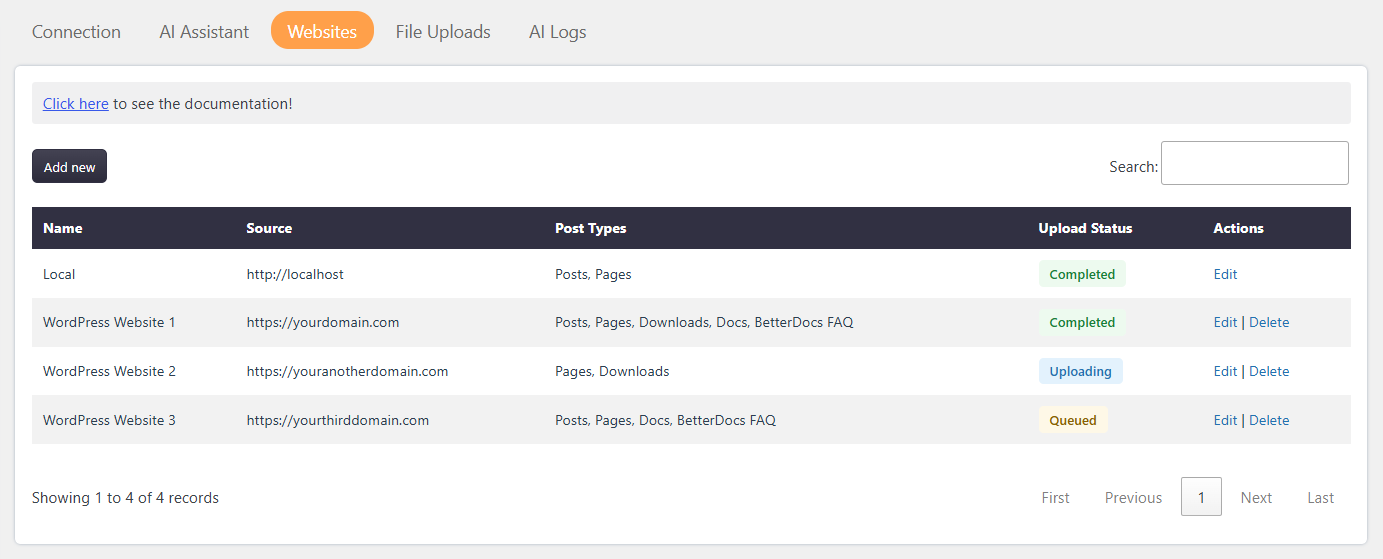
After successful processing, the training status changes to Indexed.
For files and URLs, processed training items can be viewed in the File Uploads section.
If processing fails, the status changes to Failed. The system retries the failed training item once. If the retry fails, the system automatically removes the failed training data.
Step-by-Step Guide
Add WordPress Website Training Data
- Go to Support → Settings → AI Assistant → Websites.
- Click Add New at the top of the page.
- Enter a name for the website.
- Enter the WordPress API endpoint using the WordPress website URL.
- For example, enter
https://example.com - Click Save.
- Edit screen wis opens with prefilled Name and WordPress API endpoint.
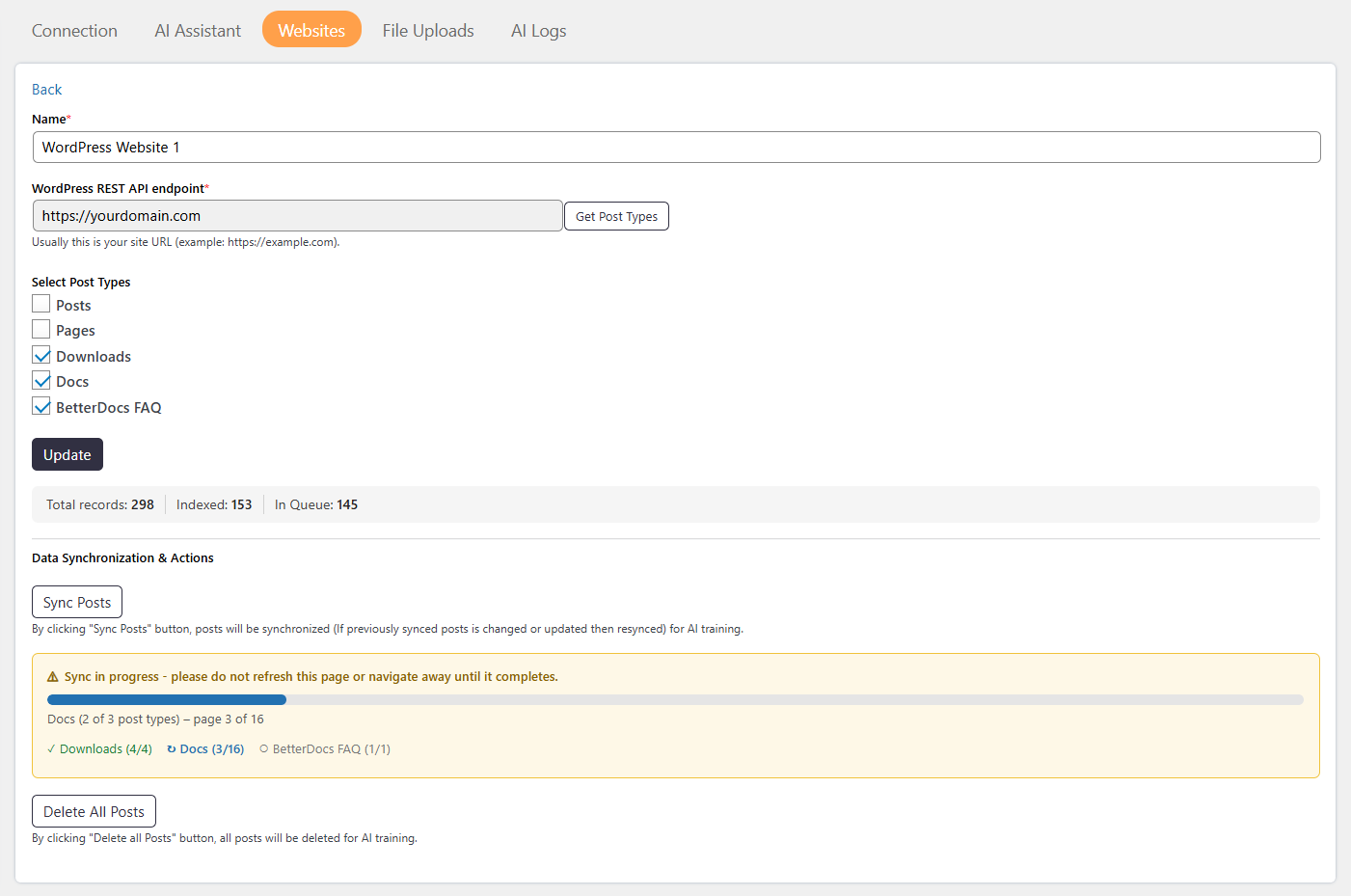
- Click on Get Post Types to get the available post types in website.
- Select the published post type that you want to upload.
- The system uploads all posts from the selected post type.
- Monitor the Total Uploaded Records, Total Indexed Records, and Total Records in Queue.
Sync WordPress Posts
You can sync or resync posts when posts are added, updated, or deleted on the website.
- When a post is updated, only the updated post is synced to the RAG system.
- When a post is added, only the new post is added to the RAG system.
- When a post is deleted, only the deleted post is removed from the RAG system.
The Delete All Posts action removes all posts related to the selected post type.
Add File or URL Training Data
- Go to Support → Settings → AI Assistant → File Uploads.
- Click Add New at the top of the page.
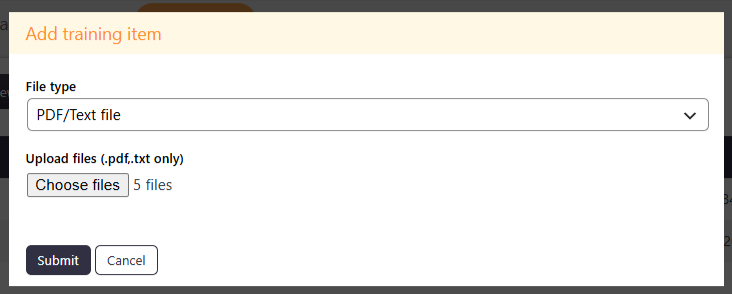
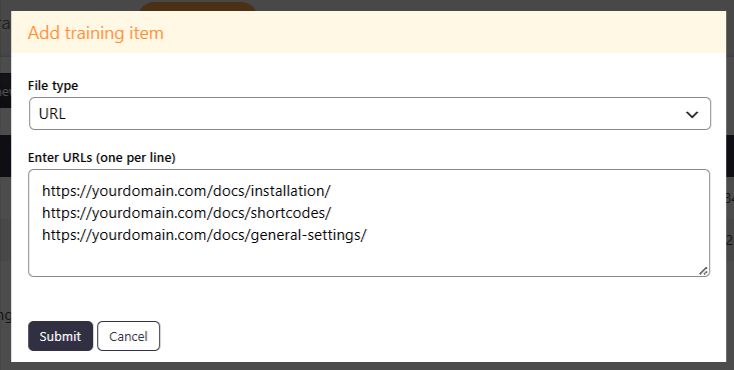
- Select the required training source.
- Choose PDF/Text File or URL.
- Upload one or more PDF or TXT files, or enter one or more URLs.
- Each uploaded PDF or TXT file can have a maximum size of 10 MB.
- Click Submit to start uploading the training data to the RAG system.
Supported Training Sources
The AI Training system supports the following training sources:
- Published WordPress Post Types:
- The system can import published post types from local and external WordPress websites.
- You can select a post type and upload all published posts belonging to that post type.
- Files
- The system supports the following file types:
- TXT
- Each uploaded file can have a maximum size of 10 MB.
- The system supports the following file types:
- URLs
- You can add website URLs to train the AI using the content available at those URLs.
For WordPress websites, published post types can also be imported using the website’s WordPress API endpoint.
Training Status Types
- New: The training item has been added and is waiting for processing or indexing.
- Processing: The training item has started uploading to the selected AI provider.
- Indexed: The training data has been successfully uploaded and indexed into the RAG system.
- Failed: The training process failed while uploading the training data to the AI provider.
- Deleted: The failed training data has been removed by the cron event after the retry attempt failed.
Bulk Actions
Bulk actions allow administrators to manage multiple AI training items at the same time.
- Bulk Delete: Bulk Delete removes multiple AI training items in a single action.
Notes / Tips
- Large datasets may take time to process and index.
- Training items are processed one at a time.
- Failed training items are retried once automatically.
- Failed training items are automatically removed if the retry also fails.
- Review the training status regularly to verify successful indexing.
- Deleting a training item permanently removes its training data from the RAG system and database.