
Overview
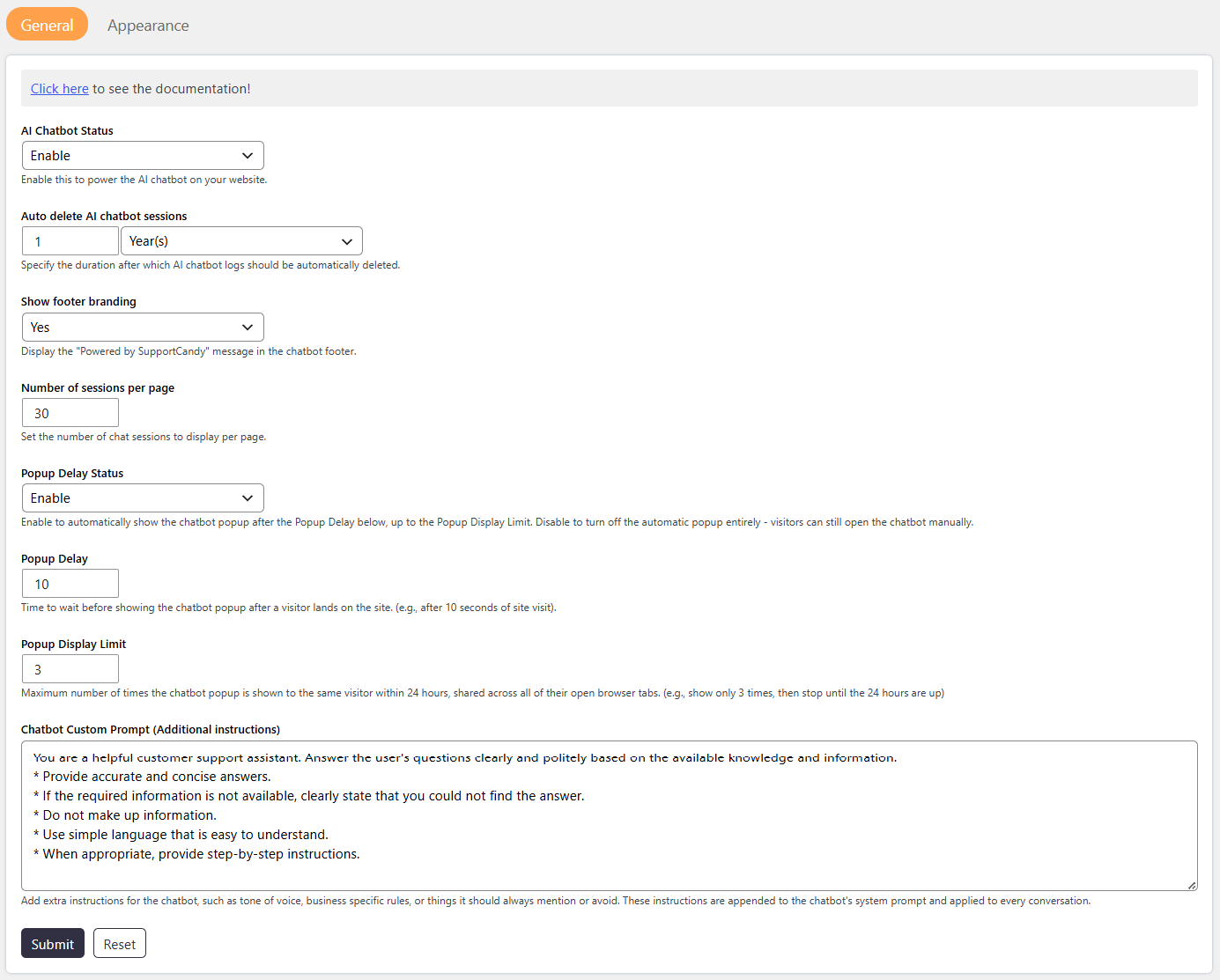
The General settings allow you to configure the basic behavior, display, and data management options of the AI Chatbot.
Before using the AI Chatbot, configure the required AI provider and API key through the AI Assistant settings.
Prerequisites for AI Chatbot Setup
Where to Find
Go to: Support → Settings → AI ChatBot → General
How It Works
The General settings control how the AI Chatbot operates on your website.
You can enable or disable the chatbot, manage chatbot session storage, control footer branding, configure the number of sessions displayed per page, and control when the chatbot popup automatically appears.
The popup settings allow you to control:
- Whether the chatbot popup appears automatically.
- How long the chatbot waits before appearing.
- How many times the popup can appear to the same visitor within 24 hours.
Step-by-Step Guide
- Go to Dashboard → SupportCandy → Settings → AI Chatbot.
- Open the General tab.
- Enable the AI Chatbot Status option to display the chatbot on your website.
- Configure Auto-delete AI Chatbot Sessions for chatbot session data.
- Choose whether to Show Footer Branding.
- Set the Number of Sessions per Page.
- Configure Popup Delay Status to enable or disable automatic chatbot popups.
- Set the Popup Delay to define how long the chatbot waits before showing the popup.
- Set the Popup Display Limit to control how many times the popup can appear within 24 hours.
- Click Submit to save the settings.
Options / Settings
- Enabled – Displays the AI Chatbot on your website.
- Disabled – Disables the AI Chatbot on your website.
- Days
- Months
- Years
- Yes – Displays SupportCandy branding in the chatbot footer.
- No – Hides SupportCandy branding from the chatbot footer.
- Enabled – The chatbot popup automatically appears after the configured Popup Delay, up to the configured Popup Display Limit.
- Disabled – The automatic chatbot popup is disabled. Visitors can still open the chatbot manually.
Add extra instructions for the chatbot, such as its tone of voice, business-specific rules, and information it should always mention or avoid. These instructions are added to the chatbot’s system prompt and applied to every conversation.
Notes / Tips
- Configure the AI provider and API key before using the AI Chatbot.
- Train the chatbot with relevant RAG data to improve response accuracy.
- Enable Popup Delay Status if you want the chatbot to appear automatically.
- Popup Delay controls how long the chatbot waits before showing the popup.
- Popup Display Limit controls how many automatic popups can appear within 24 hours.
- The popup display limit is shared across all open browser tabs for the same visitor.
- Visitors can manually open the chatbot even when automatic popups are disabled or the popup display limit has been reached.
- Regularly delete old chatbot sessions to help manage database size.