
Overview
The reCaptcha setting adds Cloudflare Turnstile protection to SupportCandy forms and screens.
It can be used on the:
- Ticket form
- Login screen
- Registration screen
- Profile screen
To configure reCaptcha, you need a Site Key and Secret Key for your domain.
Where to Find
Go to Support → Settings → Miscellaneous → reCaptcha.
How It Works
Cloudflare Turnstile verifies users before allowing access to protected SupportCandy forms or screens.
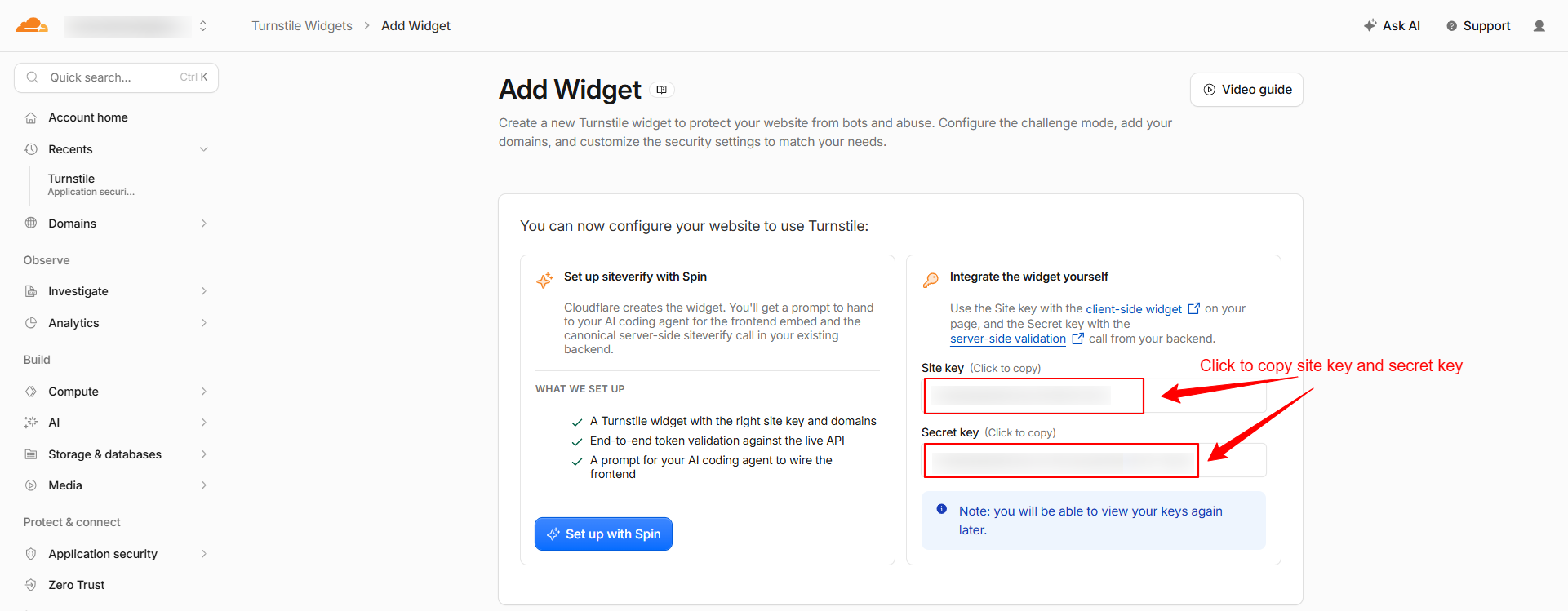
First, create a reCaptcha site in Cloudflare Turnstile. Then copy the generated Site Key and Secret Key into SupportCandy.
Step-by-Step Guide
Create Cloudflare Trunsstile Keys
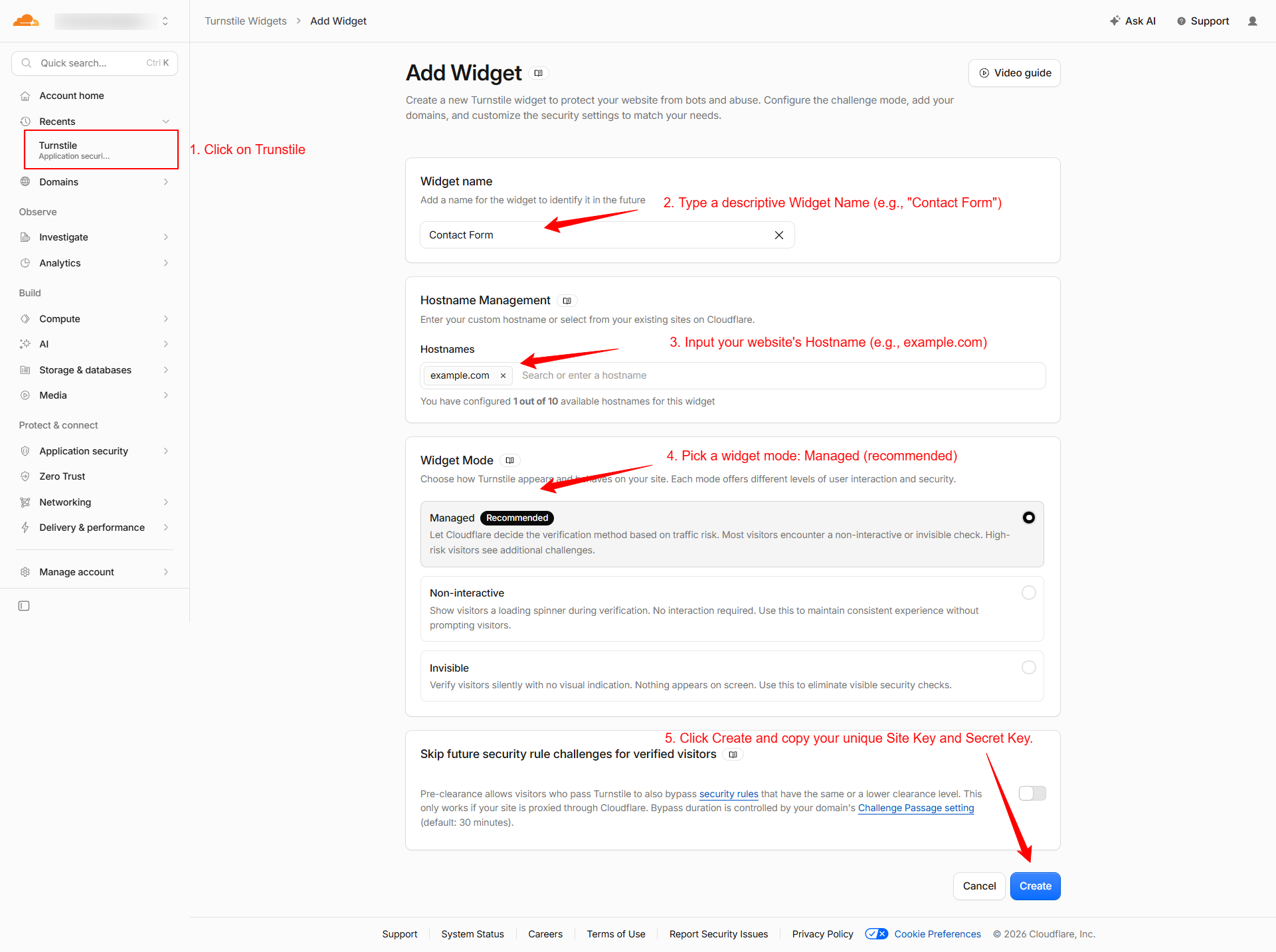
- Visit the Cloudflare Turnstile website.
- Log in to the Cloudflare Dashboard.
- Go to the Turnstile tab on the left menu.
- Click Add Widget.
- Type a descriptive Widget Name (e.g., “Contact Form”).
- Input your website’s Hostname (e.g., example.com).
- Pick a widget mode: Managed (recommended), Non-interactive, or Invisible.
- Click Create and copy your unique Site Key and Secret Key.
Configure reCaptcha in SupportCandy
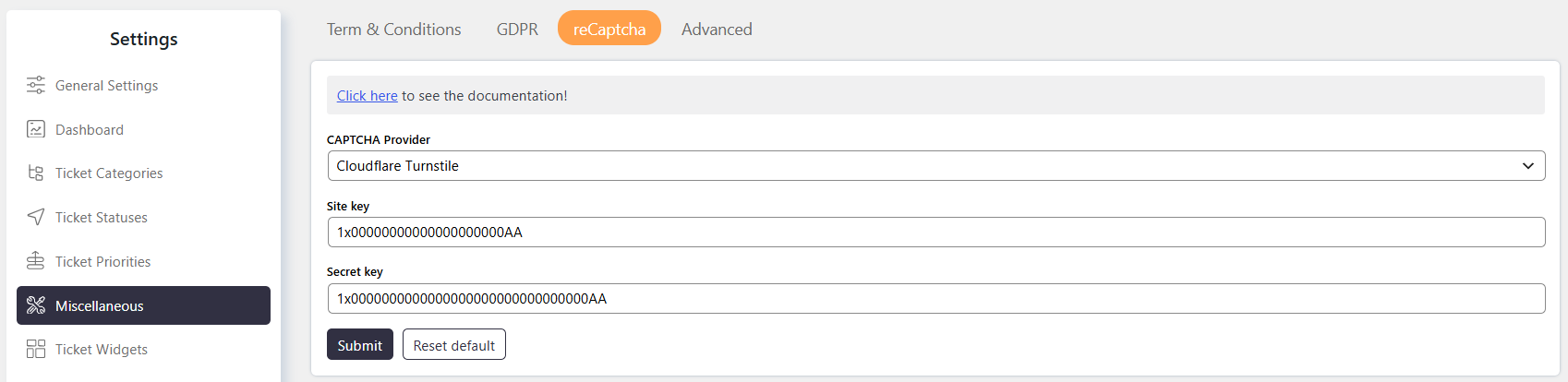
- Go to Support → Settings → Miscellaneous → reCaptcha.
- Select your Cloudflare Turnstile provider.
- Enter the generated Site Key.
- Enter the generated Secret Key.
- Click on Submit to save the settings.
Options / Settings
Select the captcha provider you want to add.
Site key is the kay provided by the captcha provider.
key is the kay provided by the captcha provider.
Notes / Tips
- A Site Key and Secret Key are required to configure reCaptcha.
- Enter the domain without
https://or/. - Use the website URL as the Label to easily identify the reCaptcha configuration.
- Keep the Secret Key secure and do not expose it publicly.